

The Subscription Widget is what customers see on your product page when purchasing a subscription.
You can fully customize its appearance directly inside your Shopify Theme Editor.
Where to Find the Subscription Widget Settings
- In Shopify Admin, go to Online Store → Themes
- Click Customize
- Navigate to a Product Page
- Click on the Content Vault – Subscription Widget block
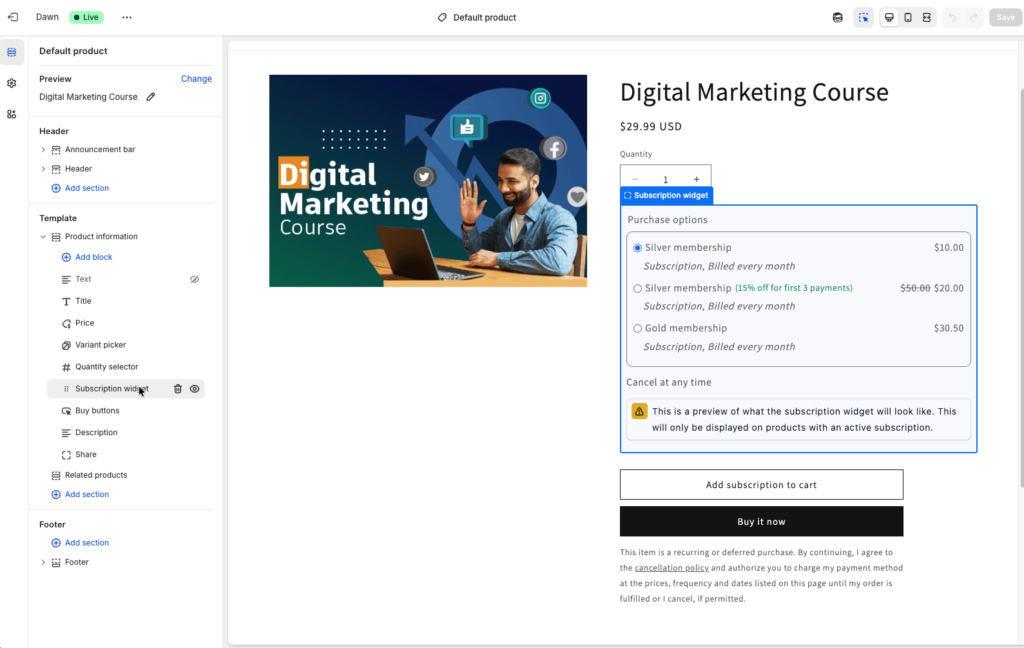
Once selected, you’ll see all customization options in the left sidebar.
Available Customization Options
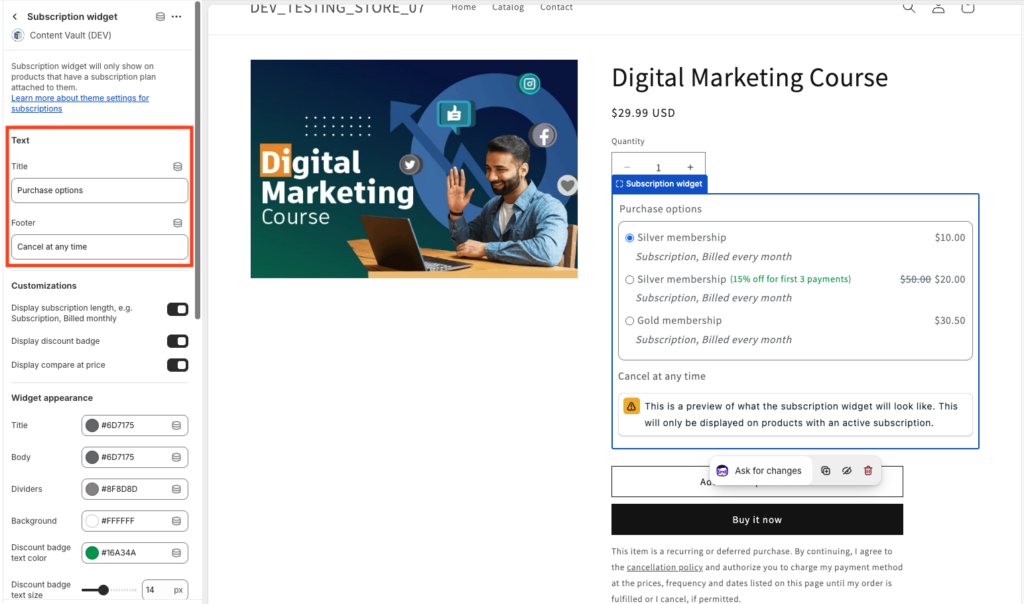
1) Text
This section controls the text labels customers see inside the widget.
- Title (example: “Purchase options”)
- Footer (example: “Cancel at any time”)
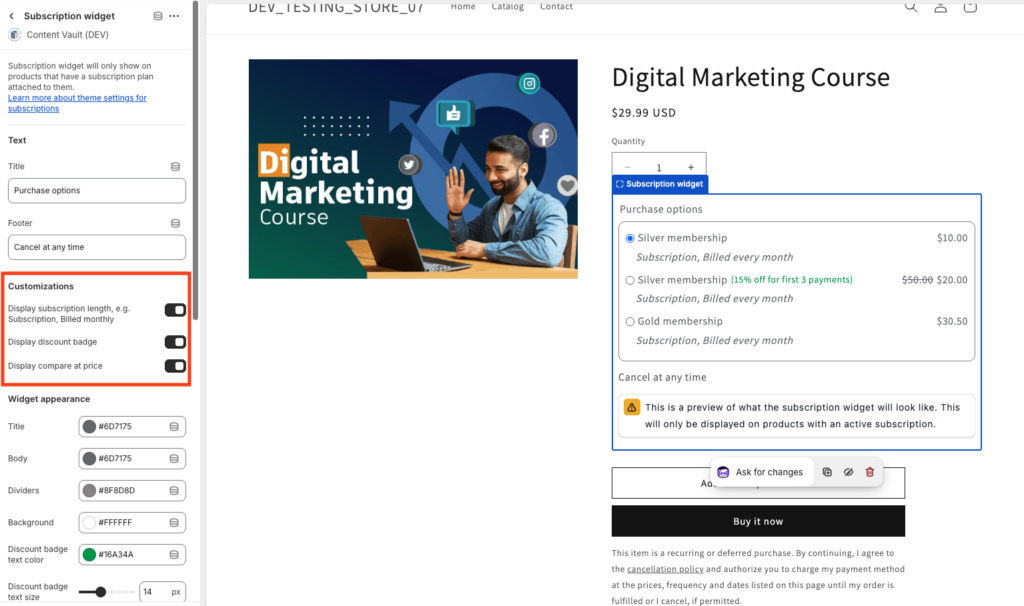
2) Customizations (Display Toggles)
These toggles control what extra details show inside the widget.
- Display subscription length
Shows the billing interval under the plan (example: “Subscription, billed monthly”). - Display discount badge
Shows a discount label when a plan has a discount (example: “15% off for first 3 payments”). - Display compare at price
Shows the “compare at” / crossed-out price when applicable.
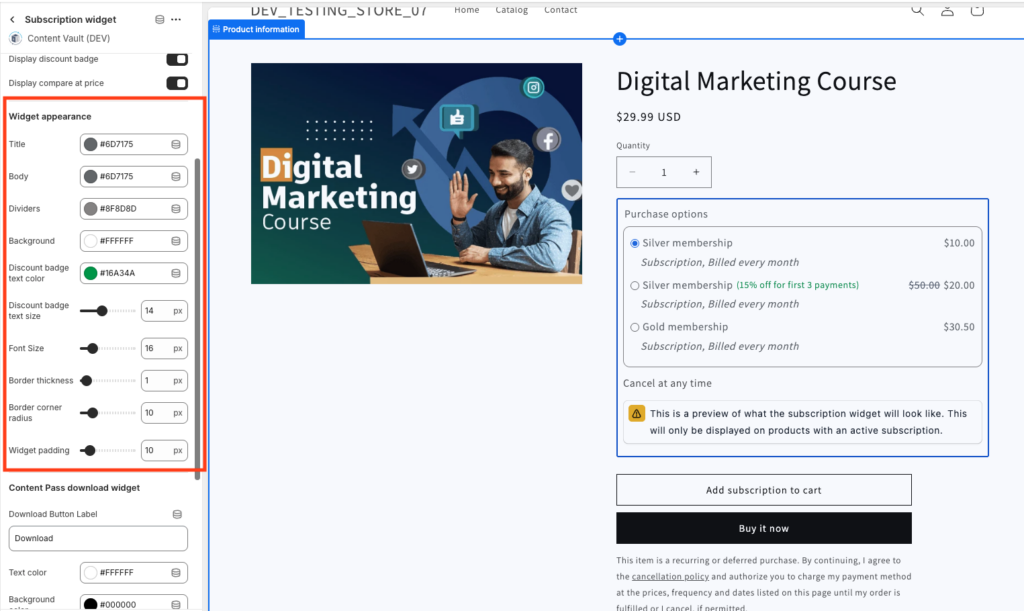
3) Discount Badge Styling
If Display discount badge is enabled, you can customize the badge appearance:
- Discount badge text color
- Discount badge text size
- Font size
- Border thickness
- Border corner radius
- Widget padding
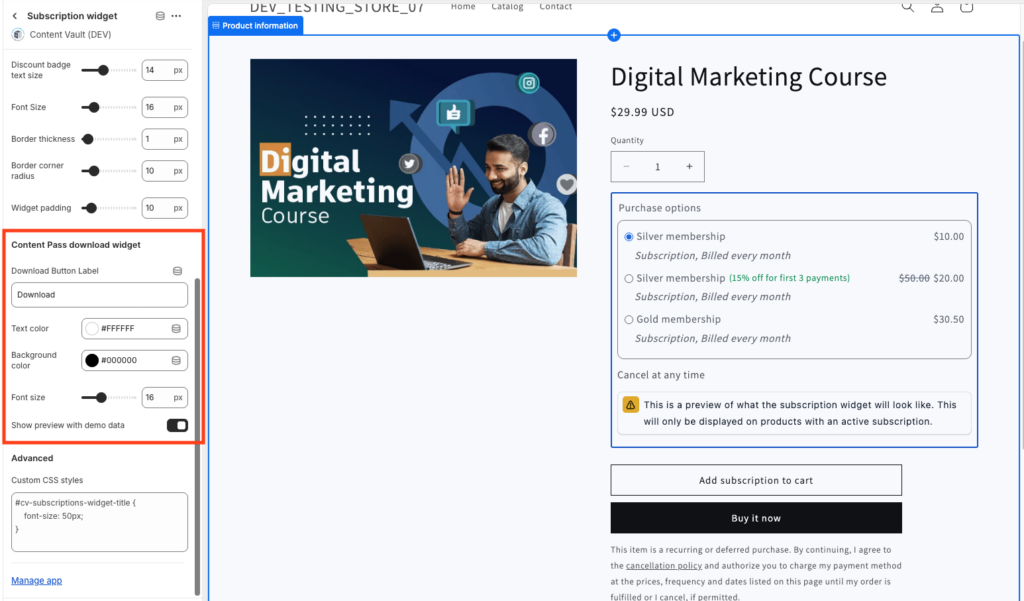
4) Content Pass Download Widget (Content Pass Subscriptions Only)
If you’re using Content Pass, you can customize the subscriber download button:
- Download Button Label
- Text color
- Background color
- Font size
- Show preview with demo data (useful for theme editor previews)
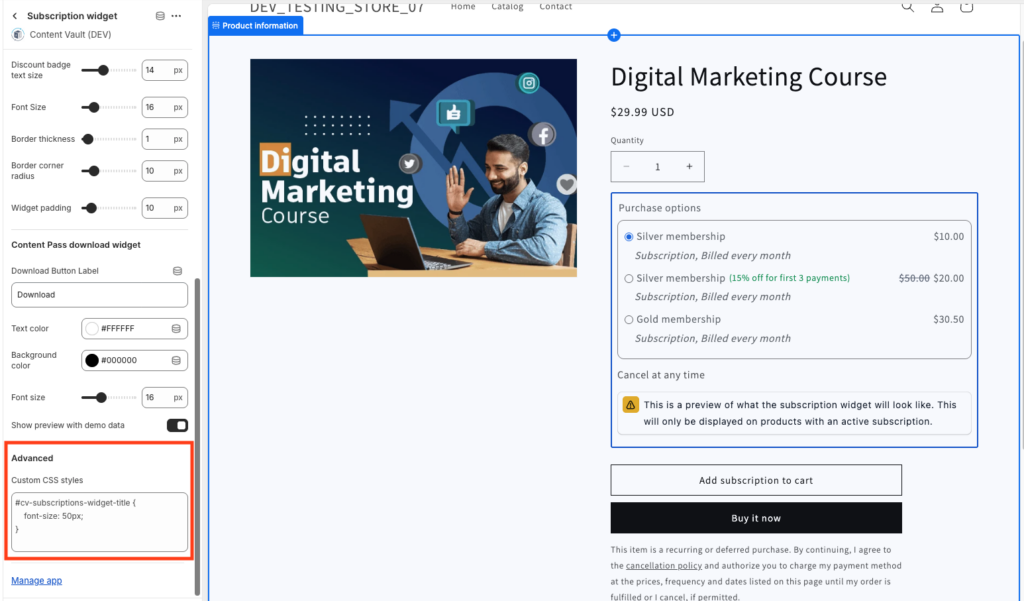
5) Advanced (Optional) – Custom CSS
For deeper styling control, you can add CSS overrides.
Example:
#cv-subscriptions-widget-title {
  font-size: 50px;
}
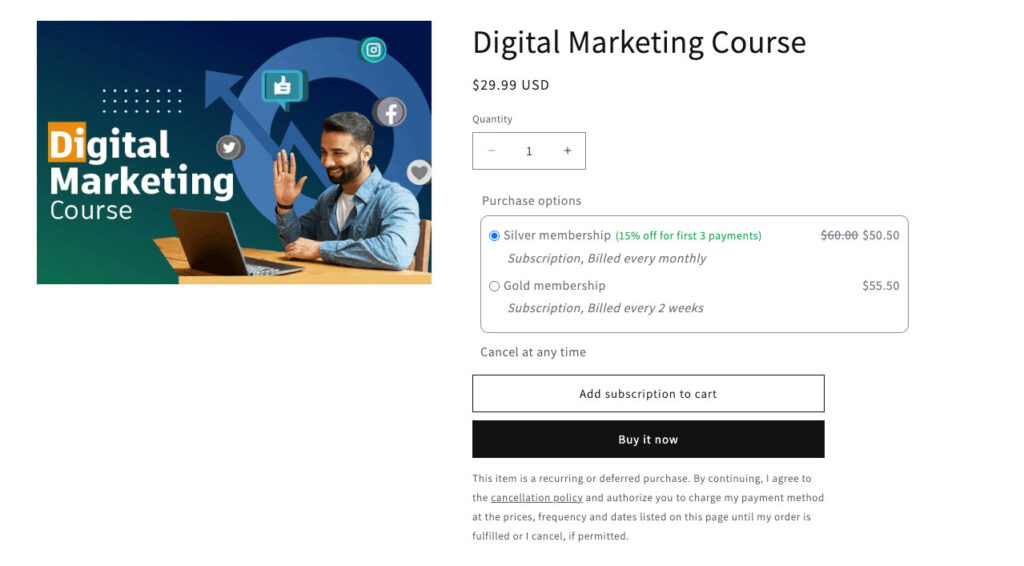
What Customers See
On the product page, customers can:
- Choose a tier (plan)
- See billing frequency / subscription length (if enabled)
- See discounts and compare-at pricing (if enabled)
- Add the subscription to cart
Important Notes
- The widget only appears on products with an active subscription attached
- Changes update immediately in your theme preview
- Styling changes do not affect subscription logic — only appearance
Best Practices
- Keep font sizes consistent with your theme
- Use padding to avoid cramped layouts
- Highlight discounts with badge styling
- Preview on both desktop and mobile before publishing
If you need help matching the widget to your brand, feel free to reach out via live chat.