

Content Vault lets you automatically personalize and protect your PDF files by adding customer-specific stamps (like name, email, order number, etc.) at the time a file is downloaded. This helps discourage unauthorized sharing and maintains a better ownership experience for your buyers.
What Is PDF Stamping?
PDF stamping (also sometimes called a watermark) allows you to automatically imprint specific text onto PDF files when customers download them. The stamp can include dynamic information like the customer’s name, email, order number, or subscription details — helping identify the original recipient if a file is shared.
Where to Configure PDF Stamping
- In your Shopify admin, go to:
Apps → Content Vault → Files - Locate the PDF file you want to protect.
- Click the file name to open the File Detail Page.
- Scroll to the PDF Stamping / Watermark section.
⚠️ PDF stamping only works with PDF files. Other file types (like ZIP, audio, etc.) are not supported for stamping at this time.
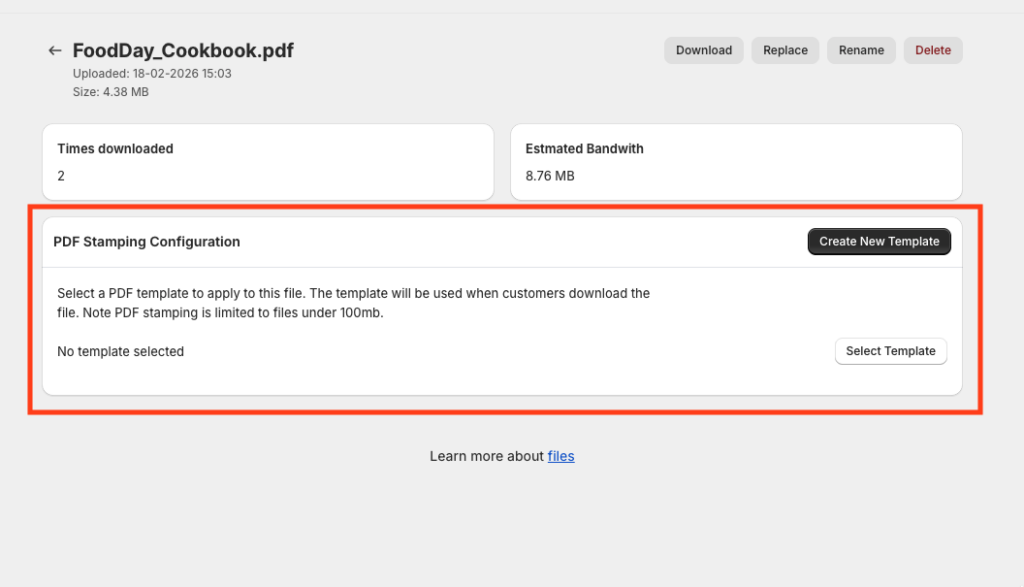
Creating a PDF Stamp Template
Once in the PDF Stamping section:
- Click Create New Template
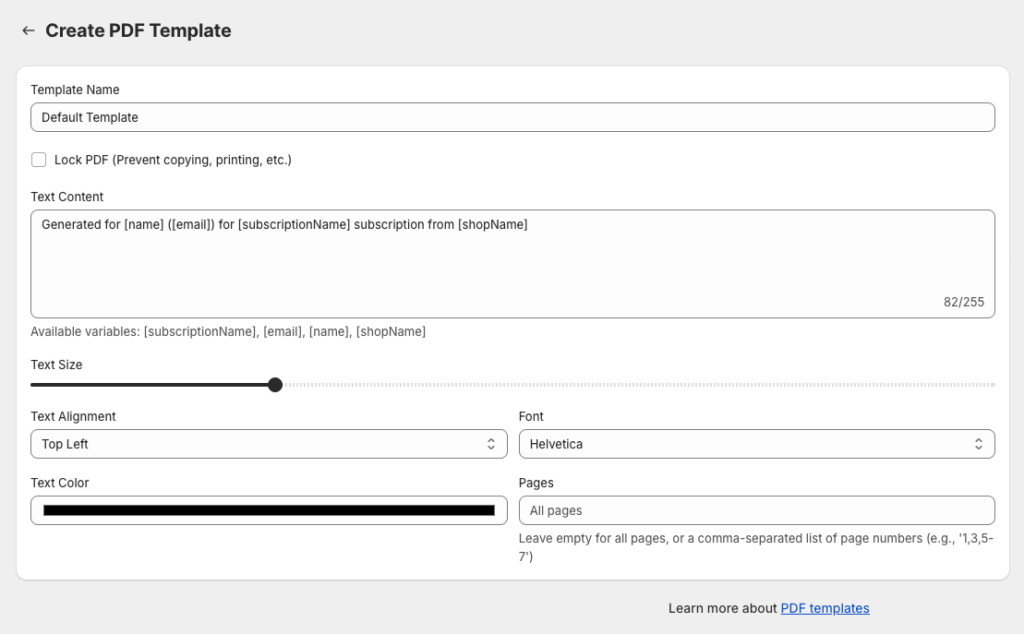
– This opens the stamping template editor. - Enter the content you want stamped on the PDF.
– You can mix static text and dynamic variables (see below). - Customize the appearance:
– Font size, style, alignment, color
– Placement (e.g. top of page, left corner, etc…) - Choose the pages to apply the stamp to
– Leave blank to stamp every page, or specify particular page numbers.
Dynamic Variables
You can insert variables that will be replaced with real data when the customer downloads their file. Common options include:
- Customer name
- Customer email
- Store name
- Subscription name
(Variables available may vary by plan or configuration.)
Example text:
Downloaded by [name][email] — at [shopName]
This text will automatically personalize each download.

Linking a Stamp Template to a File
After creating one or more templates:
- Open any PDF file’s File Detail page.
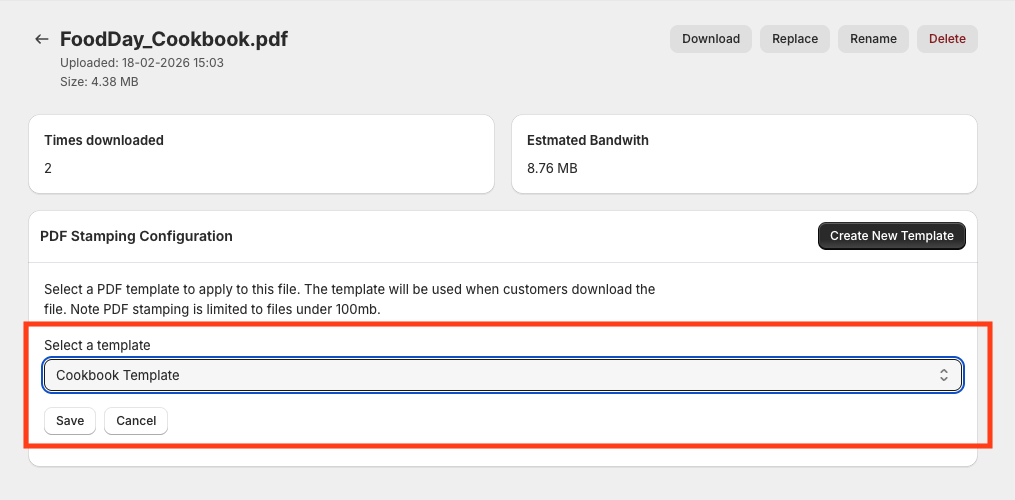
- In the PDF Stamping section, click Select Template.
- Choose the template you want applied.
- Save your selection.
That template will now be used whenever this PDF is downloaded by a customer.
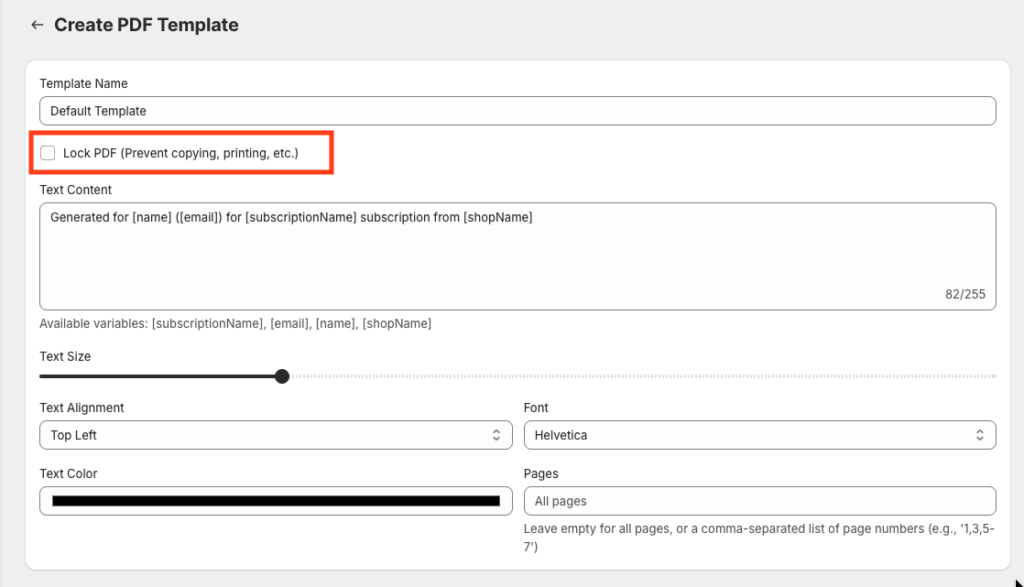
Optional: Enable PDF Locking
Some stamping setups allow you to lock the PDF so parts of it cannot be edited, printed, or copied after stamping. This adds an extra layer of protection against unauthorized modification or removal of the stamp.
How It Works With Subscriptions
When a subscriber downloads a stamped PDF:
- Content Vault applies the template at the time of download.
- The downloaded file contains the customer’s specific data.
- If the subscriber later cancels, new downloads will still be stamped if they still have access.
Best Practices
- Use small, unobtrusive stamps so that the experience feels clean for customers.
- Include key identifiers (like customer name and email) that make sharing less appealing.
- Test a few downloads after setup to confirm the stamp appears as expected.
If you’d like help designing your first PDF stamp template or have questions about which variables you can use, feel free to reach out anytime!