
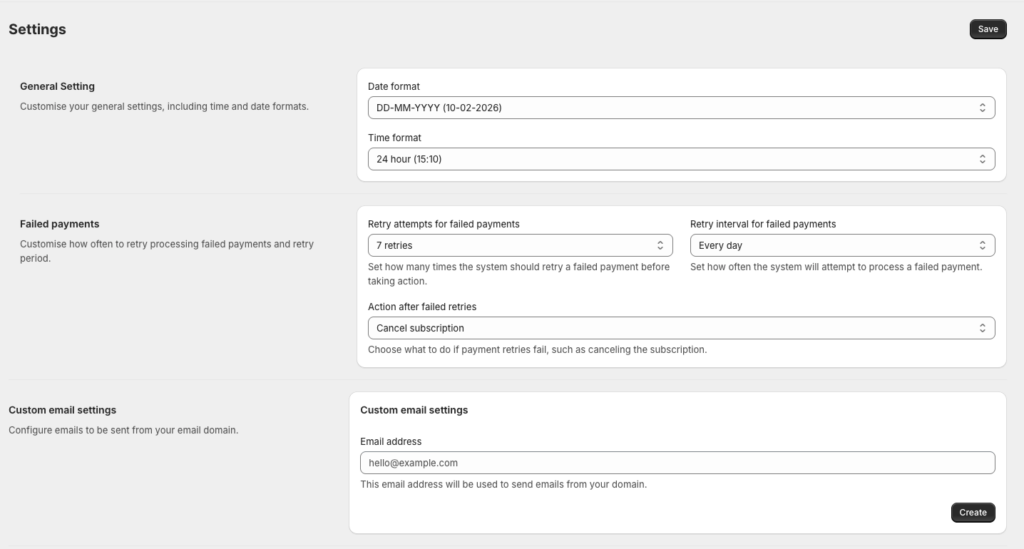
The Settings page in Content Vault lets you control how your subscriptions behave globally — from date formats and failed payment handling to email delivery and notification templates.
You can access this page from Apps → Content Vault → Settings.
General Settings
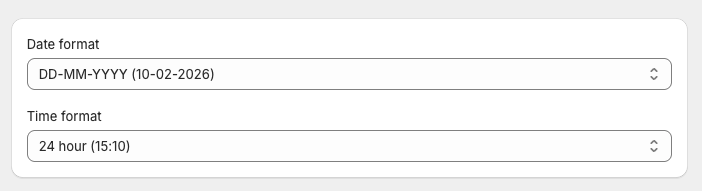
These settings control how dates and times are displayed across the Content Vault admin.
Date Format
Choose how dates appear throughout the app (for example: DD-MM-YYYY).
Time Format
Select between:
- 12-hour format (AM/PM)
- 24-hour format
Failed Payments
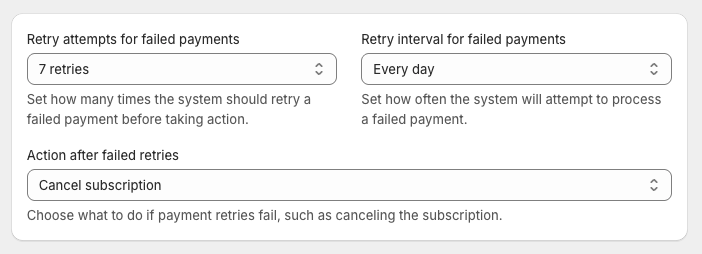
Configure how Content Vault handles subscription payments that fail.
Retry Attempts
Set how many times Content Vault should retry a failed payment before taking action.
Retry Interval
Choose how often retries occur (for example: daily).
Action After Failed Retries
Define what happens if all retries fail:
- Cancel subscription
- Pause subscription (if enabled in your workflow)
These settings help reduce involuntary churn while still giving you control over how long to retry payments.
Custom Email Settings
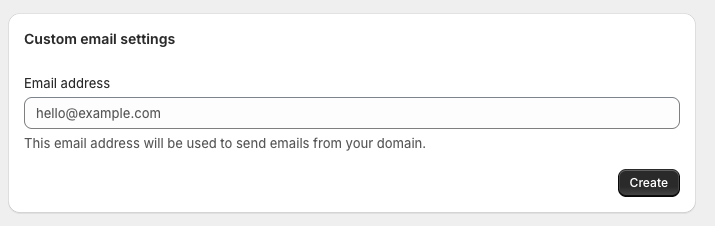
You can send Content Vault emails from your own email address instead of a default sender.
Email Address
Enter the email address you want emails to be sent from (for example: [email protected]).
Once saved, Content Vault will use this address for all customer notifications.
Email Templates
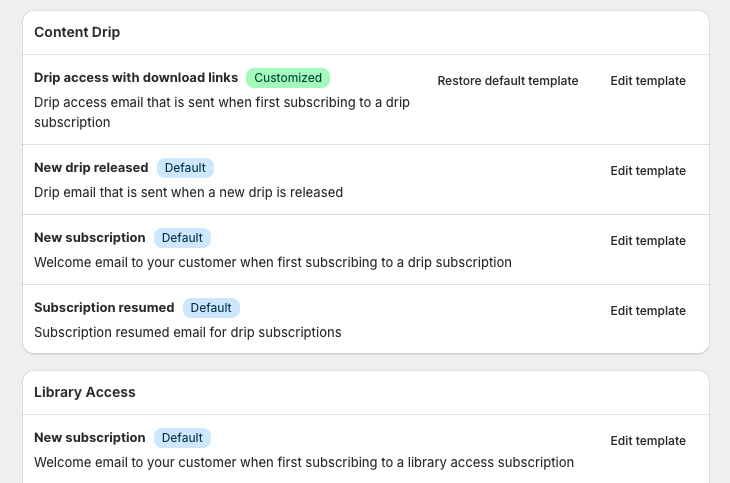
Content Vault includes fully customizable email templates for every major subscription event.
Templates are grouped by subscription type and system events.
Content Drip Emails
- New subscription
- New drip released
- Drip access with download links
- Subscription resumed
Library Access Emails
- New subscription
- Vault access with download links
- Files updated
- Subscription resumed
Content Pass Emails
- New subscription
- Subscription resumed
General Emails
- Subscription paused (access retained / revoked)
- Subscription cancelled (access retained / revoked)
- Payment due reminder
- Payment failed
Each template can be:
- Edited individually
- Restored to the default version at any time
Editing an Email Template
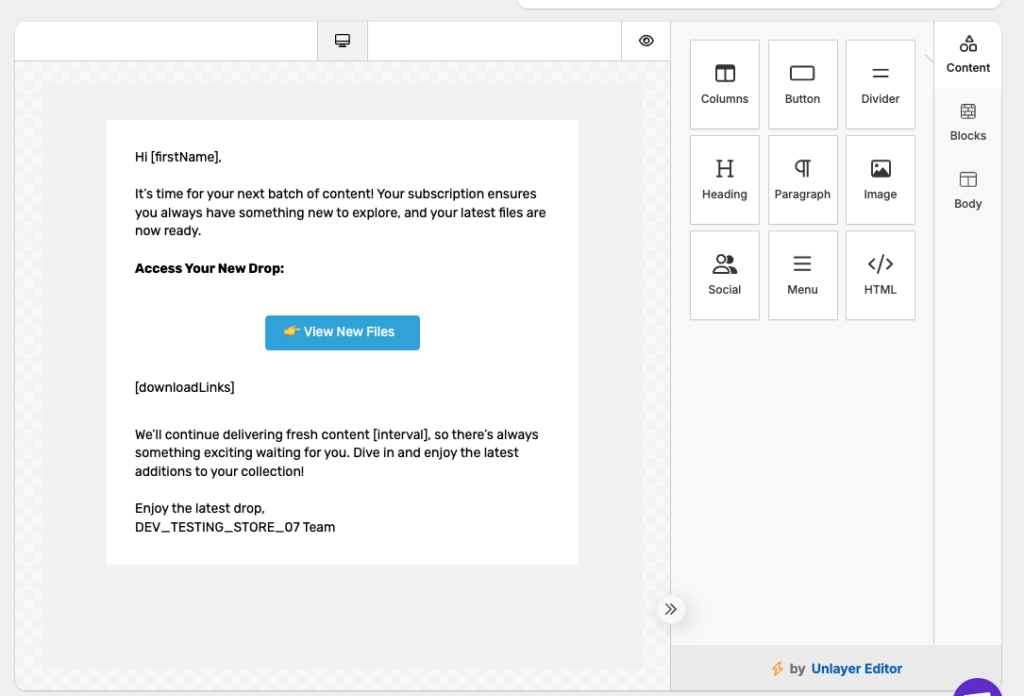
When editing a template, you can:
- Customize the subject line
- Modify the email content
- Control how download links and access details appear
Changes apply immediately to future emails.
Saving Changes
Don’t forget to click Save at the top of the page after making changes.
All settings are applied globally across your Content Vault subscriptions.
If you’re unsure how a setting impacts your specific setup, feel free to reach out via live chat — we’re happy to help you dial it in.