

You can offer a percentage-based promotional discount on a subscription tier for a specific number of billing cycles — for example:
- 20% off for the first 3 months
- 15% off for the first 6 payments
This is configured per subscription tier under Advanced Pricing.
Where to Set This Up
- Go to Content Vault → Subscriptions
- Create a new subscription or edit an existing one
- Scroll to the Tier details section
- Enable Show advanced pricing options
- Select Percentage discount
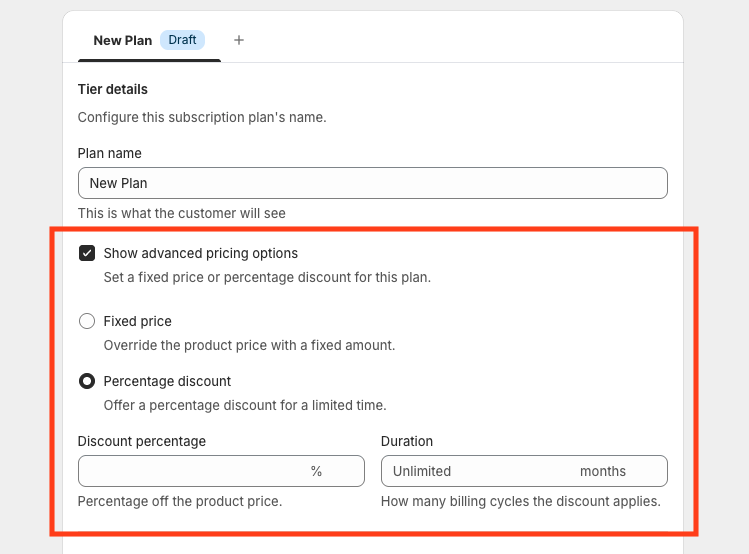
Step 1: Set the Discount Percentage
Enter the percentage you want to discount from the product’s regular price.
Example:
- Product price: $29/month
- Discount: 20%
- Customer pays: $23.20/month
Step 2: Set the Discount Duration
Under Duration, choose how many billing cycles the discount should apply.
Options:
- Unlimited → Discount applies for the lifetime of the subscription
- Specific number of months → Discount applies only for that many billing cycles
Example:
- Discount percentage: 20%
- Duration: 3 months
Result:
- Month 1 → 20% off
- Month 2 → 20% off
- Month 3 → 20% off
- Month 4+ → Full regular price
The system automatically switches back to full price after the defined duration.
Important Notes
- Duration is based on billing cycles, not calendar months.
- This feature works per tier — each tier can have its own discount rules.
- Discount codes are not required — the discount is applied automatically.
- Fixed price tiers do not support limited-time discounts.
Common Use Cases
- Launch promotion: 25% off first 2 months
- Early-bird special: 20% off first 3 billing cycles
- Incentive for annual plan signups
If you need help setting up a promotional discount on your subscription tiers, feel free to reach out via live chat.