Setting up a Library Access subscription

A Library Access Subscription gives customers access to a library of digital files based on the access rules you configure. Access can be limited to an active subscription or retained after cancellation, depending on your settings.
Step 1: Create a New Library Access Subscription
- In your Shopify admin, go to Apps → Content Vault → Subscriptions (Content Vault is listed as Digital Subscriptions in your Shopify admin).
- Click Create new Subscription.
- In the Select subscription type dialog, choose Library Access — “Subscribers get access to all content once subscribed.”
⚠️ Before customers can subscribe, make sure the Subscription widget app embed is switched on (Online Store → Themes → Customize → App embeds). In most themes the embed shows the widget on your product pages by itself; see Installing Content Vault for the widget block.
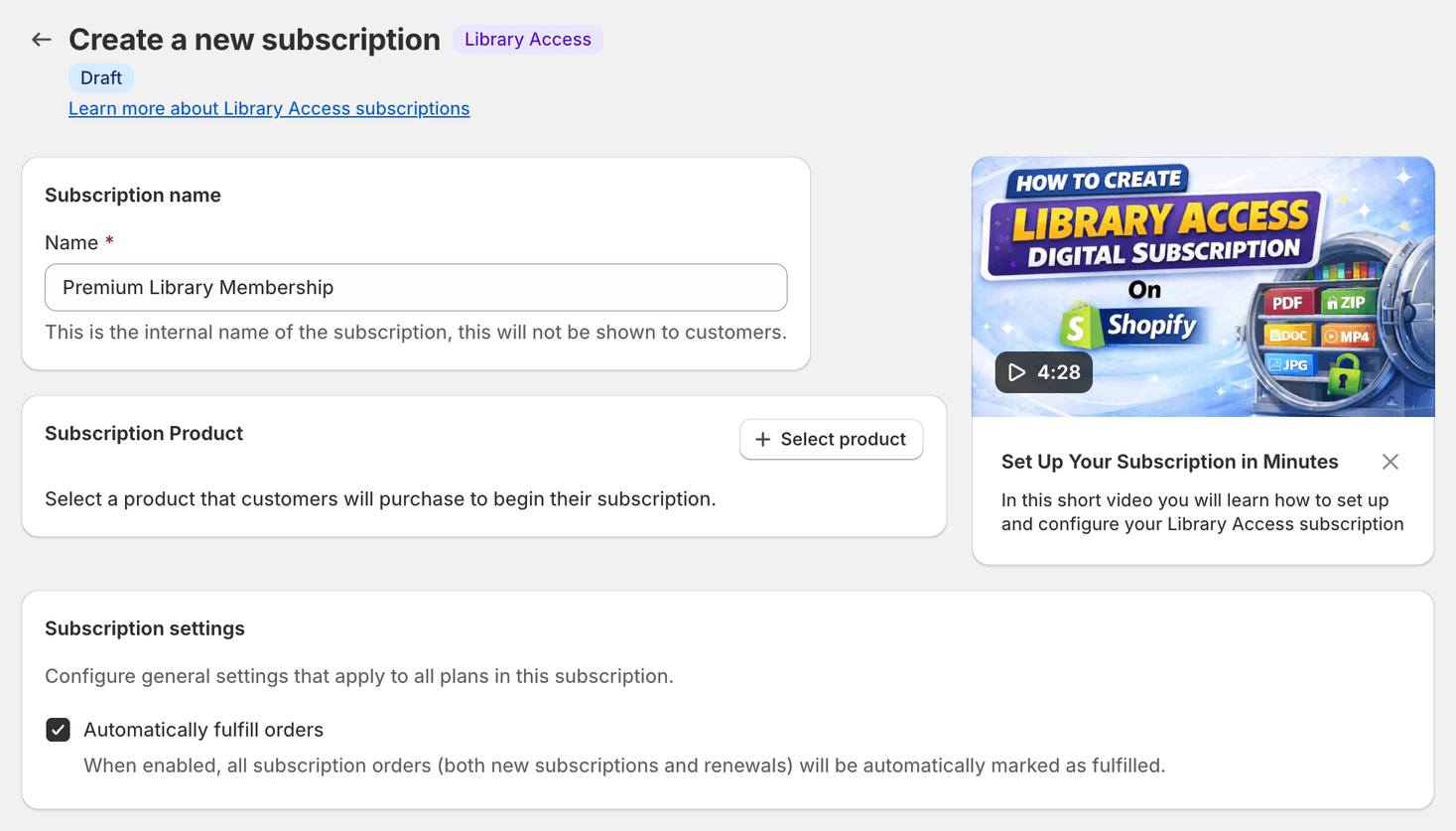
Step 2: Basic Subscription Details
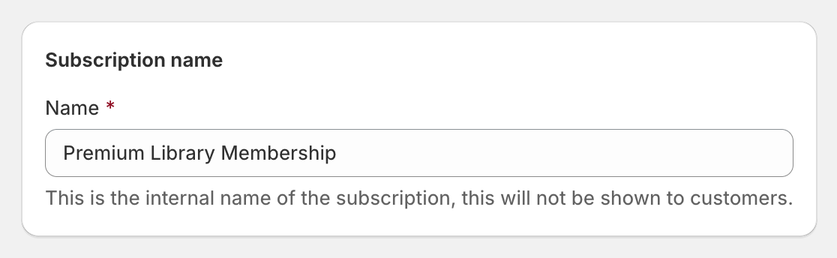
Subscription Name
Enter an internal name for the subscription. This is for your reference inside Content Vault: customers don’t see it. Emails and PDF stamps that use [subscriptionName] show the plan’s name instead (for example Basic), so give your plans names customers can read.
Example: Premium Library Membership
Subscription Product
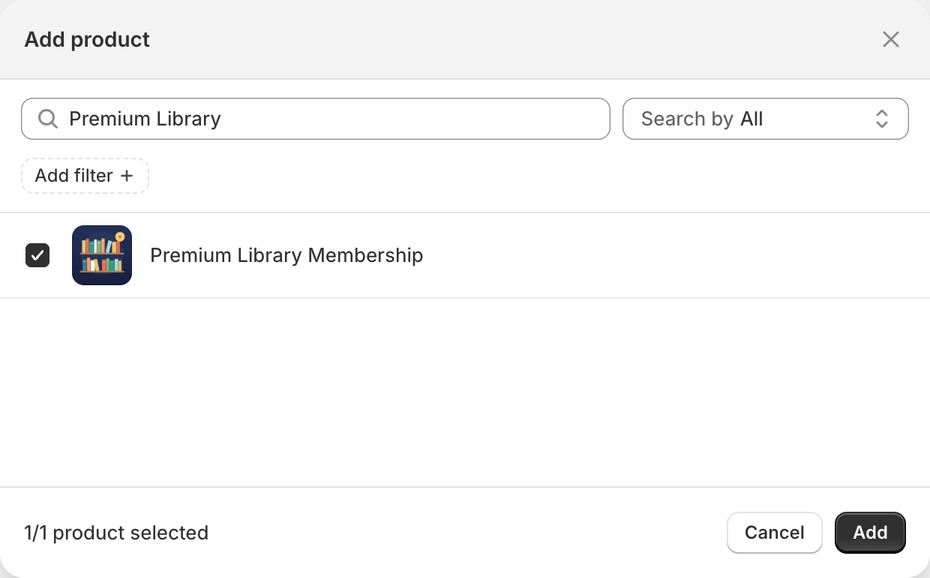
Select the Shopify product customers will purchase to begin their subscription.
This product:
- Appears on your storefront
- Is where customers choose their tier
- Triggers subscription creation when purchased
Click Select product, search for the product, tick it and click Add.
Subscription Settings
Choose whether to automatically fulfill subscription orders.
- Automatically fulfill orders (enabled by default) – recommended for most digital subscriptions.
- Disable this only if you need manual fulfillment logic. Automatically fulfilling subscription orders explains when to turn it off.

Step 3: Configure Subscription Tiers
Each tier represents a different subscription option customers can choose on the product page (not at checkout).
You can add multiple tiers (e.g. Basic, Pro, VIP). Click + beside the plan tabs, name the tier in the Create new subscription tier dialog and click Create.
Each tier has its own:
- Customer-facing name
- Pricing rules
- Billing frequency
- File access & delivery settings
Tier Settings (Configured Per Tier)
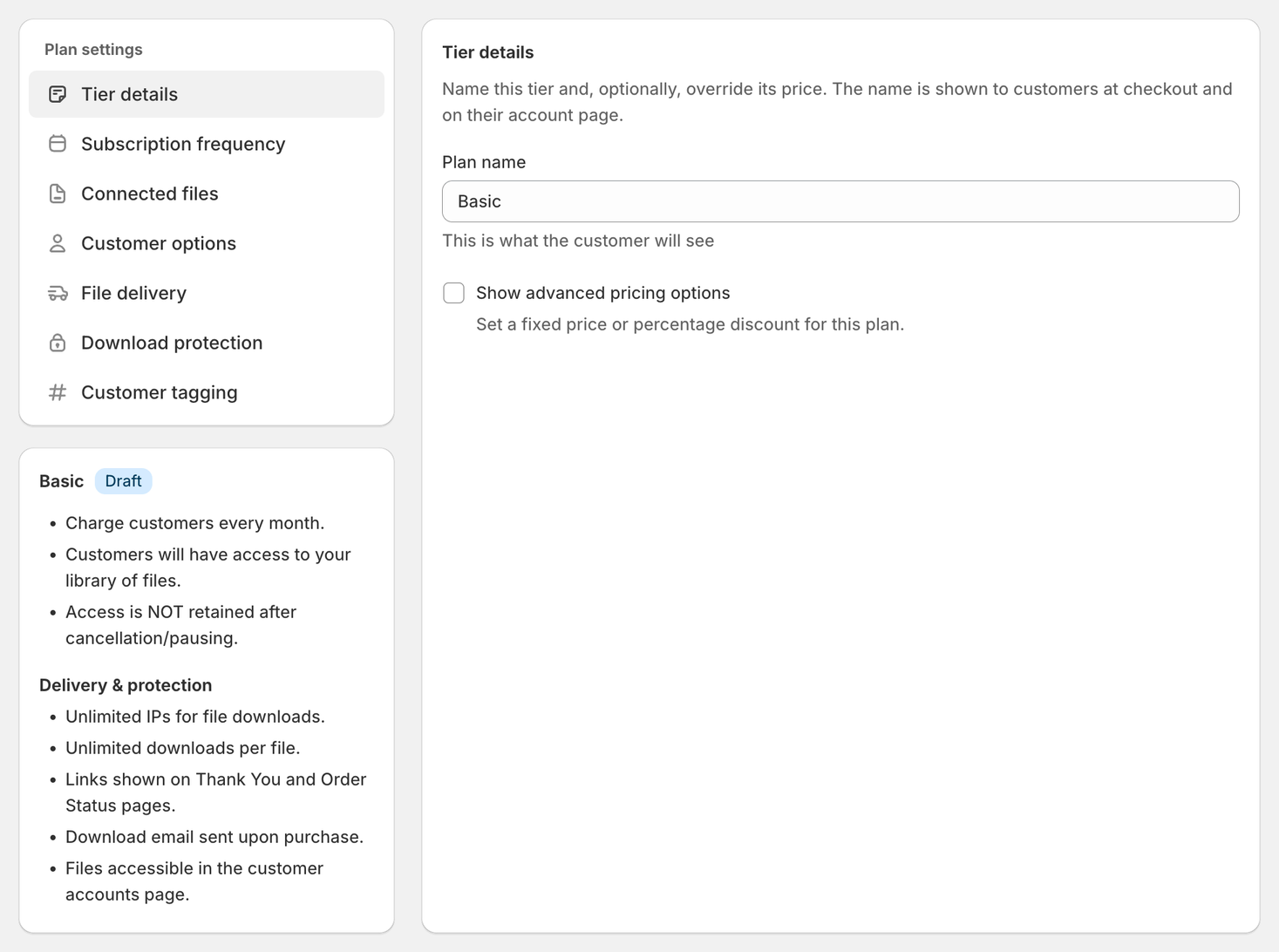
Plan Name
The name is shown to customers on the product page, at checkout and on their account page.
Example: Starter, Pro, All-Access
Advanced Pricing Options
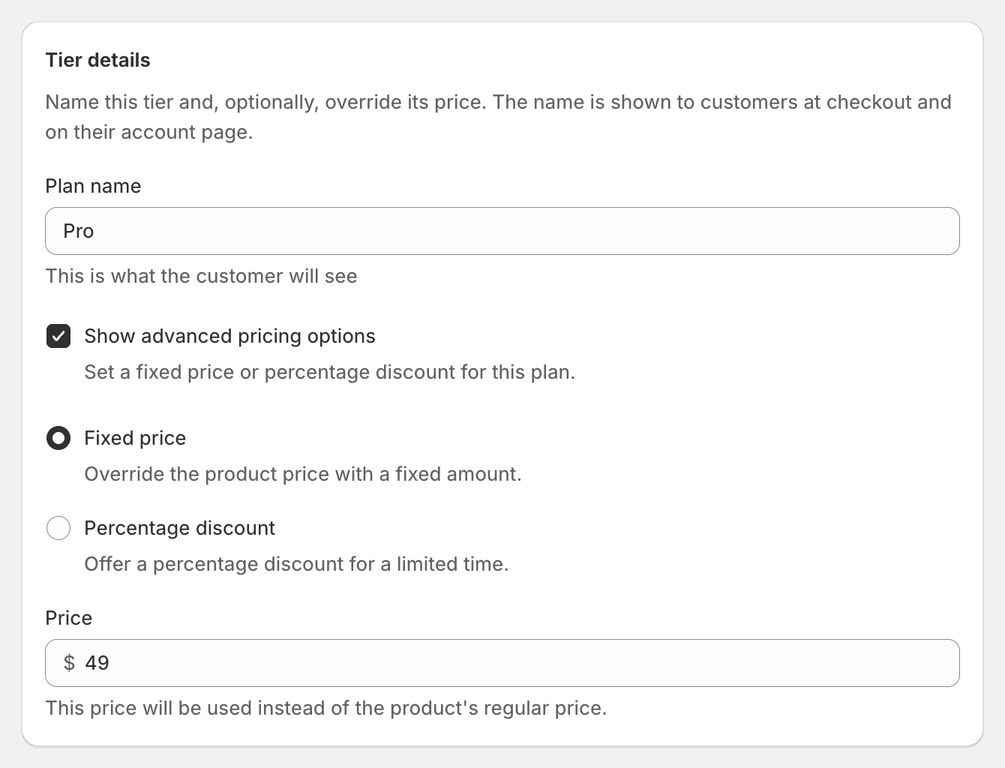
(Optional) Tick Show advanced pricing options to override what this plan costs:
- Fixed price – replace the product’s base price with a fixed amount
- Percentage discount – take a percentage off the product price, for a duration you set in billing cycles (leave the duration blank to discount for as long as the customer subscribes)
Subscription Frequency
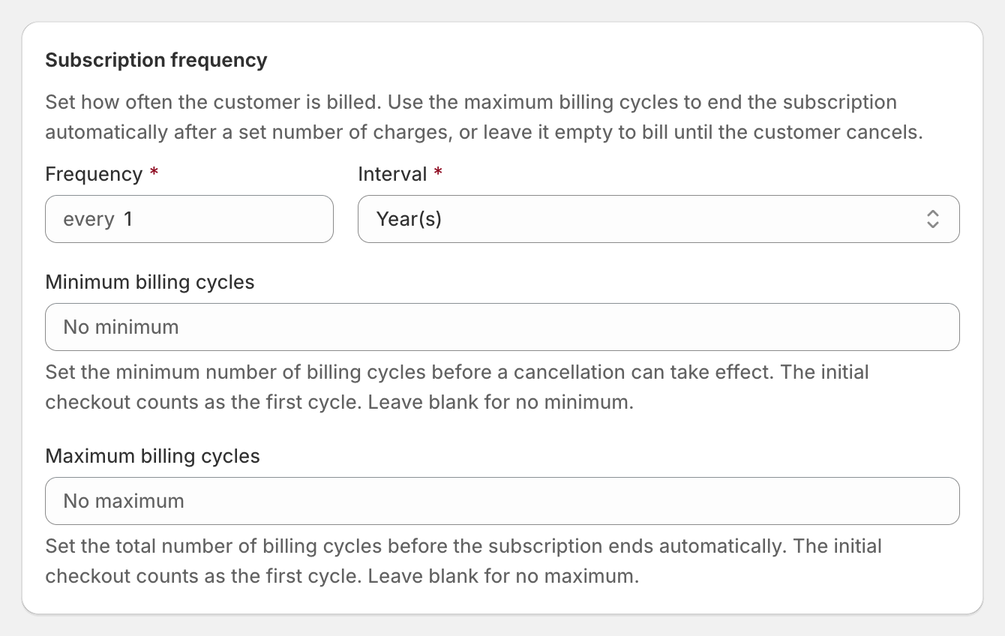
Set how often customers are billed for this tier.
- Frequency (e.g. every 1)
- Interval (e.g. month, year)
You can also bound how long billing runs:
- Minimum billing cycles – how many cycles must be paid before a cancellation takes effect. The initial checkout counts as the first cycle. Leave blank for no minimum.
- Maximum billing cycles – the total number of cycles before the
subscription ends automatically. The initial checkout counts as the first
cycle, so
12means 12 charges in total. Leave blank for no maximum.
Each tier can have a different billing frequency.
Step 4: Customer Options, File Delivery & Download Protection (Per Tier)
Each tier controls its own access rules, spread across three separate panels in the plan settings sidebar.
Customer options
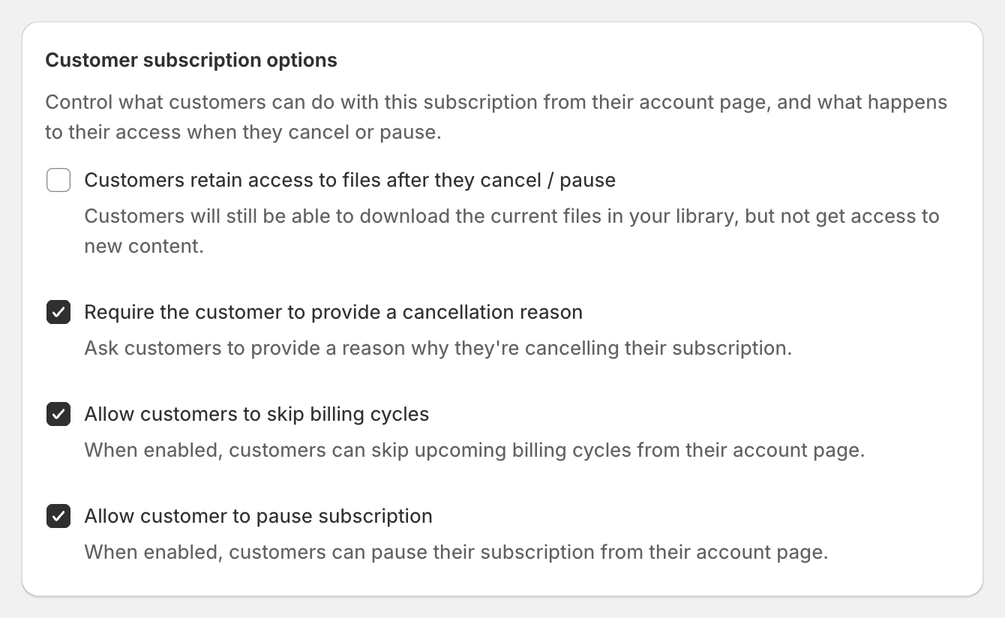
What customers can do from their account page, and what happens when they cancel or pause:
- Customers retain access to files after they cancel / pause (off by default) — they can still download the files already in their library, but get no new content
- Require the customer to provide a cancellation reason (on by default)
- Allow customers to skip billing cycles (on by default)
- Allow customer to pause subscription (on by default)
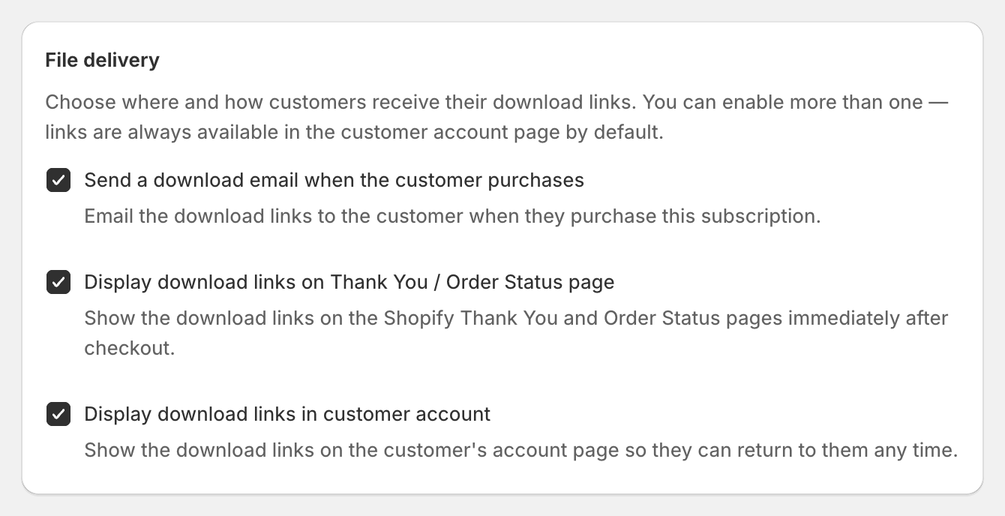
File delivery
Where customers receive their download links. You can enable more than one, and all three are on by default:
- Send a download email when the customer purchases
- Display download links on Thank You / Order Status page
- Display download links in customer account
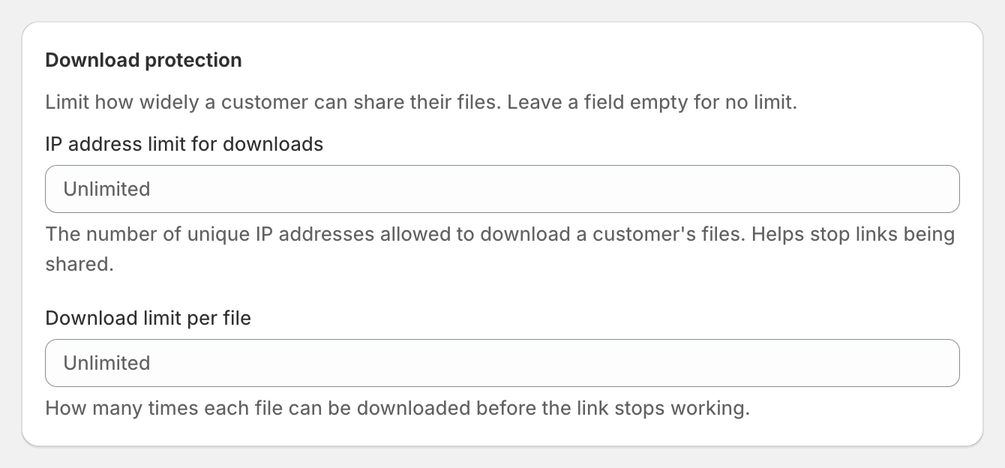
Download protection
Limit how widely a customer can share their files. Leave a field empty for no limit:
- IP address limit for downloads – how many unique IP addresses may download a customer’s files. Helps stop links being shared. Needs the Starter plan or above.
- Download limit per file – how many times each file can be downloaded before the link stops working.
How to limit file sharing explains both limits and how to choose sensible numbers.
Step 5: Customer Tagging
Content Vault can tag subscribers in Shopify automatically. Turn on Tag customers on Shopify and subscribers are tagged when they subscribe — the tags are removed again when they cancel or the subscription expires.
- Default tags, always applied:
SubscriberandSubscribed - <Plan name> - Custom tags (optional): a comma-separated list such as
VIP, Premium, Gold
Handy for segmenting email campaigns, discounts and customer lists by plan.
Step 6: Save the Subscription
Once all tiers are configured:
- Click Save subscription
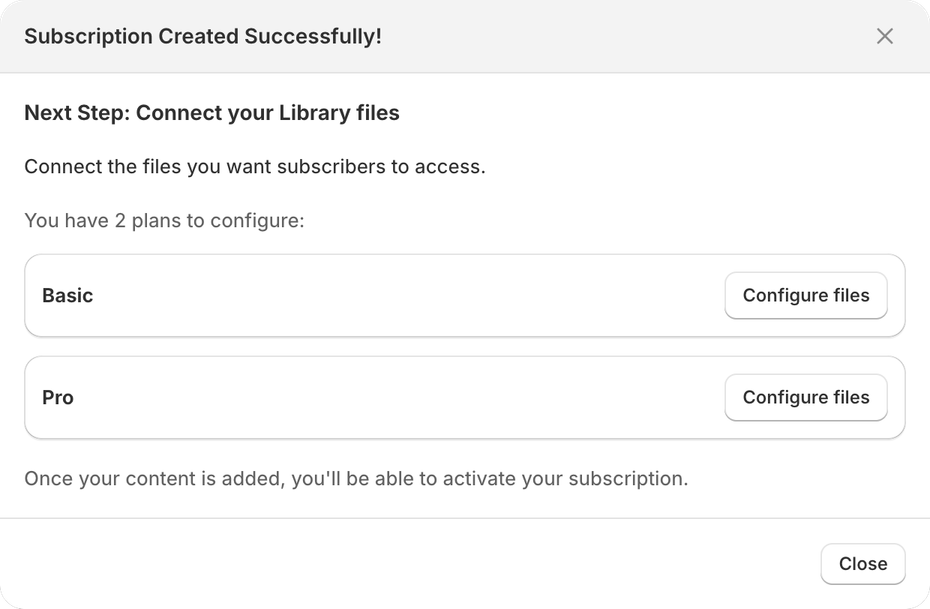
Saving opens a Subscription Created Successfully! dialog — “Next Step: Connect your Library files” — with a Configure files button.
A Connected files panel is also added to the plan settings sidebar, so you can return to it at any time without going through the dialog. It’s headed Library Access file configuration, and its Manage connected files button opens the same page as Configure files.
Step 7: Connect Library Files (Per Tier)
For each tier:
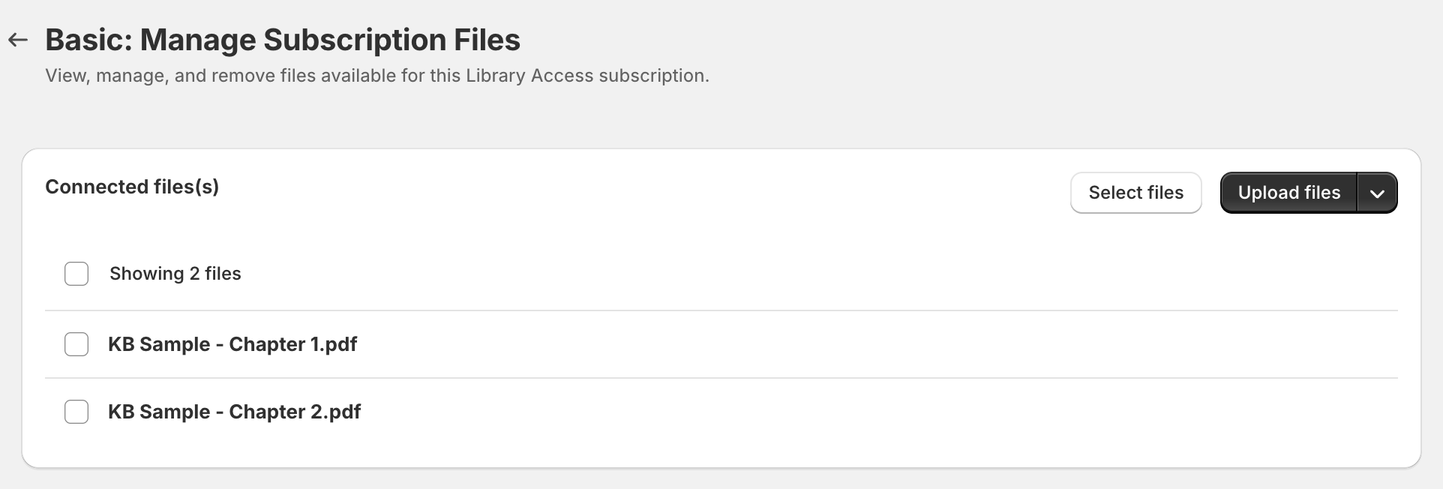
- Click Configure files in the dialog, or Manage connected files in the tier’s Connected files panel
- Upload or select files from your Content Vault
- Files added here are accessible only to subscribers of that tier
Each tier has its own file library — files are not shared automatically between tiers.
Files you connect to a tier later also reach that tier’s existing subscribers, not just new ones.
Step 8: Activate the Subscription
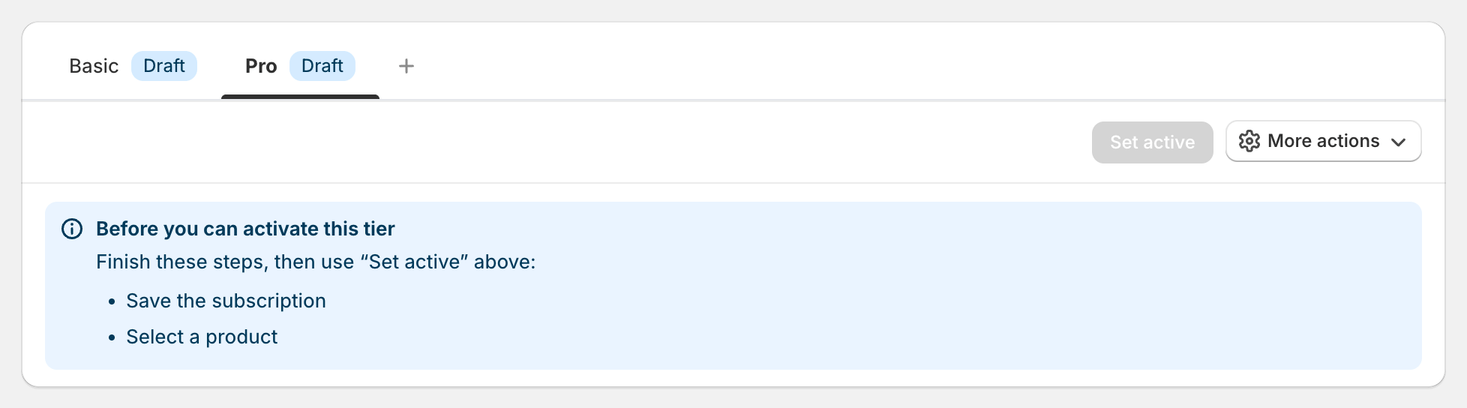
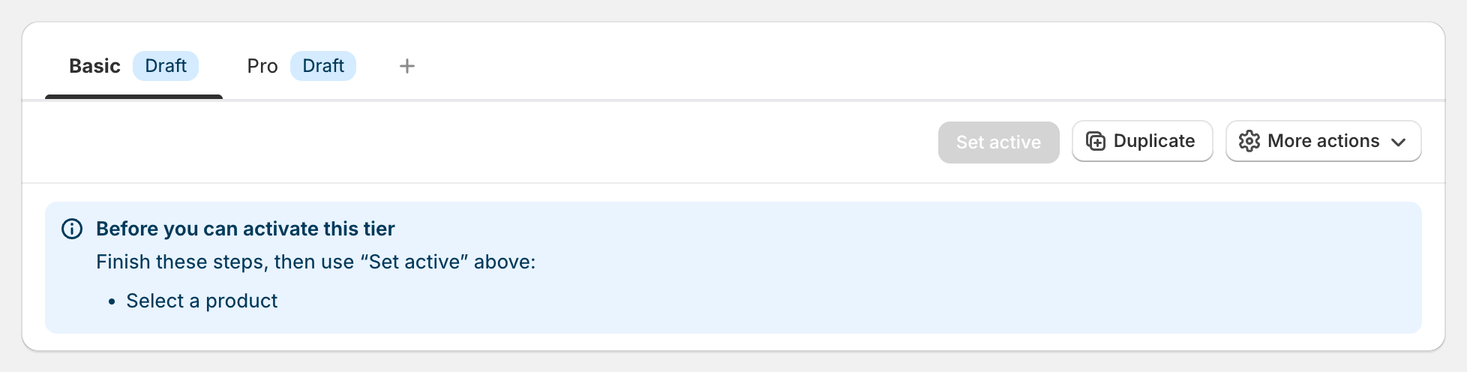
Set active stays grayed out until the checklist under the tier is complete. Headed “Before you can activate this tier”, it lists whatever is still missing: a name for the subscription, saving it, and a subscription product (Step 2).
The app doesn’t check the rest, so before going live also make sure files are connected for every tier (Step 7). Then:
- Click Set active
- Confirm in the Set this plan active? dialog — “Customers will be able to subscribe to this plan.”
The plan’s badge changes from Draft to Active, and your Library Access subscription is live.
Turning a plan off again
Set active becomes Set inactive. Deactivating stops new customers from subscribing, but existing subscribers keep their access and are still billed: “All existing customers will still have access and will continue to be charged.” The confirmation also warns: “This action cannot be undone.”
To end their subscriptions too, use More actions → Cancel all customers on the inactive plan: “Cancel every active subscription on this tier. This cannot be undone.” Once you confirm, they’re no longer charged, and whether they keep access depends on the plan’s Customers retain access to files after they cancel / pause setting.
Duplicating a plan
Duplicate, beside Set active on a draft plan (Set inactive on an active one), copies a plan’s settings into a new one — quicker than rebuilding a similar tier from scratch. In the Duplicate tier dialog, New tier name starts as Copy of and the plan’s name; change it if you like, then click Duplicate: “A copy of this tier’s settings will be created as a new draft. All connected files will also be copied.”
More actions → Delete tier removes a plan for good — “Permanently remove this draft or empty tier.” Delete tier doesn’t show on an active tier, or on a subscription’s only tier.
Customers can:
- Select a tier on the product page
- Subscribe
- Immediately access the files assigned to their tier
Final Notes
- Content Vault handles billing, access control, and delivery together
- Library Access subscriptions unlock content immediately
- Access behavior is configurable per subscription and per tier
- Tiers allow multiple pricing plans without product duplication
If you need help choosing the best setup for your use case, feel free to reach out via live chat — we’re happy to help you get this dialed in.