Subscriptions page overview
The Subscriptions page is your central dashboard for managing all subscription programs in Content Vault. From here, you can quickly see how each subscription is performing and how many customers each has, drill into details, and manage drafts and active programs.
What You’ll See on the Subscriptions Page
Each row in the table represents a single subscription you’ve created (Content Drip, Content Pass, or Library Access).
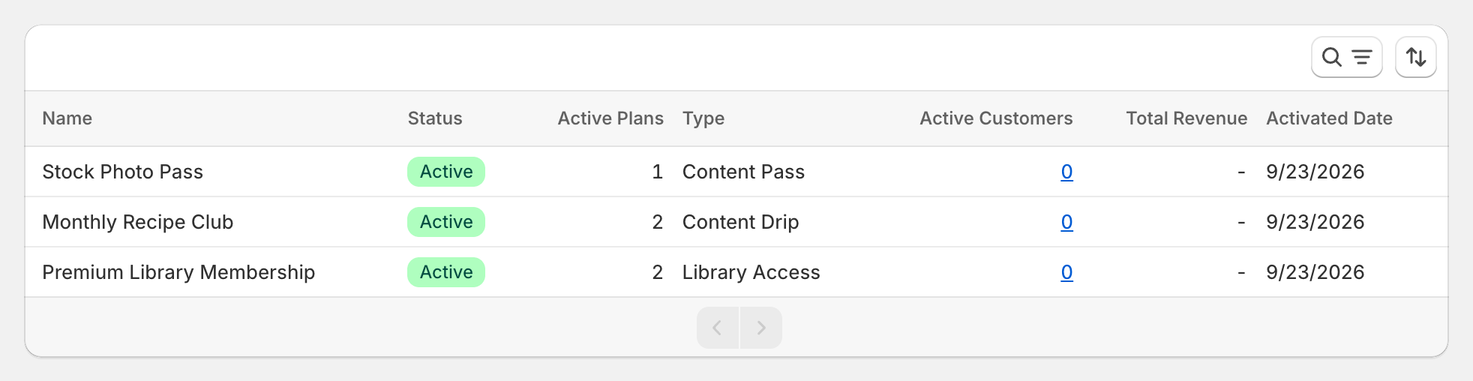
Columns Explained
Name
The internal name of the subscription, for your reference inside Content Vault: customers don’t see it. Emails and PDF stamps that use [subscriptionName] show the plan’s name instead (for example Basic), so give your plans names customers can read. It’s best to name subscriptions clearly so they’re easy to find later.
Status
Shows whether the subscription is:
- Draft – Not live yet. Customers cannot subscribe.
- Active – Live and available for customers to purchase.
- Inactive – Switched off. New customers can’t subscribe, and the subscription is hidden from this list unless you filter for inactive subscriptions. Existing subscribers keep their access and are still billed until you cancel them, with More actions → Cancel all customers on each inactive plan.
Active Plans
The number of tiers (plans) inside that subscription that are currently active. For example, if Tier 1, Tier 2, and Tier 3 are all active, this column will show 3. Draft tiers aren’t counted, so a subscription that hasn’t been activated shows 0.
Type
Indicates the subscription type:
- Content Drip – Scheduled file delivery over time
- Content Pass – A download allowance that refills on a schedule
- Library Access – Full access to a gated library
Active Customers
The number of customers currently subscribed to this subscription across all tiers.
Total Revenue
Total revenue generated by this subscription so far. This updates automatically as customers subscribe and renew.
Activated Date
The date the subscription was switched from Draft to Active. Drafts show a dash here until you activate them.
Sorting Options
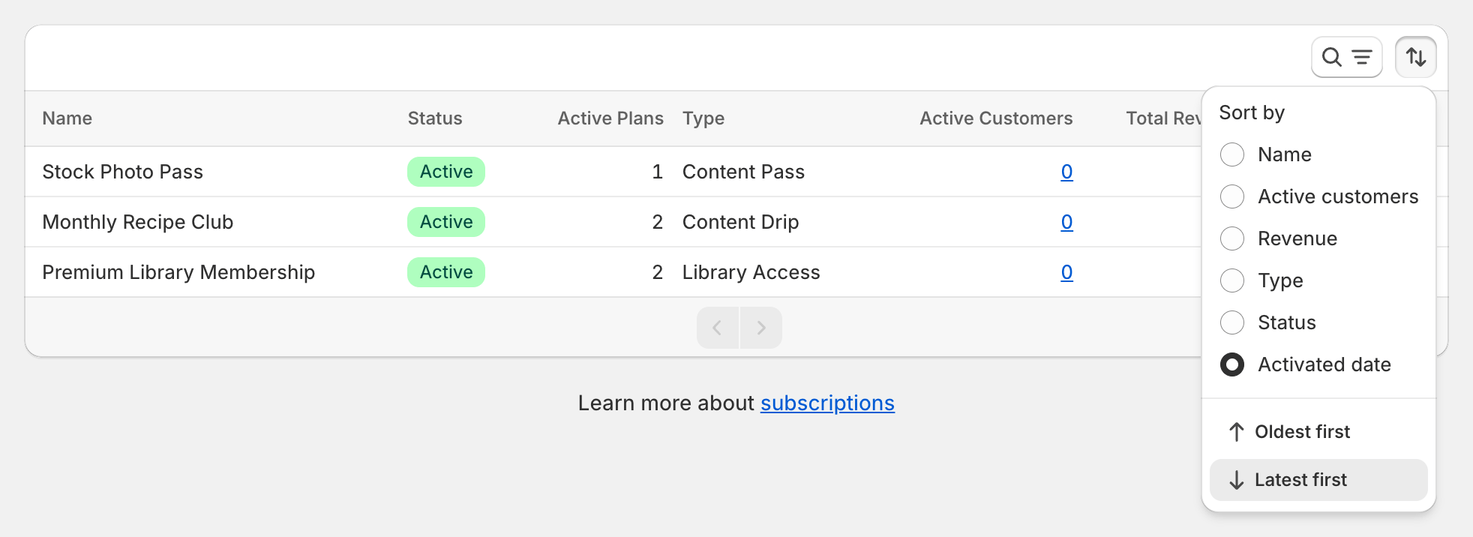
You can sort subscriptions using the sort menu in the top-right of the table. The sort options are:
- Name – Alphabetical order
- Active customers – Highest to lowest (or vice versa)
- Revenue – Sort by total revenue
- Type – Group by subscription type
- Status – Group by status
- Activated date – When each subscription went live. This is the default.
Below the options, choose the direction: A-Z / Z-A for Name, Oldest first / Latest first for Activated date, and Ascending / Descending for the others.
Search & Filters
Search
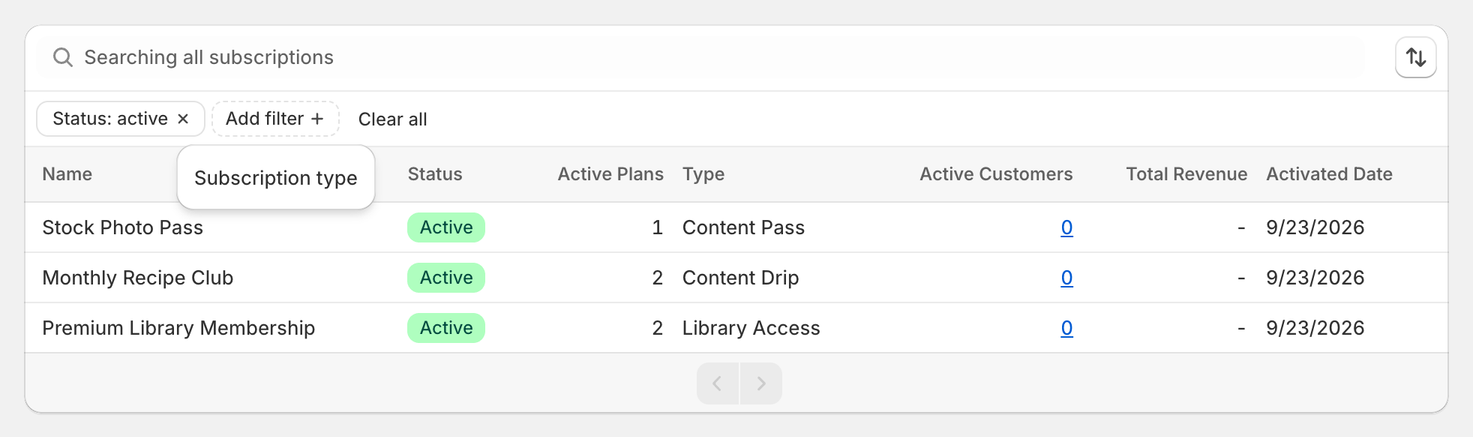
Click the search and filter button (the magnifying glass at the top right of the table) to open the search bar, then type to find subscriptions by name. This is especially helpful if you manage many subscriptions.
Filters
In the same bar, click Add filter to narrow down subscriptions by:
- Subscription status (Active, Inactive or Draft)
- Subscription type (Content Drip, Content Pass, Library Access)
Filters can be combined to quickly locate exactly what you’re looking for. Each filter you apply shows as a chip beside Add filter (for example Status: active), and Clear all removes them.
Creating a New Subscription
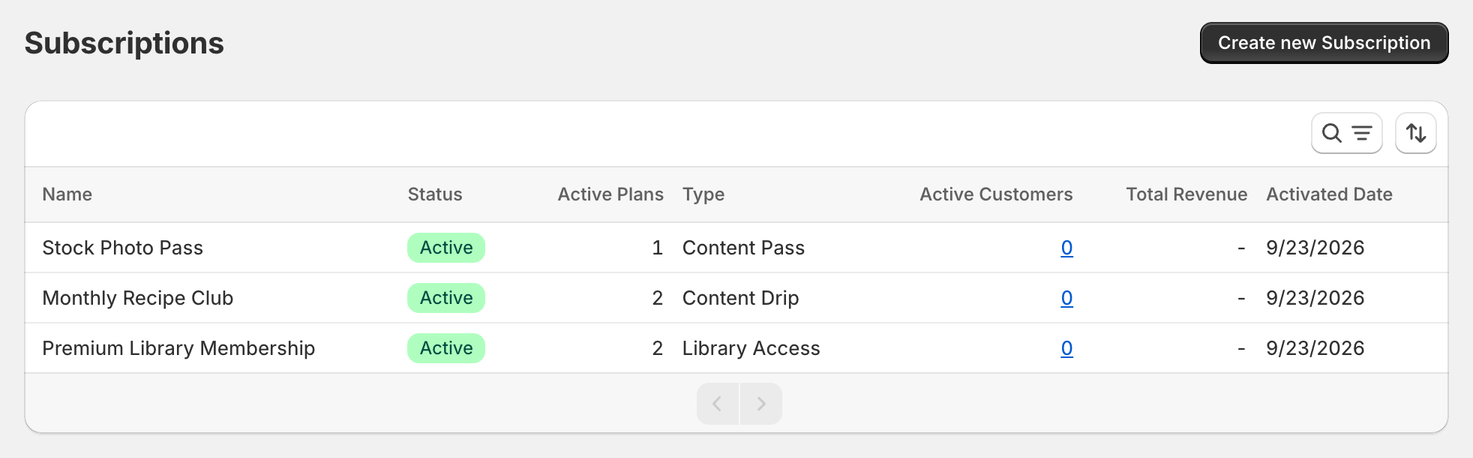
To create a new subscription, click Create new Subscription in the top-right corner. You’ll be prompted to choose the subscription type and configure its settings.
Helpful Tips
- Active Plans tells you how many of a subscription’s tiers are live.
- Revenue and Active Customers give you at-a-glance performance insights without opening the subscription.
Final Notes
- The Subscriptions page is designed for quick visibility and easy management.
- Sorting and filters help keep large subscription catalogs organized.
- Click a subscription row to manage its tiers, pricing and content. Subscribers are on the Customers page: click a row’s Active Customers number to jump there.
If you have questions about optimizing your subscription structure or interpreting the data you see here, feel free to reach out via live chat — we’re always happy to help.