Setting up a Content Drip subscription

A Content Drip Subscription lets you deliver digital content to customers over time while Content Vault automatically handles subscription billing, access control, and file delivery.
This setup is ideal for:
- Memberships
- Courses
- Recipe clubs
- Digital publications
- Coaching programs
- Ongoing content libraries
This guide walks through every step, including tiers, advanced pricing, custom delivery time & timezone, and month-based content delivery.
What Is a Content Drip Subscription?
A Content Drip Subscription allows you to:
- Charge customers on a recurring basis
- Release content on a fixed schedule (daily, weekly, monthly, or custom)
- Control when and how customers access files
- Manage everything from a single system (billing + delivery)
Unlike one-time digital downloads, drip subscriptions are designed for ongoing access and scheduled releases.
Step 1: Create a New Content Drip Subscription
From your Shopify admin:
Apps → Content Vault → Subscriptions → Create new Subscription (Content Vault is listed as Digital Subscriptions in your Shopify admin)
Clicking Create new Subscription opens a Select subscription type dialog — choose Content Drip.
⚠️ Before customers can subscribe, make sure the Subscription widget app embed is switched on (Online Store → Themes → Customize → App embeds). In most themes the embed shows the widget on your product pages by itself; see Installing Content Vault for the widget block.
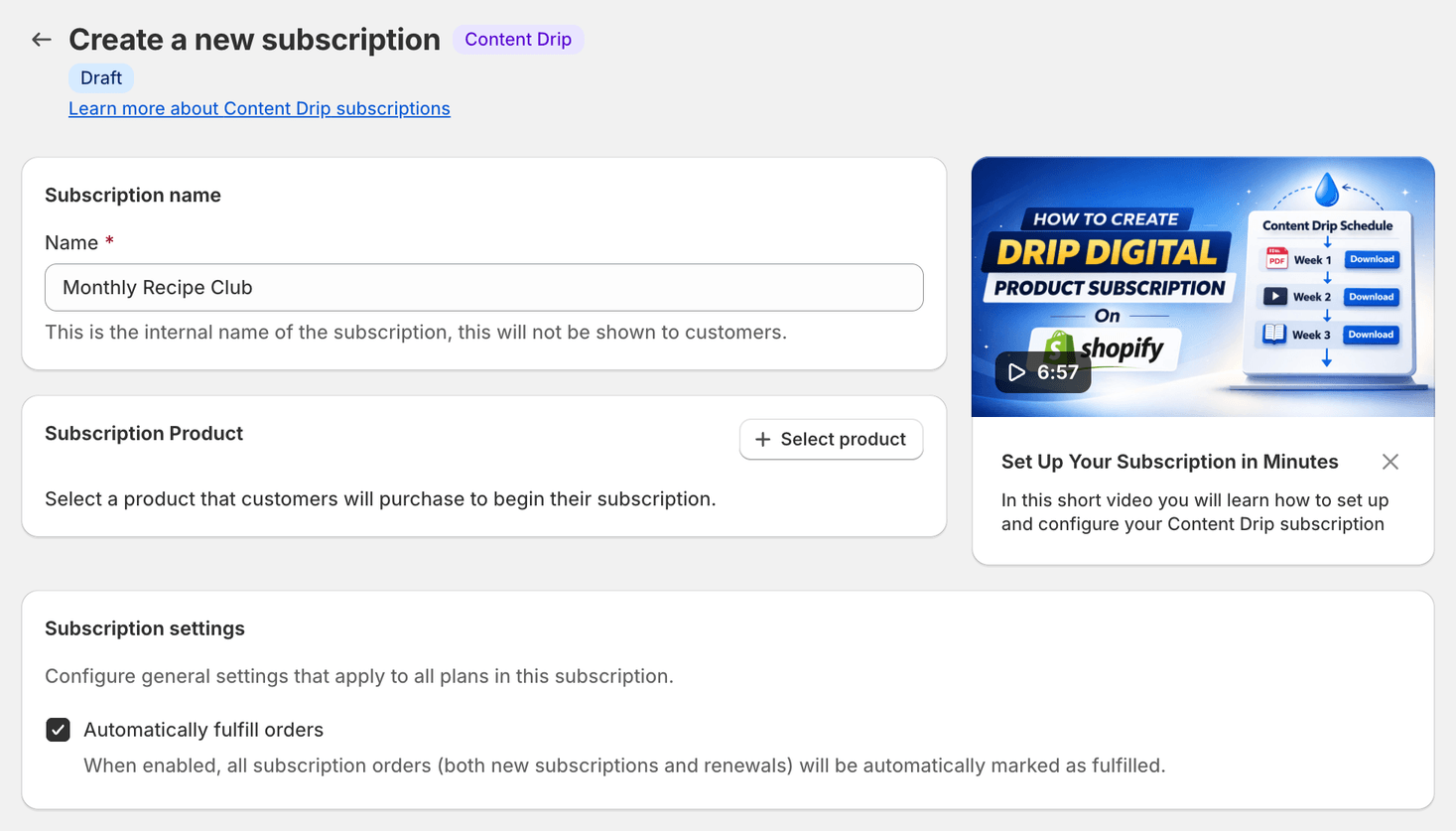
Give your subscription an internal name.
This is for your reference inside Content Vault: customers don’t see it. Emails and PDF stamps that use [subscriptionName] show the plan’s name instead (for example Basic), so give your plans names customers can read.
Step 2: Attach a Shopify Product
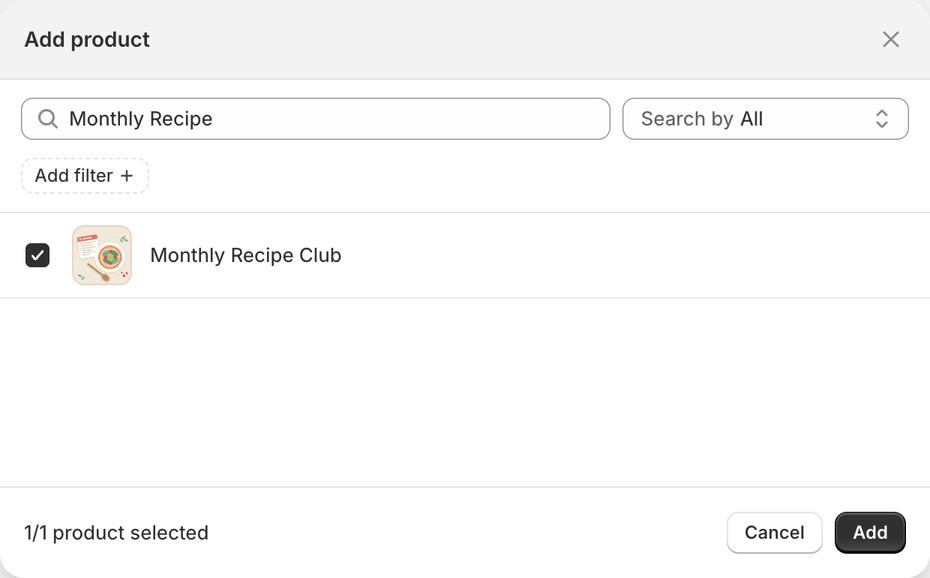
Select the Shopify product customers will purchase to begin their subscription.
This product acts as:
- The checkout entry point
- The billing anchor
- The access trigger for all drip content
💡 You only need one product, even if you plan to offer multiple plans using tiers.
Click Select product, search for the product, tick it and click Add.
Step 3: Configure Subscription Tiers
Content Vault supports multiple tiers within a single subscription.
This allows you to:
- Offer different prices (weekly / monthly / yearly)
- Create plan-based access (e.g. Silver, Gold, VIP)
- Avoid duplicating products
Each tier has its own:
- Customer-facing name
- Billing frequency
- Pricing rules
Each tier has its own drip content schedule. If you want tiers to deliver the same content, you’ll need to configure the drip files for each tier.
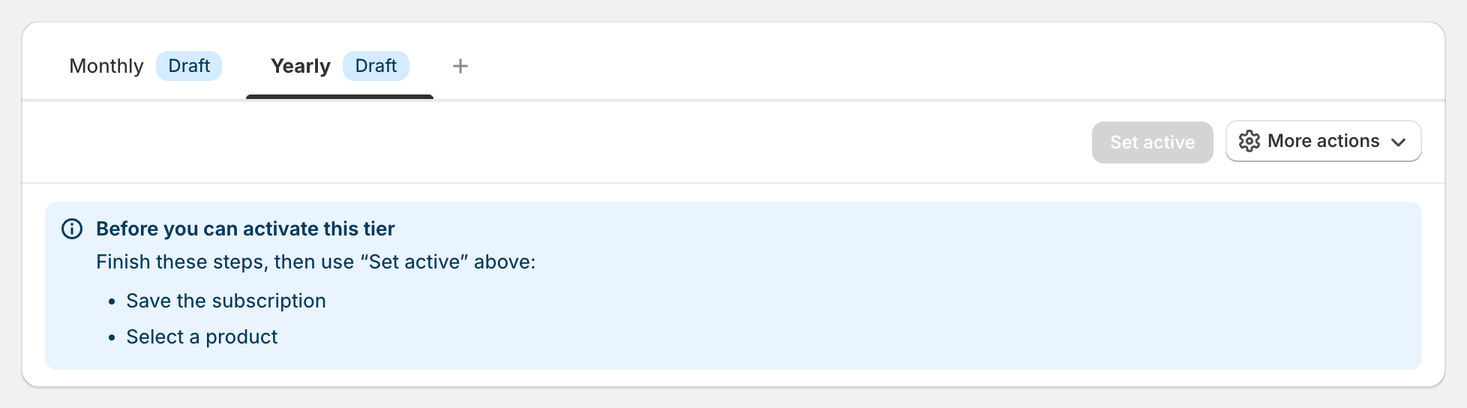
To add a tier, click + beside the plan tabs, give it a name in the Create new subscription tier dialog and click Create.
Step 4: Set the Subscription Billing Frequency
Before configuring when content is delivered, you must define how often the customer is billed.
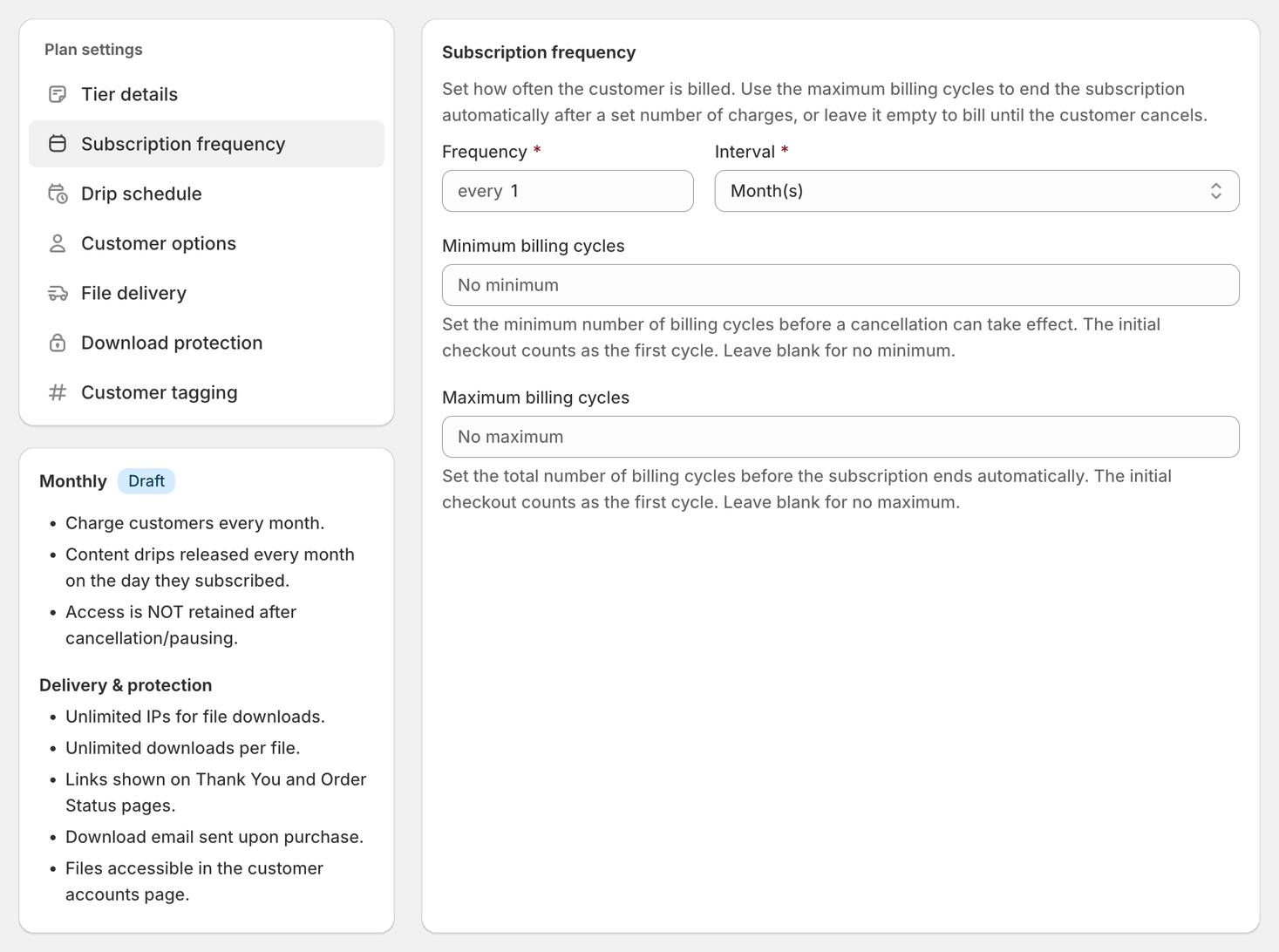
In the Subscription Frequency section, choose:
- Frequency – how often the charge repeats
(e.g. every
1,3,12) - Interval – the billing unit (Week(s), Month(s) or Year(s))
Examples:
Every 1 Month→ Monthly subscriptionEvery 1 Year→ Annual subscriptionEvery 3 Months→ Quarterly subscription
You can also bound how long billing runs:
- Minimum billing cycles – how many cycles must be paid before a cancellation takes effect. The initial checkout counts as the first cycle. Leave blank for no minimum.
- Maximum billing cycles – the total number of cycles before the
subscription ends automatically. The initial checkout counts as the first
cycle, so
12means 12 charges in total. Leave blank for no maximum.
This billing schedule controls:
- When customers are charged
- When renewals occur
- How Shopify records the subscription lifecycle
💡 Important: Billing frequency is independent of drip delivery. You can bill monthly but deliver content weekly, daily, or monthly.
Step 5: Advanced Pricing Options
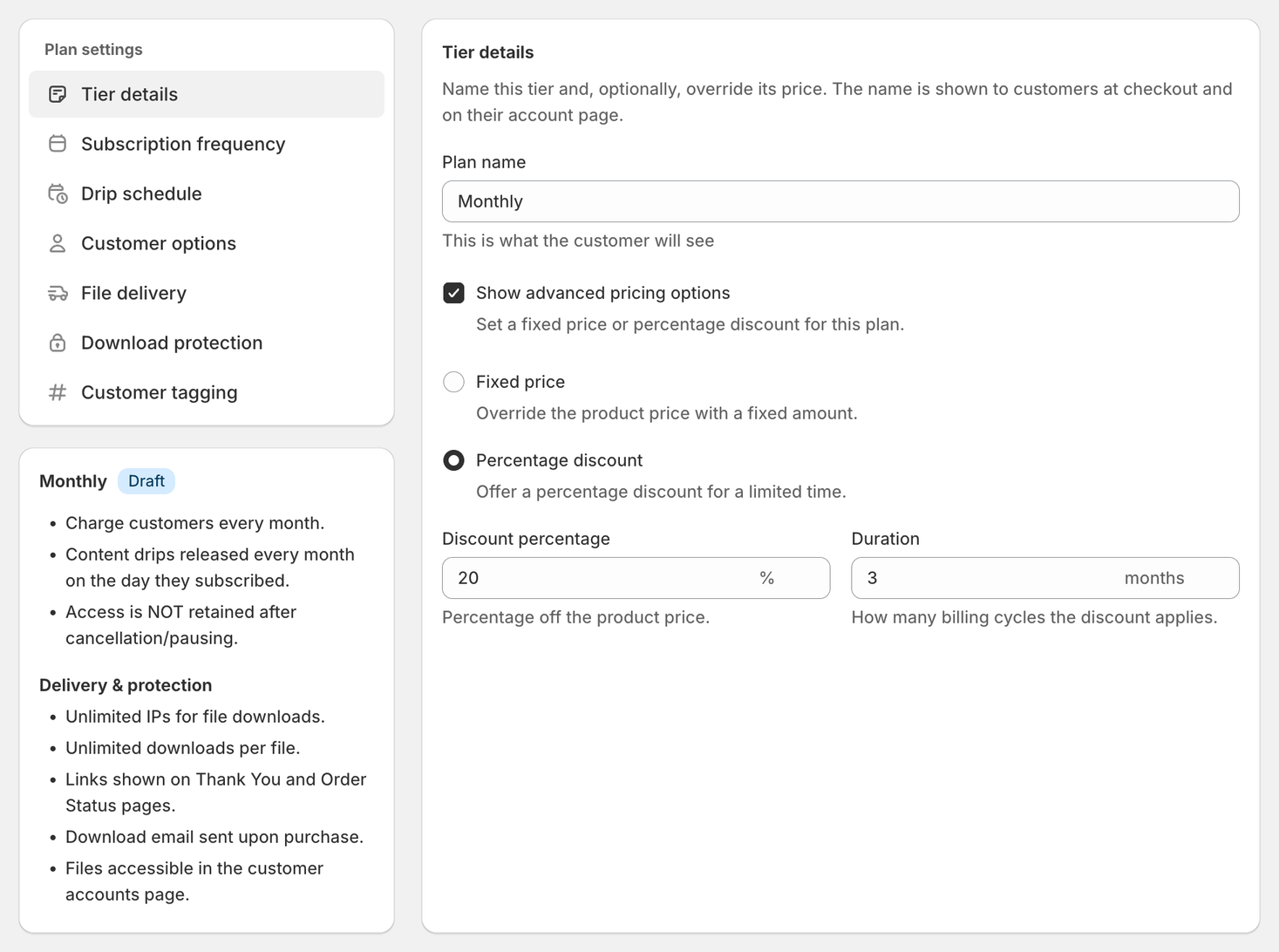
Each tier can override the product’s default price using advanced pricing.
Available options:
- Fixed price (replace the product price)
- Percentage discount — set the discount percentage and a duration in billing cycles (leave the duration blank to discount forever)
This means:
- Your Shopify product can have a placeholder price
- Each tier defines its actual subscription price
Perfect for:
- Monthly vs yearly pricing
- Promotional plans
- Legacy or discounted tiers
Step 6: Configure Drip Schedule, Time & Timezone
Control exactly when content is released.
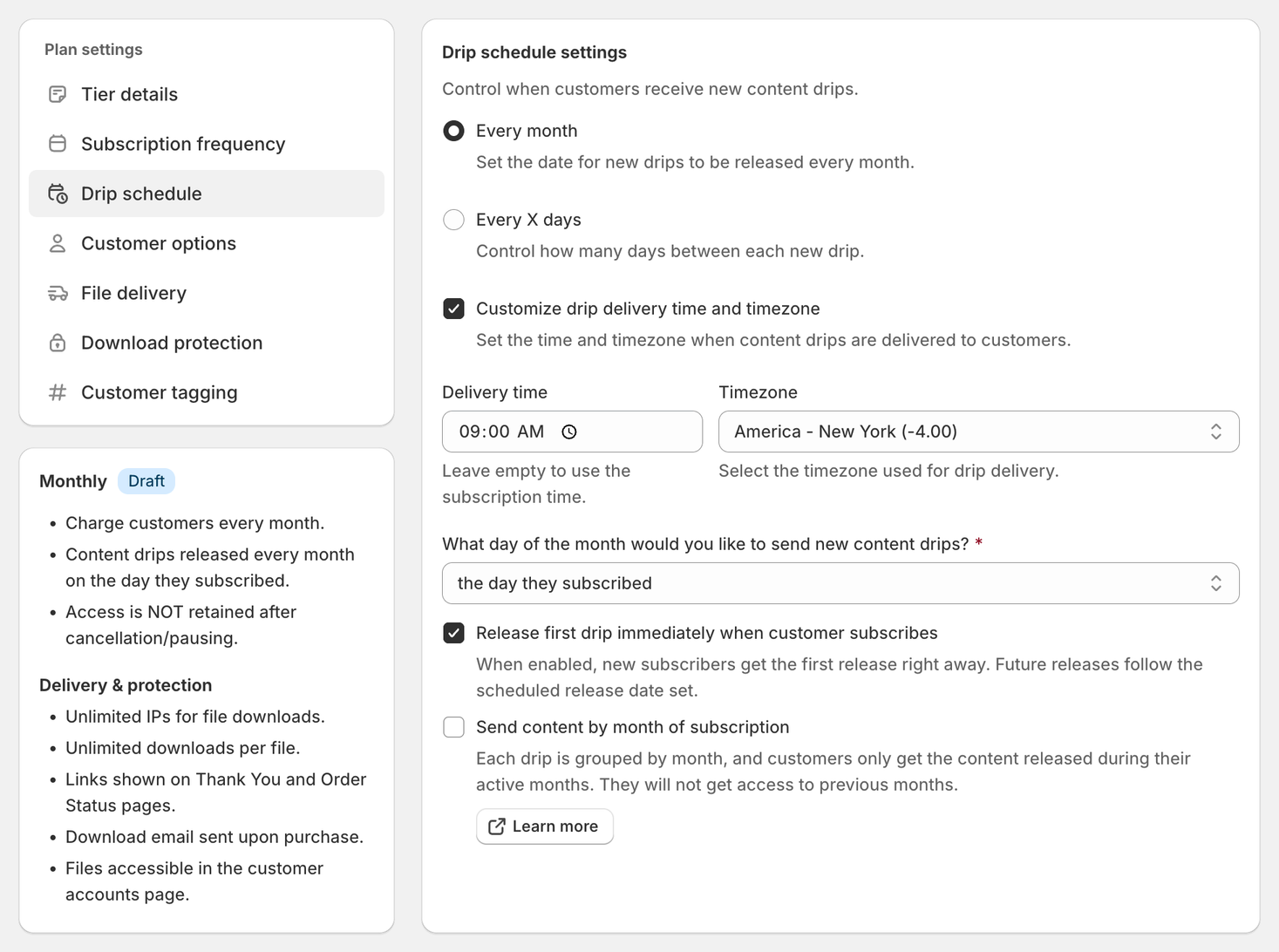
Drip Frequency
- Every month – choose which day of the month new drips are released: the day they subscribed (the default), the 1st to the 28th, or last (the last day of the month)
- Every X days – choose how many days pass between releases
⚠️ These two modes are not interchangeable. Choosing Every X days removes the release-day selector, the Release first drip immediately when customer subscribes checkbox and the Send content by month of subscription option covered in Step 7 — in that mode new subscribers always receive the first release immediately.
Delivery Time & Timezone
To choose when drips go out, tick Customize drip delivery time and timezone (“Set the time and timezone when content drips are delivered to customers.”), then set:
- Delivery time – “Leave empty to use the subscription time.”
- Timezone – “Select the timezone used for drip delivery.”
This ensures content drops consistently, regardless of where customers are located.
Billing on the Release Day
If the plan bills by the month (Interval: Month(s)) and drips release on a set day, the 1st to the 28th, the panel also offers Bill customers on the same day as the drip release: “When enabled, the billing date is locked to the drip release date above, and each drip is delivered a few minutes after the customer is billed. Any custom delivery time is not used.”
Decide before you activate the plan: this option is locked once the plan is active, and when it’s on, so are the release schedule and the release day.
Step 7: Month-Based vs Subscriber-Based Delivery
This setting determines how customers receive content.
Option A: Subscriber-Based Timeline (Default)
- Each customer progresses from their signup date
- Best for structured courses or programs
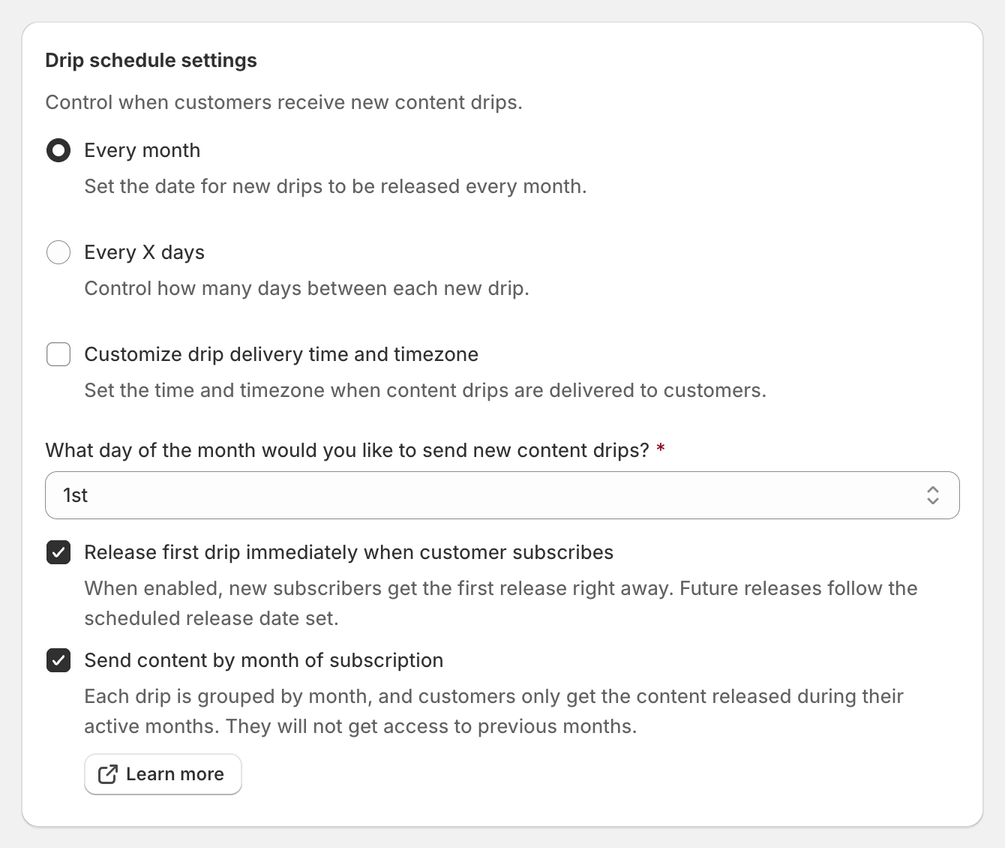
Option B: Send Content by Month of Subscription
When enabled:
- Each drip is grouped by month.
- Customers only get the content released during their active months.
- They don’t get access to earlier months.
- A new subscriber gets the current month’s drip right away only if Release first drip immediately when customer subscribes is on, or if they subscribe on your release day (for example, your release day is the 2nd and they subscribe on the 2nd). Otherwise, their first drip arrives on the next release day.
Ideal for:
- Monthly memberships
- Recipe clubs
- Publications
- “Everyone gets March’s content” models
💡 This setting changes your release day for you. Month-based delivery needs a fixed calendar date, so switching it on changes the release day from the day they subscribed to the day the plan was created (today’s date for a new plan), or the 28th if that’s the 29th, 30th or 31st. Pick a different day afterwards if you’d rather.
Step 8: Customer Options, File Delivery & Download Protection
These are three separate panels in the plan settings sidebar, not one screen.
Customer options
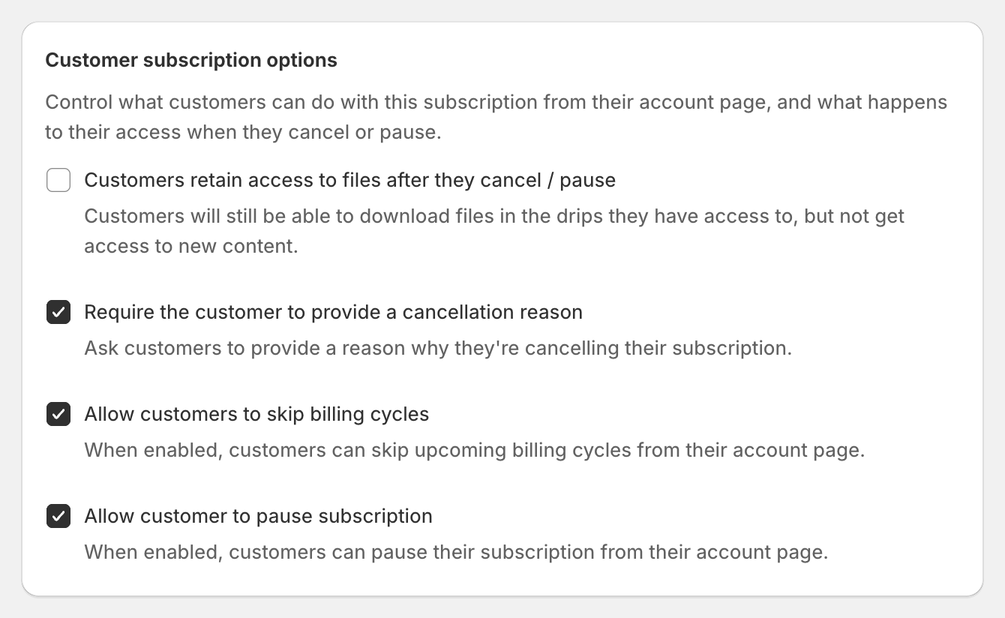
What customers can do from their account page, and what happens to their access when they cancel or pause:
- Customers retain access to files after they cancel / pause (off by default) — they keep the drips they already have, but receive no new content
- Require the customer to provide a cancellation reason (on by default)
- Allow customers to skip billing cycles (on by default)
- Allow customer to pause subscription (on by default)
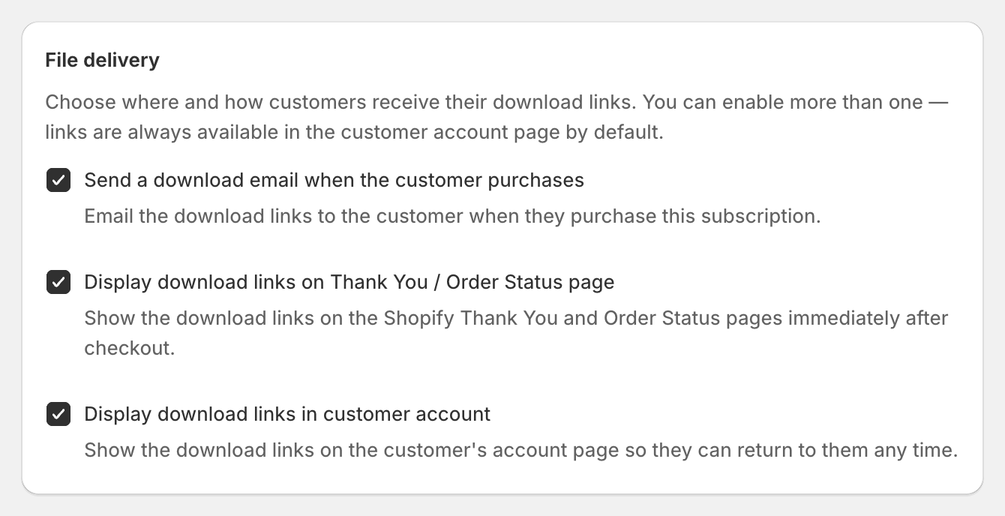
File delivery
Where customers receive their download links. You can enable more than one, and all three are on by default:
- Send a download email when the customer purchases
- Display download links on Thank You / Order Status page
- Display download links in customer account
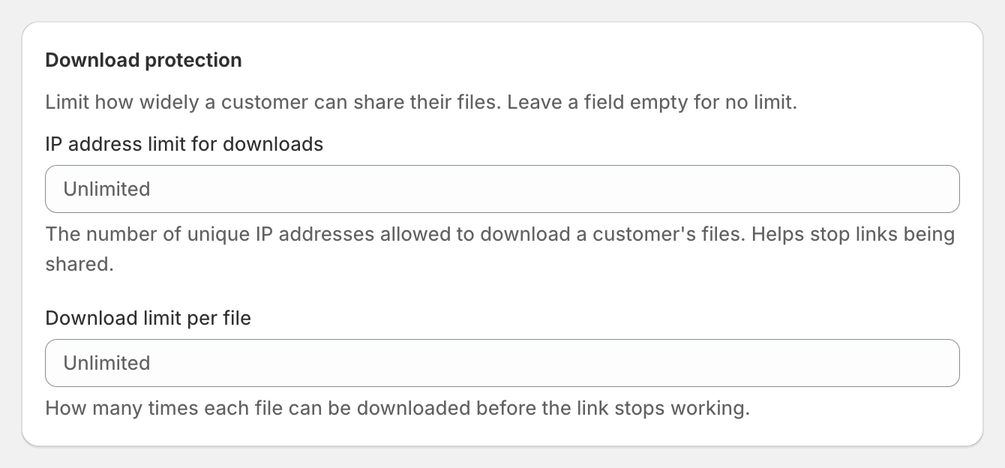
Download protection
Limit how widely a customer can share their files. Leave a field empty for no limit:
- IP address limit for downloads – how many unique IP addresses may download a customer’s files. Helps stop links being shared. Needs the Starter plan or above.
- Download limit per file – how many times each file can be downloaded before the link stops working.
Step 9: Customer Tagging
Content Vault can tag subscribers in Shopify automatically. Turn on Tag customers on Shopify and subscribers are tagged when they subscribe — the tags are removed again when they cancel or the subscription expires.
- Default tags, always applied:
SubscriberandSubscribed - <Plan name> - Custom tags (optional): a comma-separated list such as
VIP, Premium, Gold
Handy for segmenting email campaigns, discounts and customer lists by plan. Tagging subscribers in Shopify covers which tags are applied and when they’re removed.
Step 10: Build Your Drip Schedule
Before you can assign drip files:
👉 Click “Save subscription”
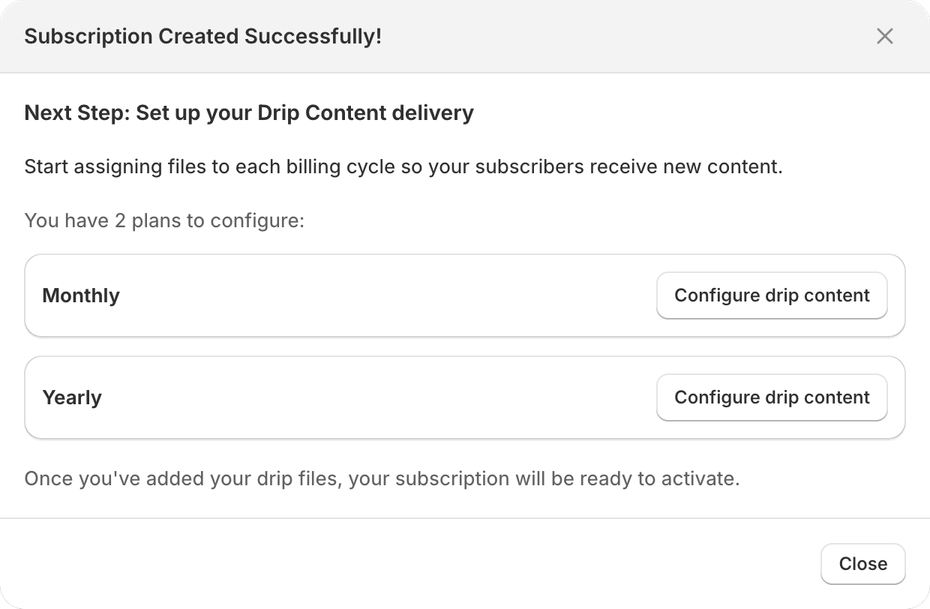
Saving opens a Subscription Created Successfully! dialog with a Configure drip content button. A Drip content panel is also added to the plan settings sidebar, so you can come back to it any time. It’s headed Drip content configuration, and its Edit drip content button opens the same page as Configure drip content.
For each plan:
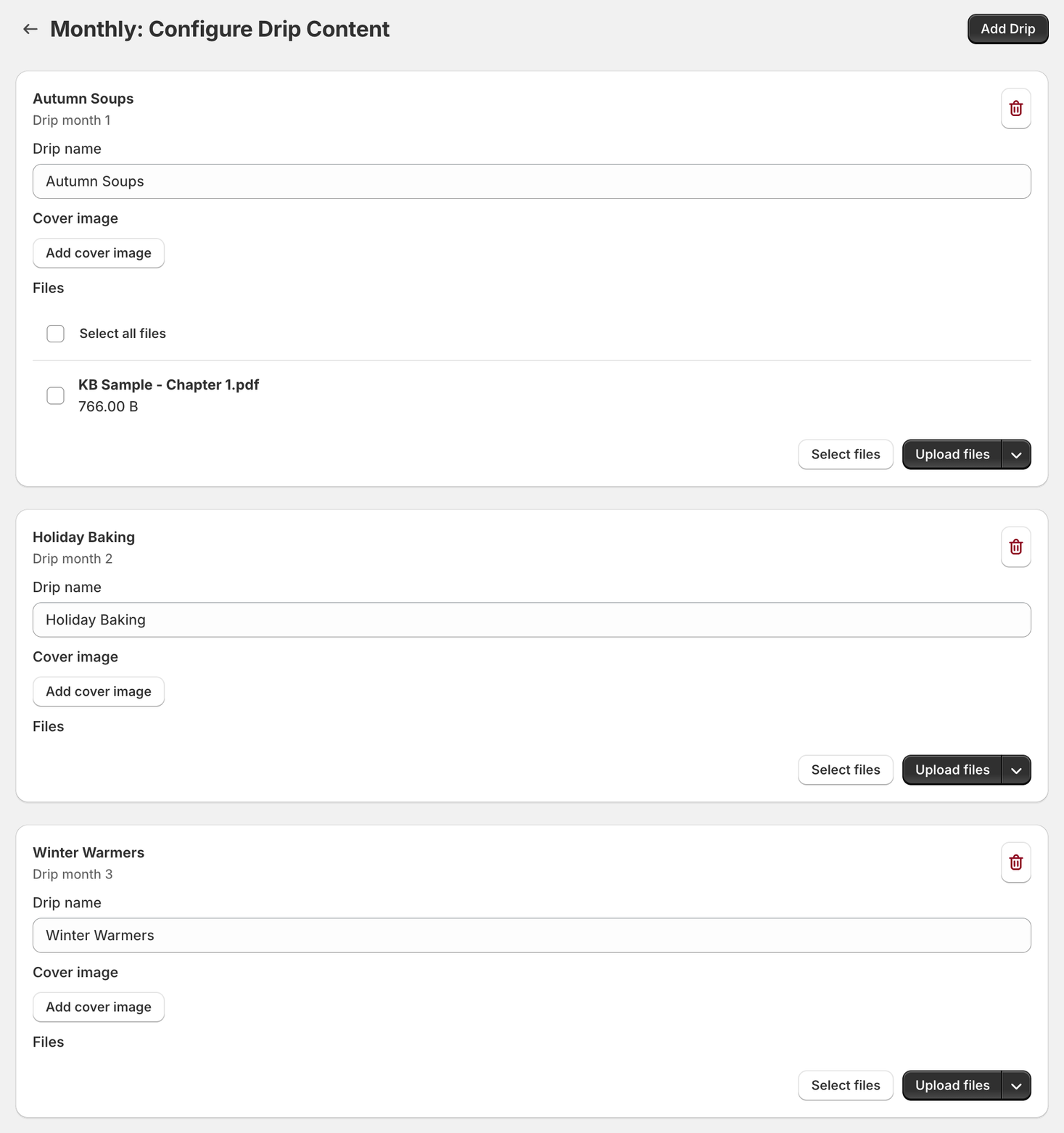
- Click Configure drip content in the dialog, or Edit drip content in the plan’s Drip content panel
- Click Add Drip to create a release (they’re labeled Drip month 1, Drip month 2, and so on)
- Give the drip a name customers will recognize, e.g.
October Pack - Optionally add a cover image for the release
- Attach files with Select files (from your existing library) or Upload files
💡 There’s no Save button on this screen — it saves as you go. Use the back arrow to return to the subscription when you’re done.
Each plan can have:
- Its own drip schedule
- Its own files
- Its own progression
Step 11: Activate Subscription
Set active stays grayed out until the checklist under the tier is complete. Headed “Before you can activate this tier”, it lists whatever is still missing: a name for the subscription, saving it, and a subscription product (Step 2).
The app doesn’t check the rest, so before going live also make sure every plan has drip files assigned (Step 10). Then:
- Click Set active
- Confirm in the Set this plan active? dialog — “Customers will be able to subscribe to this plan.”
The plan’s badge changes from Draft to Active.
Turning a plan off again
Set active becomes Set inactive. Deactivating stops new customers from subscribing, but existing subscribers keep their access and are still billed: “All existing customers will still have access and will continue to be charged.” The confirmation also warns: “This action cannot be undone.”
To end their subscriptions too, use More actions → Cancel all customers on the inactive plan: “Cancel every active subscription on this tier. This cannot be undone.” Once you confirm, they’re no longer charged, and whether they keep access depends on the plan’s Customers retain access to files after they cancel / pause setting.
Duplicating a plan
Duplicate, beside Set active on a draft plan (Set inactive on an active one), copies a plan’s settings into a new one — quicker than rebuilding a similar tier from scratch. In the Duplicate tier dialog, New tier name starts as Copy of and the plan’s name; change it if you like, then click Duplicate: “A copy of this tier’s settings will be created as a new draft. All drip releases and their connected files will also be copied.”
More actions → Delete tier removes a plan for good — “Permanently remove this draft or empty tier.” Delete tier doesn’t show on an active tier, or on a subscription’s only tier.
💡 You can still edit the drip schedule after activating. Content Vault warns that “Changing these settings will recalculate upcoming drip dates for all subscribers” — drips that have already been released are not affected. The exception is a plan that bills on the release day (Step 6): its release schedule and release day lock once the plan is active.
Final Notes
- Content Vault handles billing, access control, and delivery together
- Drip timing and billing are set separately for flexibility, unless the plan bills on the release day (Step 6)
- Tiers allow multiple pricing plans without product duplication
If you need help choosing the best setup for your use case, feel free to reach out via live chat — we’re happy to help you get this dialed in.