How to manage customers
The Customers page gives you a complete view of everyone subscribed to your Content Vault subscriptions. From here, you can monitor subscription status, review billing history, track file activity, and take action on individual subscriptions.
Viewing All Customers
Navigate to:
Content Vault → Customers (Content Vault is listed as Digital Subscriptions in your Shopify admin)
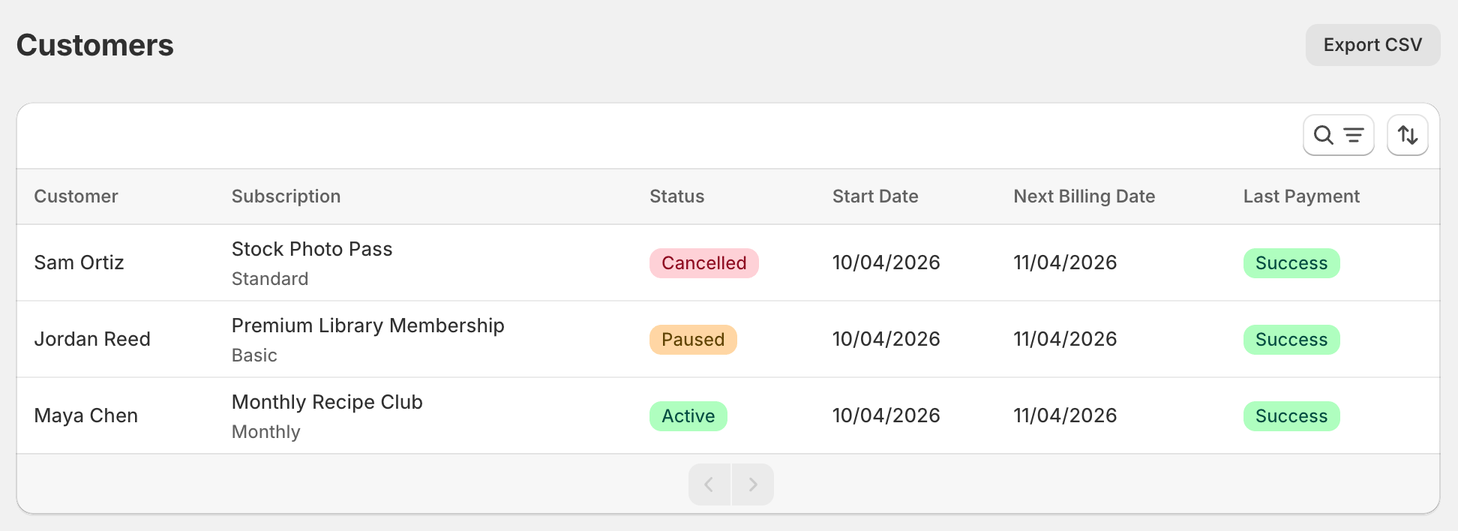
Here you’ll see a list of all customers who have an active, paused, cancelled, or expired subscription.
Each row includes:
- Customer – Email or customer name
- Subscription – The subscription they’re enrolled in, with the plan’s name under it
- Status – Active, Paused, Cancelled, or Expired (a fixed-length subscription that has run its full term)
- Start Date – When the subscription began
- Next Billing Date – Upcoming renewal date (if applicable)
- Last Payment – Status of the most recent charge
Searching, Sorting, and Filtering Customers
To quickly find specific customers, you can:
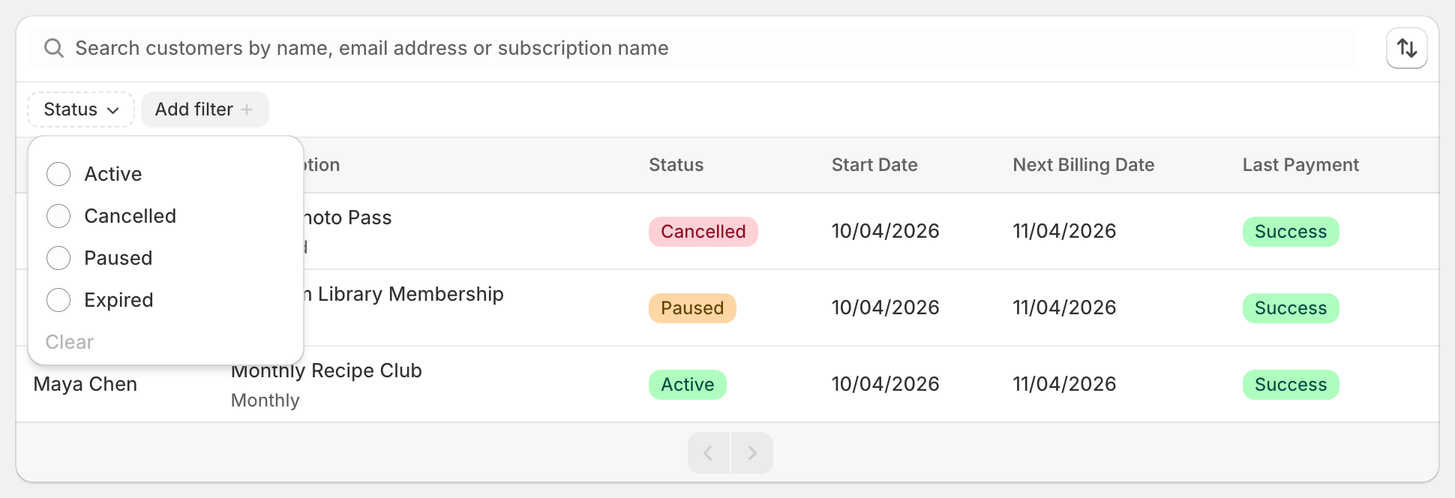
Search by name, email address or subscription name
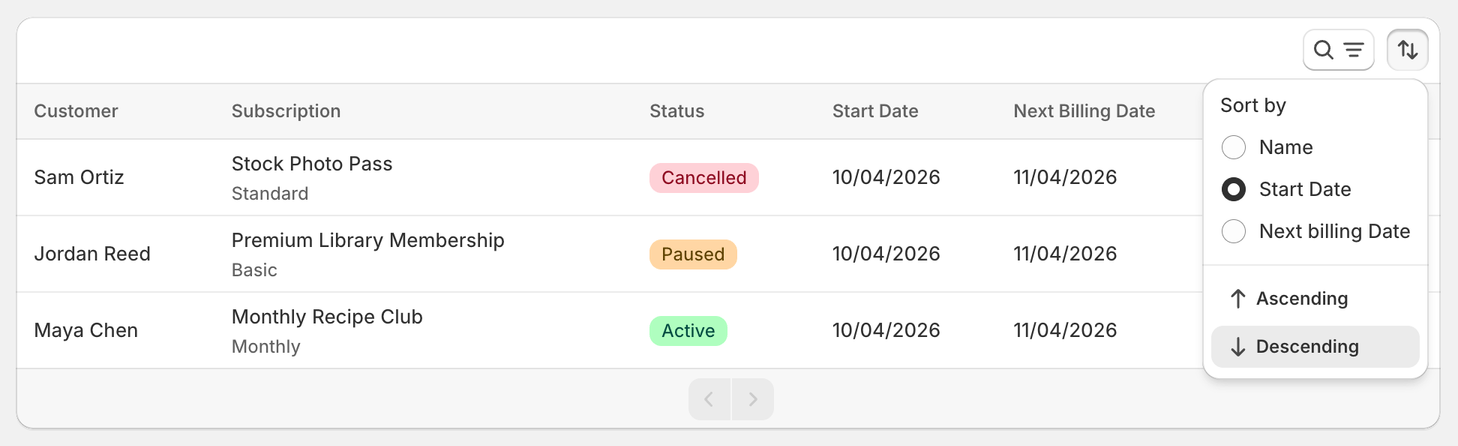
Sort by:
- Name
- Start Date
- Next billing Date
Filter by:
- Subscription status (Active, Paused, Cancelled, Expired)
These tools are especially useful once you have a large subscriber base.
Exporting the List
Export CSV downloads the list you're looking at as a spreadsheet, with your current search and filter applied — handy for reconciling against your own records or for bulk analysis outside the app. It's a button at the top right of the Customers page (on a narrow window it moves into the ⋯ menu), and it stays grayed out until you have at least one subscriber.
Viewing a Customer’s Subscription Details
Click on any customer to open their subscription details page.
This view gives you a full breakdown of the customer’s subscription activity.
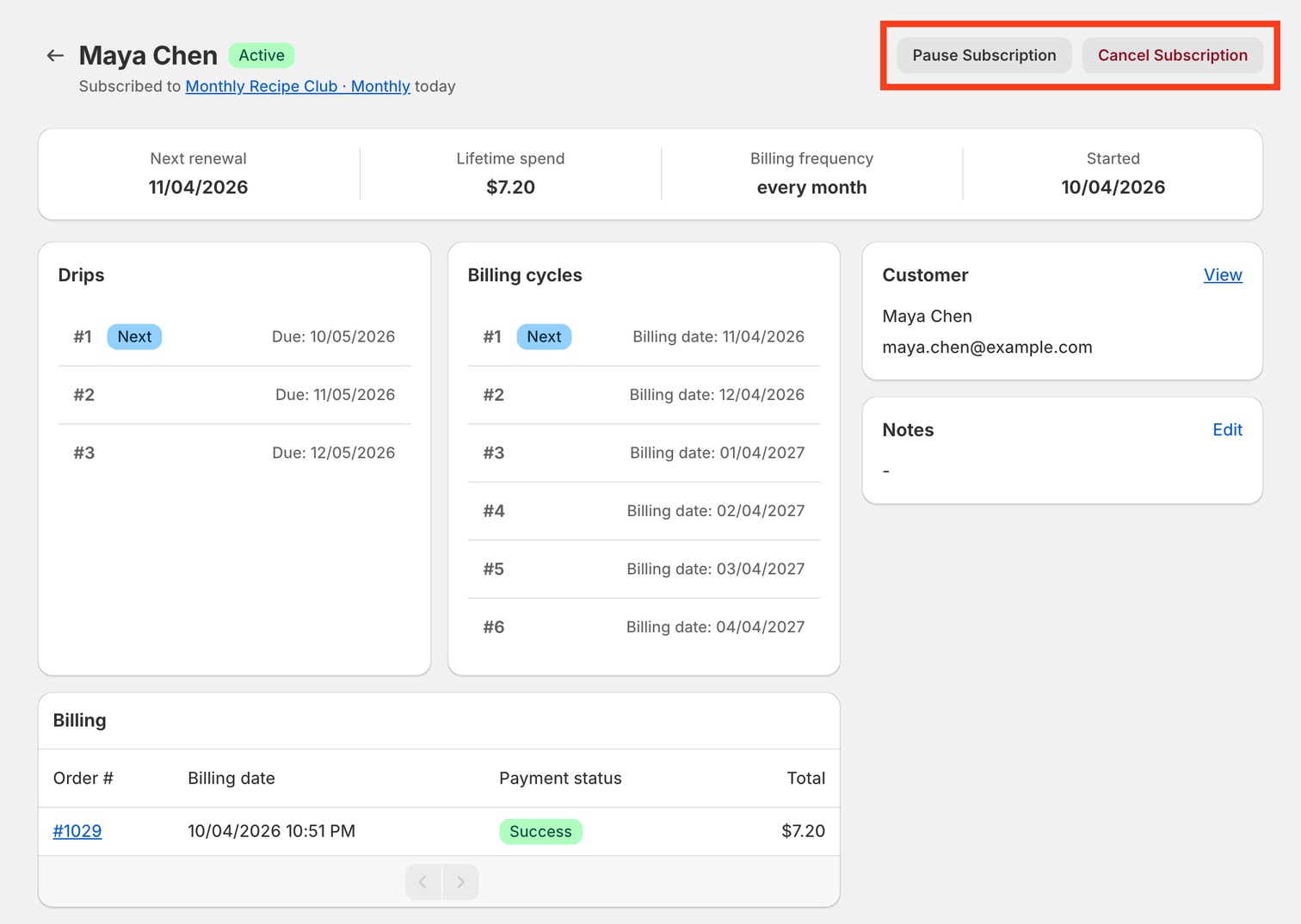
Subscription Overview
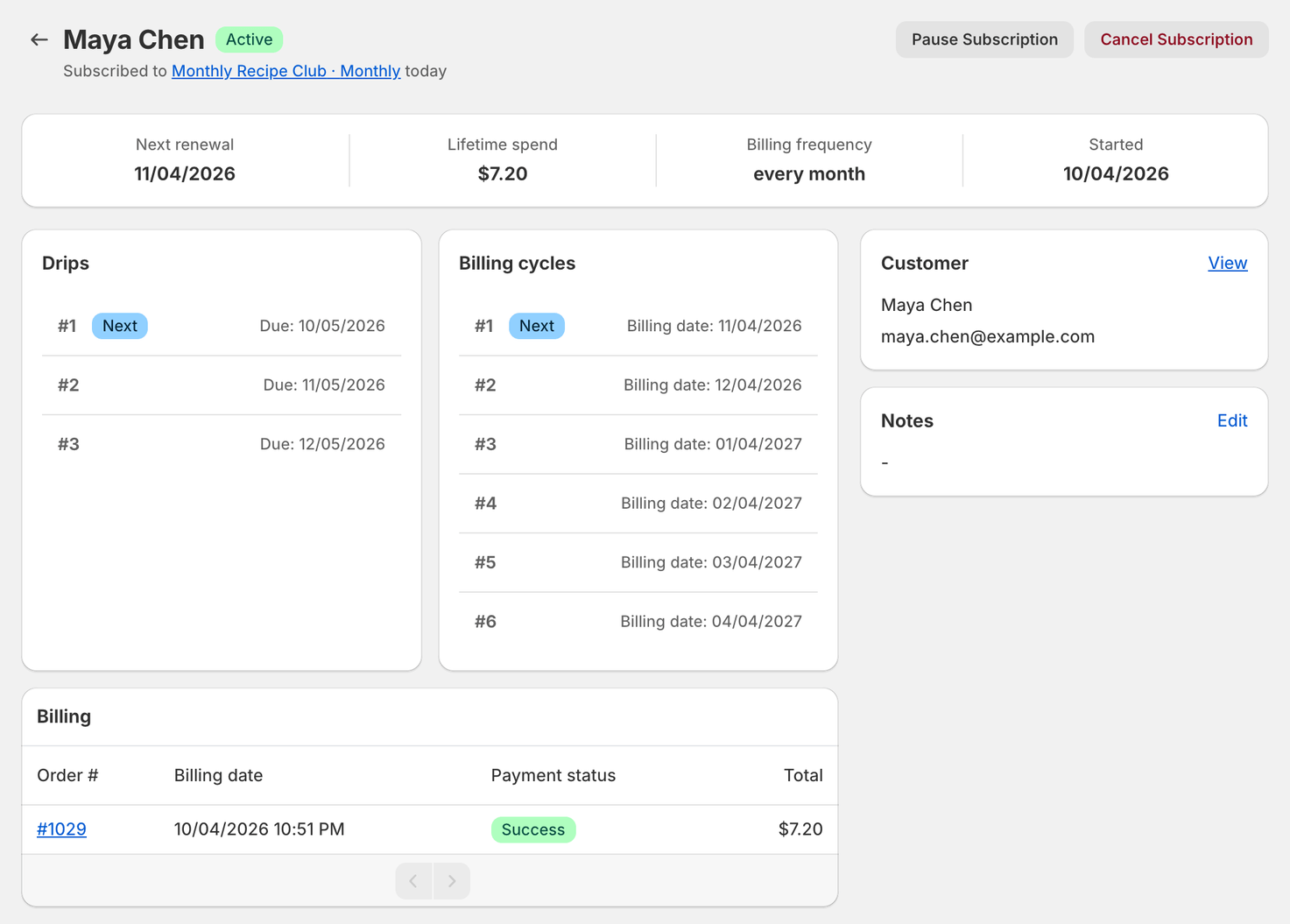
At the top, you’ll see:
- Subscription status (Active, Paused, Cancelled, Expired)
- Next renewal, the date it renews next (a paused subscription shows Paused and its pause date instead, and one that has ended shows Ended and when it ended)
- Lifetime spend
- Billing frequency
- Started
When Access Actually Ends
If a subscription has been cancelled or paused, a File access ending banner appears near the top of the customer's page, spelling out the exact date and time they lose access — “the end of their current paid billing cycle”.
This is worth checking before replying to a cancellation query: a customer who cancels part-way through a month normally keeps access until that cycle finishes, rather than losing it the moment they cancel.
💡 Whether access ends at all depends on the plan's Customers retain access to files after they cancel / pause setting. See Setting up a Library Access subscription.
Drip History (Content Drip subscriptions)
For a Content Drip subscriber, the Drips panel lists each release with:
- Due — when the drip was scheduled to be released
- Released — when it actually went out
Use it to confirm a customer really did receive a given month's content before investigating a "I never got it" report — the answer is often that the drip isn't due yet.
Download Limit (Content Pass subscriptions)
For a Content Pass subscriber, the Download limit panel shows how many downloads they've used in the current allowance period. Click Extend limit to give them extra downloads for this period only. Tick Apply permanently (not just this cycle) to add the extra downloads to every future period as well.
Managing Subscription Status
From the customer detail page, you can take action depending on the current status:
If the subscription is Active
- Pause Subscription – Stop billing until you reactivate it
- Cancel Subscription – End the subscription completely
If the subscription is Paused
- Reactivate Subscription – Resume a paused subscription. If the customer lost file access while paused, they get it back.
- Cancel Subscription – End the subscription completely
The status changes right away. After a pause or cancel, access follows the plan’s Customers retain access to files after they cancel / pause setting: without it, access ends when the paid billing cycle ends (see When Access Actually Ends).
Cancellation Reasons
When a subscriber cancels, you can read the reason they gave on the Customers page. Asking for a reason is a Content Drip and Library Access setting, Require the customer to provide a cancellation reason, which is on by default. Content Pass subscriptions don’t have this setting.
Billing History
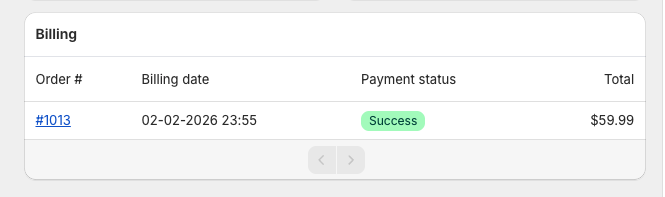
The Billing section shows all charges related to the subscription, including:
- Order number (linked to Shopify)
- Billing date
- Payment status (Success / Failed)
- Charge amount
This helps you quickly audit payments or troubleshoot billing issues.
Billing Cycles
The Billing Cycles panel shows:
- Past, current, and upcoming billing dates
- Which cycle is next
This is especially useful for subscriptions with frequent renewals or custom billing intervals.
File Activity (If Applicable)
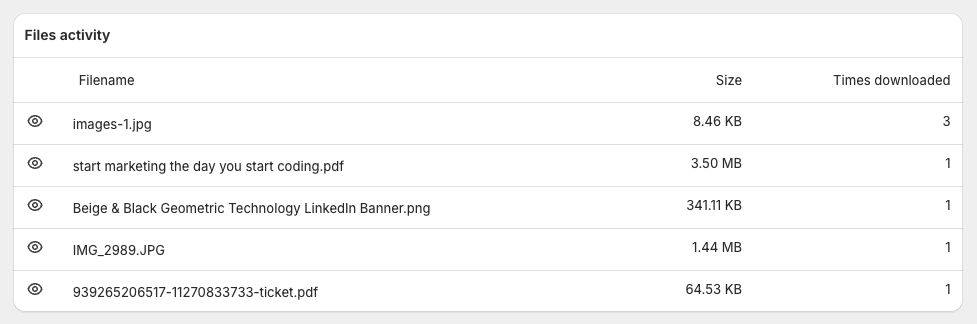
For subscriptions that allow file downloads, you’ll also see a Files activity section once the customer has downloaded something.
This shows:
- File name
- File size
- Number of times each file has been downloaded
This is helpful for monitoring usage, especially for Content Pass or download-limited subscriptions.
Customer Details & Other Subscriptions
The Customer panel shows the subscriber's name and email address, with a View link through to their full Shopify customer record.
Underneath, Other subscriptions lists every other Content Vault subscription that same customer holds, each with its own status badge. This is the quickest way to see a customer's whole relationship with you — for example spotting that someone who just cancelled one plan is still happily subscribed to two others.
Notes
Each customer has a free-text Notes field with an Edit action — a place to record context that doesn't live anywhere else: a support promise, a manual refund, a reason they were given an exception.
Notes are internal and are never shown to the customer.
Sent Emails
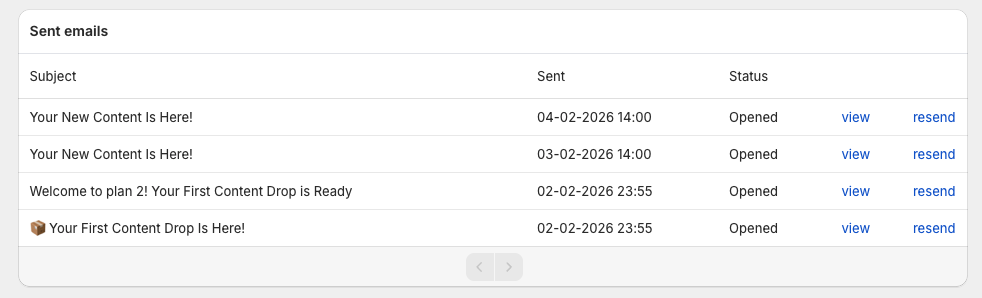
The Sent Emails section logs all automated emails sent to the customer, such as:
- Welcome emails
- Content notifications
- Pause or cancellation confirmations
Its Status column shows what happened to each email, such as Opened or Bounced. You can:
- View each email
- Resend emails if needed (an email can only be resent an hour after it was sent)
If a red Download email could not be sent warning shows at the top of their page, their address has bounced before (or was marked as spam, or rejected), and their download email can’t be sent until they have a new email address. Click Update customer email in Shopify to change it on their Shopify customer record, then resend. More in Why aren't customers receiving emails?
Final Notes
- The Customers page gives you full visibility into subscription health and activity
- You can manage subscriptions directly without leaving Content Vault
- Billing, access status, file activity, and communication history are all centralized
If you have questions about optimizing your subscription structure or interpreting the data you see here, feel free to reach out via live chat — we’re always happy to help.