Setting up custom white-label emails
Content Vault lets you send download emails directly from your own email domain instead of our default address. This improves brand recognition and email deliverability. Follow the steps below to set this up on your store:
💡 A custom email address is included on the Starter plan and above. See How does Content Vault pricing work?.
Step 1: Add Your Custom Email
- In your Shopify admin, open the Content Vault app (listed there as Digital Subscriptions).
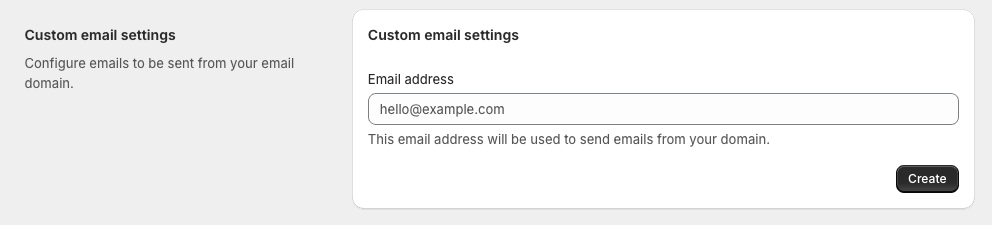
- Navigate to Settings → Custom Email Settings.
- Enter the email address you want to use (e.g.,
notifications@yourstore.com). - Click Create.
Step 2: Verify Your Domain
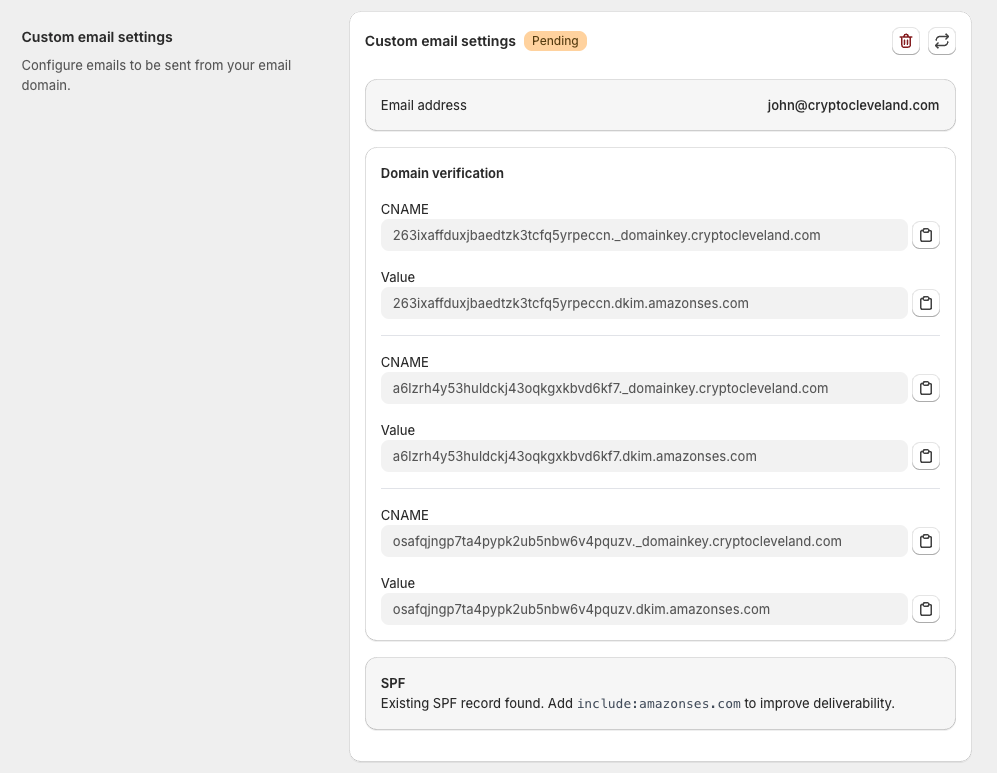
After saving, we’ll generate DNS records you must add to your domain provider to verify ownership and authorize email sending.
You’ll see:
- 3 CNAME Records – Used for DKIM signing.
- TXT Record (SPF) – Authorizes our servers to send emails on your behalf.
Step 3: Add DNS Records to Your Domain
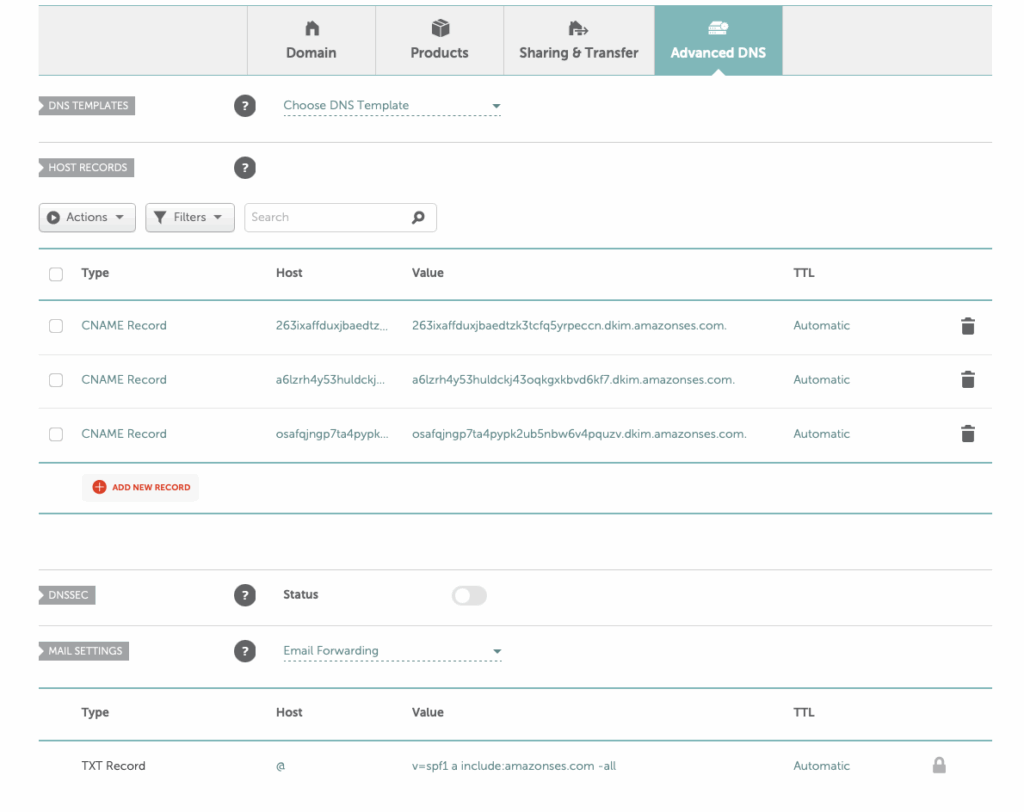
- Log in to your DNS host (GoDaddy, Cloudflare, Namecheap, etc.).
- Open the DNS Management or DNS Settings page.
- Add each CNAME record as provided.
- Add the SPF record:
- If you already have one, edit it to include
include:amazonses.com - If none exists, create a new TXT record with this value:
v=spf1 include:amazonses.com ~all
- If you already have one, edit it to include
⚠️ Watch for a doubled domain. Some DNS providers append your domain to whatever you type in the host/name field. If you paste the full record name you can end up with it twice —
mail._domainkey.yourstore.com.yourstore.com. If your provider does this, enter only the prefix (everything before your domain) and let it add the rest.
Step 4: Wait for Verification
- DNS propagation can take up to 24-48 hours.
- Once verified, the status in Content Vault changes from Pending to Active automatically.

Step 5: Start Sending From Your Domain
After verification:
- Content Vault sends your customer emails from your custom email address.
- Customers will see your domain in their inbox, boosting trust and reducing spam filtering.
Troubleshooting
- Verification stuck: Use MXToolbox to confirm DNS records are correct.
- Duplicate SPF: Ensure you only have one SPF record with
include:amazonses.com. - Emails still sending from Content Vault: Double-check that verification is complete and no errors appear in settings.