Home page overview
The Home page is the first page you see when you open Content Vault (listed as Digital Subscriptions in your Shopify admin). It shows whether your setup is finished, how your subscriptions are doing, who subscribed recently, where to get help, and what’s new in the app.
Finishing Your Setup
Until your store is fully set up, Home shows the Setup Guide (“Use this personalized guide to get Content Vault up and running on your store!”), with a count of the steps you’ve completed:
- Add App Block to Theme – Add App Block opens your theme editor on a product page: “Click to automatically add the Content Vault app block to your product page and drag the app block up or down to move it to the position you want.”
- Enable Customer Accounts & Subscription Management – Enable customer accounts extension: “Enable customer accounts so subscribers can access their profiles and manage their subscriptions directly from your store.”
- Set Up Your Subscription and Add Content – create your first subscription, then upload your first file.
Each step is ticked off as you finish it, and the guide disappears once all three are done. How to install & set up Content Vault walks through every step.
While you’re setting up, Home also shows a welcome card, Turn Your Content into Predictable Revenue, with a two-minute video, Launch Your First Subscription in Minutes.
Once everything is in place, a green banner confirms it: “Content Vault is setup correctly, theme and customer account extension are enabled.”
Getting Started with Subscriptions
After setup, the welcome card gives way to Getting started with Subscriptions: a short video for each subscription type, Content Drip (6:57), Library Access (4:28) and Content Pass (6:58), each with a line on what the type is for and a Learn more link to its article in this knowledge base. Click a video to watch it without leaving the app.
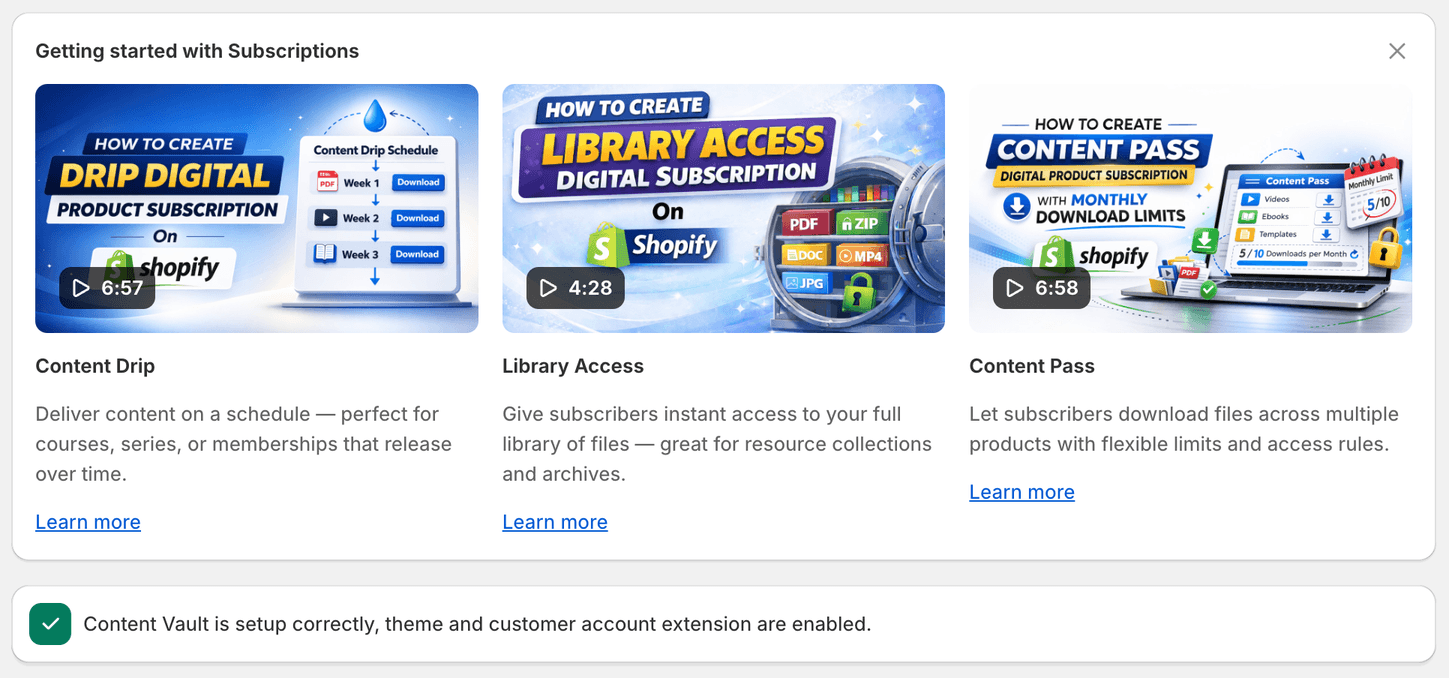
You can close either card with the × in its corner. It stays closed in that browser.
Analytics at a Glance
The Analytics card covers the last 30 days. Use its menu to switch to Last 7 days, Last 60 days, Last 90 days or Last 365 days.
- New Subscribers
- Downloads
- Revenue
Each figure has a small trend line and a badge with its change from the period before. The badge tops out at 999%, which is what you’ll see when a figure goes up from none in the period before.
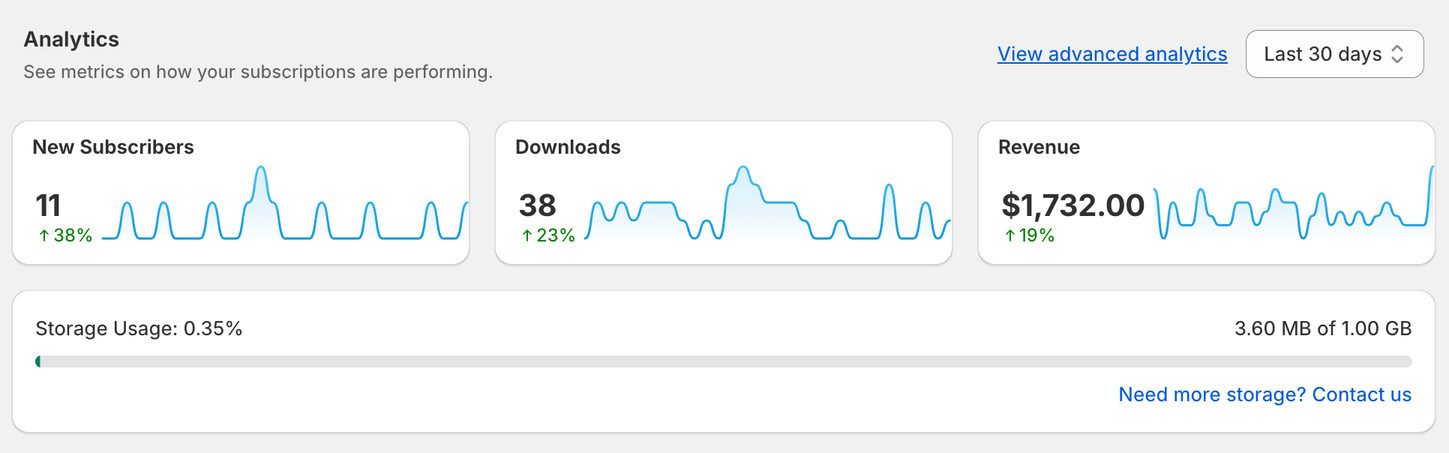
Below them, Storage Usage shows how much of your plan’s storage you’ve used, for example 3.60 MB of 1.00 GB. Need more storage? Contact us opens the live chat, and How does Content Vault pricing work? lists the storage on each plan.
View advanced analytics opens the full Analytics page. See Understanding the Analytics page.
Recent Subscriptions
Recent subscriptions lists the subscriptions started in the last 30 days, with the Subscription, the Customer (their name, or their email if they have no name), When, the Frequency and the Revenue. When a customer paid in another currency, the amount is underlined: hover over it to see what they paid in their currency.
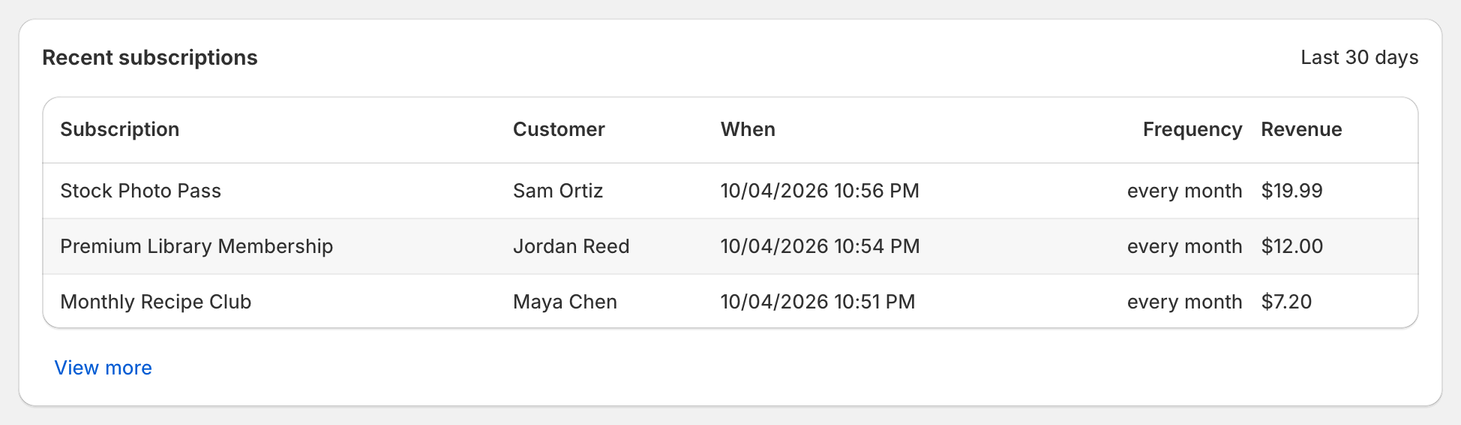
View more opens the Customers page. See How to manage customers.
Support Resources
- Live chat – Start live chat opens a chat with the Content Vault team inside the app.
- Help center – View help center opens this knowledge base in a new tab.
What’s New
What’s new lists the latest updates to the app, newest first, each with its date and a badge such as New, Improved or Fixed. View full changelog opens the full list on our website.
Banners You Might See
A red banner at the top of Home means something stops Content Vault from working:
- Your payment gateway doesn’t support subscriptions. Connect one that does, such as Shopify Payments, PayPal or Stripe. View subscription supported gateways opens Shopify’s help on which gateways qualify.
- Your store uses legacy customer accounts. “Content Vault only supports new customer accounts”, and customers can’t download their files until you switch. Learn more opens Shopify’s guide to upgrading.