How to manage files
The Files page is where you upload, organize, and manage all digital files used across your Content Vault subscriptions. From here, you can upload new files, rename existing ones, see where files are being used, and manage storage.
This page acts as a central file library that powers all subscription types (Content Drip, Library Access, and Content Pass).
Accessing the Files Page
In your Shopify admin:
Apps → Content Vault → Files (Content Vault is listed as Digital Subscriptions in your Shopify admin)
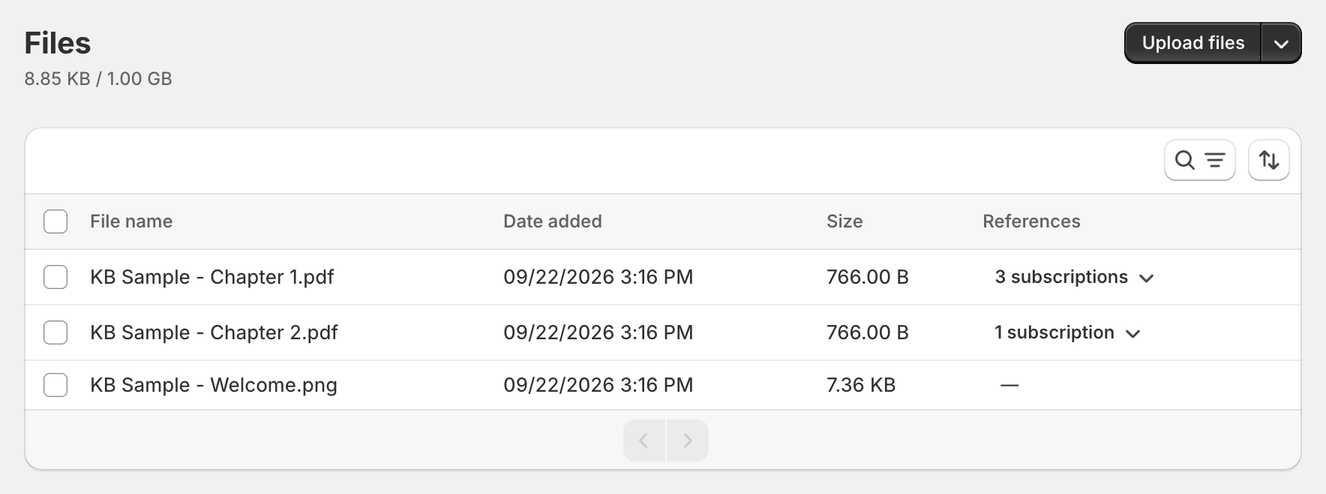
At the top of the page, you’ll see:
- How much storage you’ve used, out of your storage limit (e.g.
130.64 MB / 1.00 GB) - A searchable list of all uploaded files
Uploading Files
You can upload files in two ways:
Upload from your computer
- Click Upload files
- Select one or more files from your device
Upload from a URL
- Click Upload files → Upload from URL
- Paste the address in File URL, give it a Filename, and click Add file
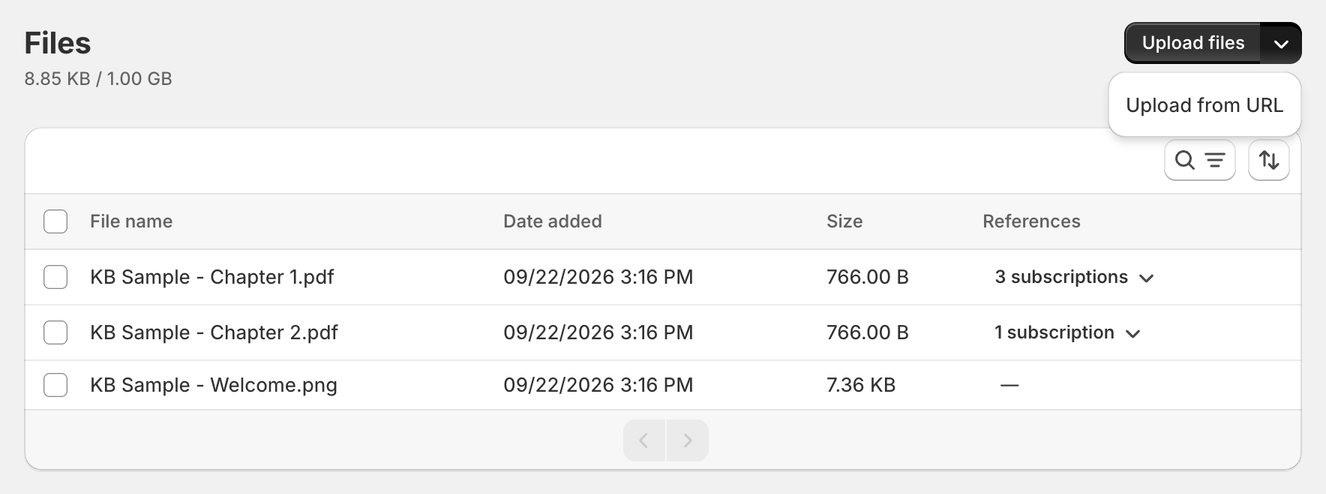
A file added this way stays at that address: Content Vault keeps only the link, so the file shows no size, uses no storage and has no Download/Stream choice. When a customer opens it, their browser goes to the original address.
The address doesn’t have to be a file: a link to a page, such as a YouTube or Vimeo video or a Canva template, works the same way, and subscribers who open it go to that page.
Uploaded files are immediately available to be linked to subscriptions.
Understanding the Files Table
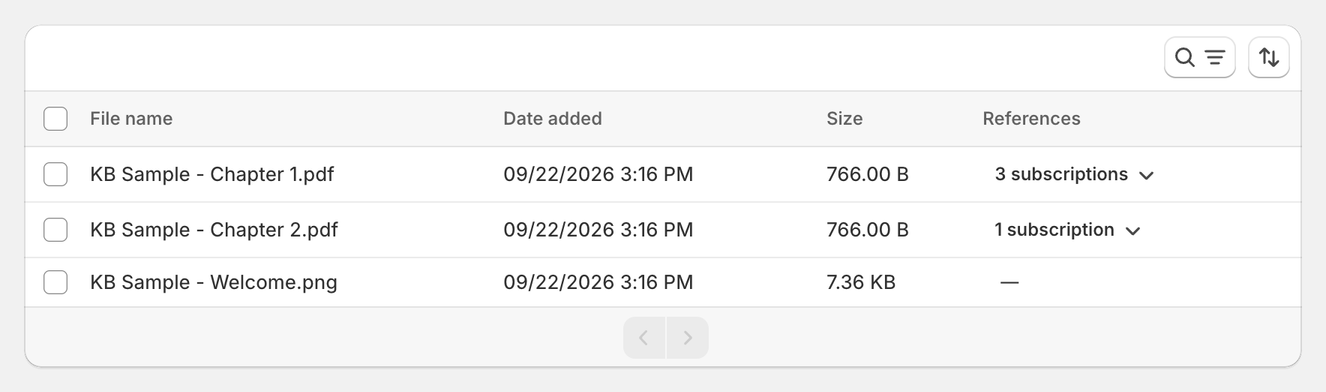
Each row in the table represents a single file.
Columns explained
File name
The name shown to you and (when applicable) to customers.
Date added
When the file was uploaded to Content Vault.
Size
The file size, counted toward your storage limit.
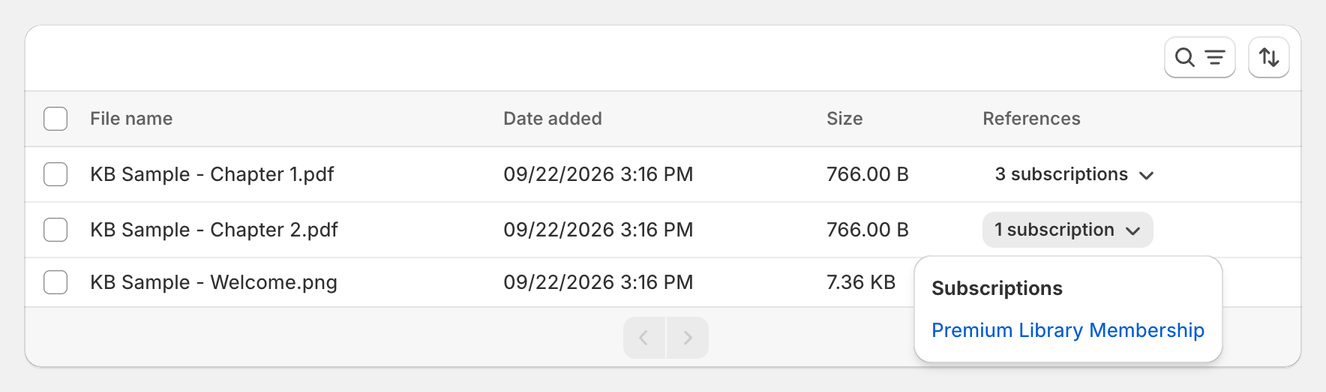
References
Shows how many subscriptions currently use this file.
You can click this to see exactly which subscriptions reference it.
Viewing & Managing a File (File Detail Page)
Click any file name in the Files table to open its File Detail page.
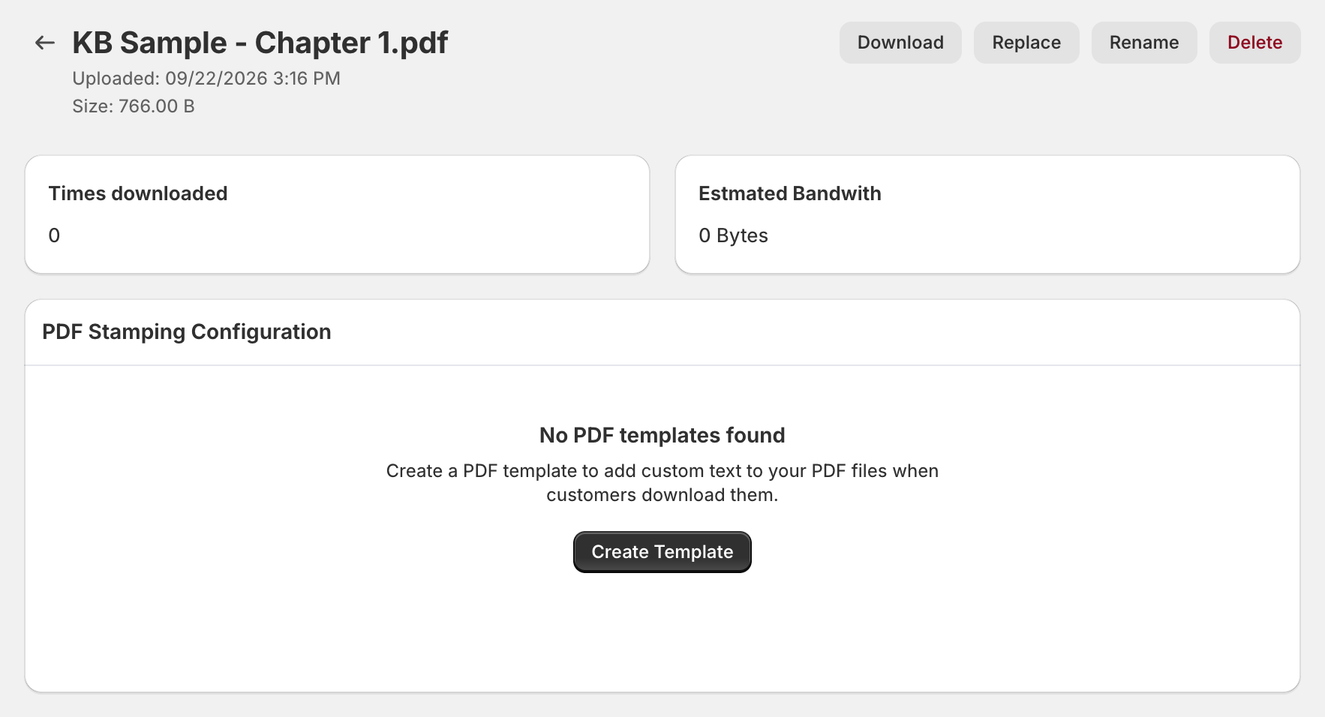
This page gives you deeper control over the file, including:
- Download
- Replace
- Rename
- Delete
- View download statistics
- Email previous customers with a new file version
The file's actions are the buttons at the top right of the page (in a narrow window they fold into a ⋯ menu):
- Download
- Replace
- Rename
- Delete
Below the file name, you’ll also see:
- Upload date
- File size
- Times downloaded
- Estimated bandwidth usage
PDF Stamping Configuration
For PDF files, the detail page also has a PDF Stamping Configuration panel. This is where you attach a stamping template to that specific file, so the customer's name and email are written onto the PDF each time it is downloaded. PDF stamping needs the Starter plan or above.
If you haven't built one yet it reads No PDF templates found with a Create Template button. Templates themselves are managed under Settings → PDF Templates — see Setting up PDF stamping & watermarks for the full walkthrough.
Renaming Files
From the File Detail page
- Click the file name to open it
- Click Rename at the top right
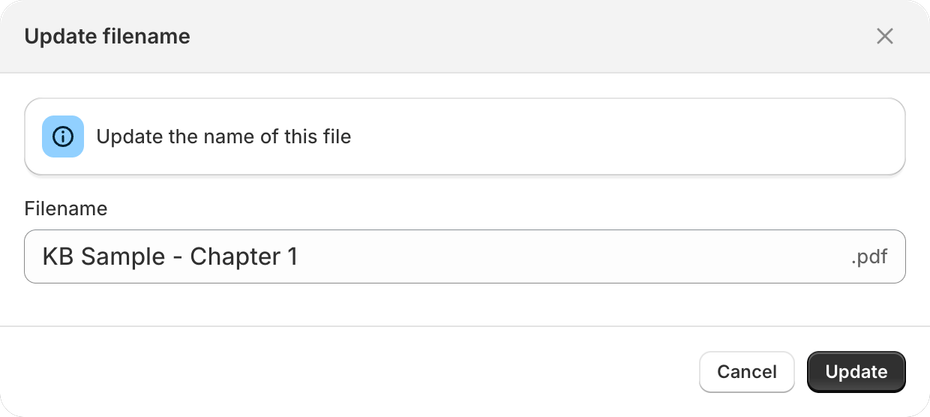
- Edit the name in the Update filename dialog (the extension is shown separately) and click Update
Renaming changes only the file's name. The file stays attached to the same subscriptions.
Downloading Files
From the File Detail page
- Click the file name
- Click Download at the top right

Replacing a File
If you need to update a file (for example fixing an error or uploading a newer version), you can replace it without breaking references.
To replace a file:
- Click the file name to open the File Detail page
- Click Replace at the top right
- Click Select file and choose the new version
The file will be replaced everywhere it is currently used across subscriptions.
Optional: Email customers with the updated file
When replacing a file, you’ll see an option:
☐ Email customers who have previously downloaded this file with a new download link
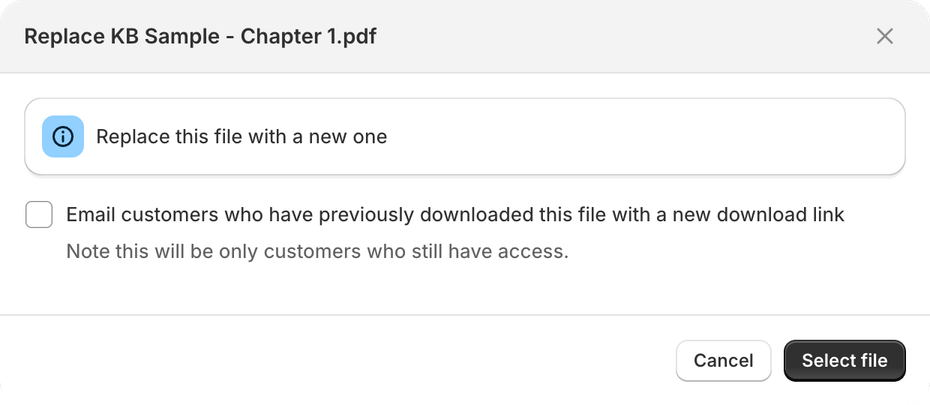
If enabled:
- Customers who previously downloaded the file (and still have access) will receive a new download link automatically.
- This is useful when issuing updates, corrections, or improved versions.
Searching & Sorting Files
Search
Click the search icon at the top right of the table to open the search bar, then type part of a file name.
Sorting
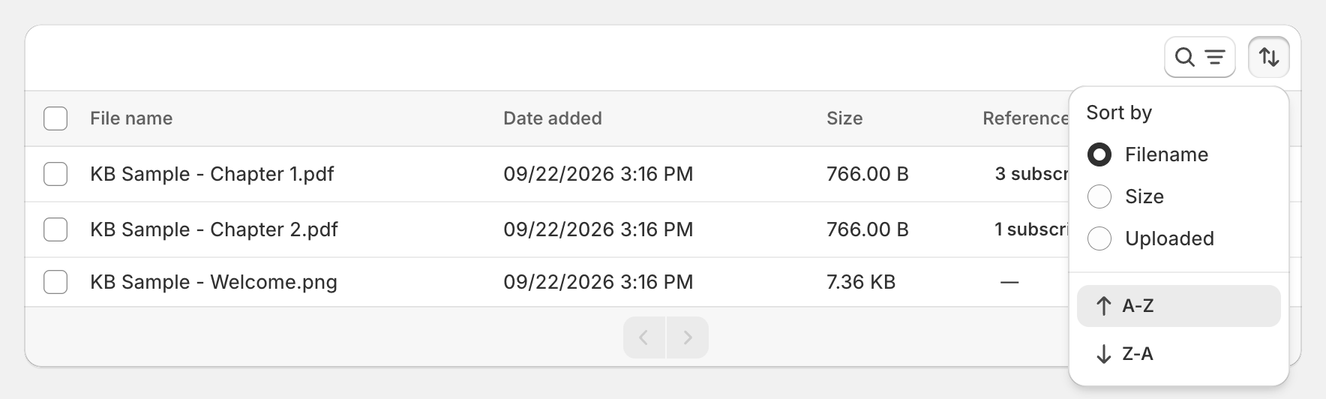
Click the sort button beside the search icon to sort files by:
- Filename
- Size
- Uploaded (the date added)
Then pick a direction, A-Z or Z-A. This helps when managing large libraries.
Managing File Usage Across Subscriptions
Files are shared assets in Content Vault.
A single file can be:
- Used in multiple subscriptions
- Linked to multiple tiers
- Included in different subscription types
The References column helps you see where a file is being used.
If a file is referenced by active subscriptions, it should not be removed unless you intend to remove access.
Deleting Files
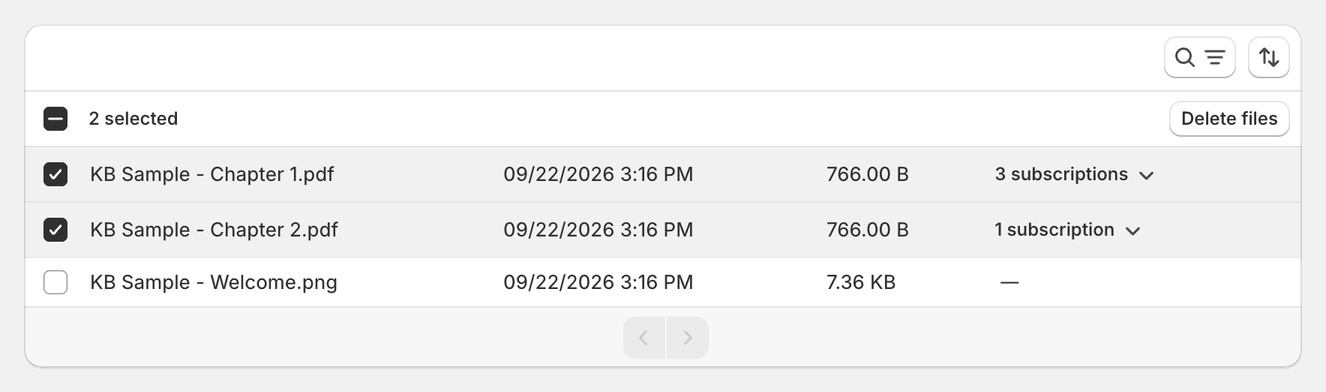
To delete one or more files:
- Select the checkbox next to the file(s) you want to remove
- Once selected, a Delete files button will appear at the top of the table
- Click Delete files
- Confirm the deletion when prompted
Best Practices
- Use clear, descriptive file names
- Reuse files across subscriptions when possible
- Periodically review the References column
- Monitor storage usage as your library grows