Setting up PDF stamping & watermarks

Content Vault lets you automatically personalize and protect your PDF files by adding customer-specific stamps (like the customer’s name and email) at the time a file is downloaded. This helps discourage unauthorized sharing and maintains a better ownership experience for your buyers.
💡 PDF stamping is included on the Starter plan and above. See How does Content Vault pricing work?.
What Is PDF Stamping?
PDF stamping (also sometimes called a watermark) allows you to automatically imprint specific text onto PDF files when customers download them. The stamp can include dynamic information like the customer’s name and email, the subscription plan’s name, or your store name — helping identify the original recipient if a file is shared.
Where to Configure PDF Stamping
- In your Shopify admin, go to: Apps → Content Vault → Files (Content Vault is listed as Digital Subscriptions in your Shopify admin)
- Locate the PDF file you want to protect.
- Click the file name to open the File Detail Page.
- Scroll to the PDF Stamping Configuration section.
⚠️ PDF stamping only works with PDF files, and only with files under 100 MB. Other file types (like ZIP, audio, etc.) are not supported for stamping at this time.
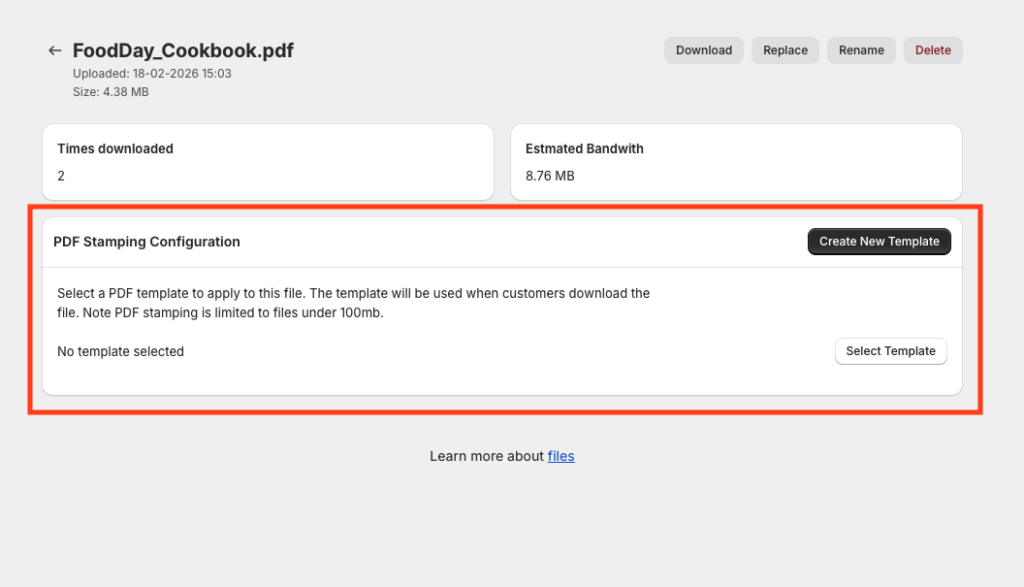
💡 There's a second way in. Templates also live under Apps → Content Vault → Settings → PDF Templates, at the bottom of the Settings page. Use that route to build or edit templates up front; use the file route above when you want to attach one to a particular PDF.
Creating a PDF Stamp Template
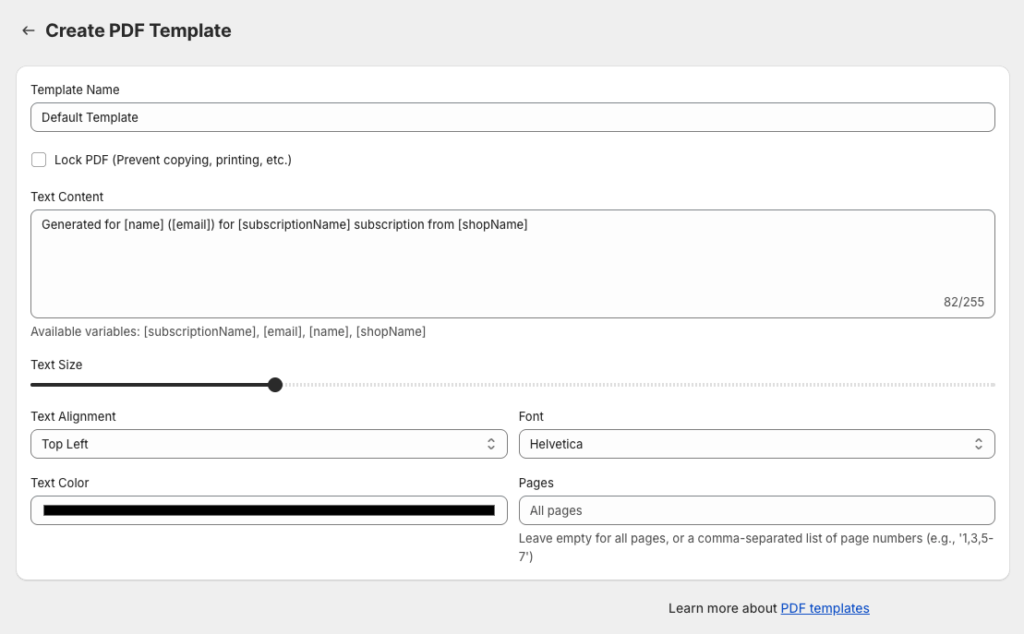
Click Create New Template (or Create Template from the Settings page) to open the editor. The form is short:
- Template Name — for your reference only; customers never see it
- Lock PDF (Prevent copying, printing, etc.) — see below
- Text Content — what gets stamped. Mix static text with the variables listed under the field. Capped at 255 characters, with a live counter
- Text Size — a slider
- Text Alignment — where the stamp sits on the page, e.g.
Top Left - Font — defaults to
Helvetica - Text Color
- Pages — leave empty to stamp every page, or give a comma-separated list
that also accepts ranges:
1,3,5-7
Click Save when you're done.
Dynamic Variables
Variables are replaced with the buyer's real details at the moment they download. Four are available, listed beneath the Text Content field:
| Variable | What it inserts |
|---|---|
[name] |
The customer's name |
[email] |
The customer's email address |
[subscriptionName] |
The name of the subscription plan they're on |
[shopName] |
Your store name |
The default template shows the pattern:
Generated for [name] ([email]) for [subscriptionName] subscription from [shopName]
Email and name are the pair worth including — a stamp that identifies the recipient personally is what makes casual sharing unappealing.

Linking a Stamp Template to a File
After creating one or more templates:
- Open any PDF file’s File Detail page.
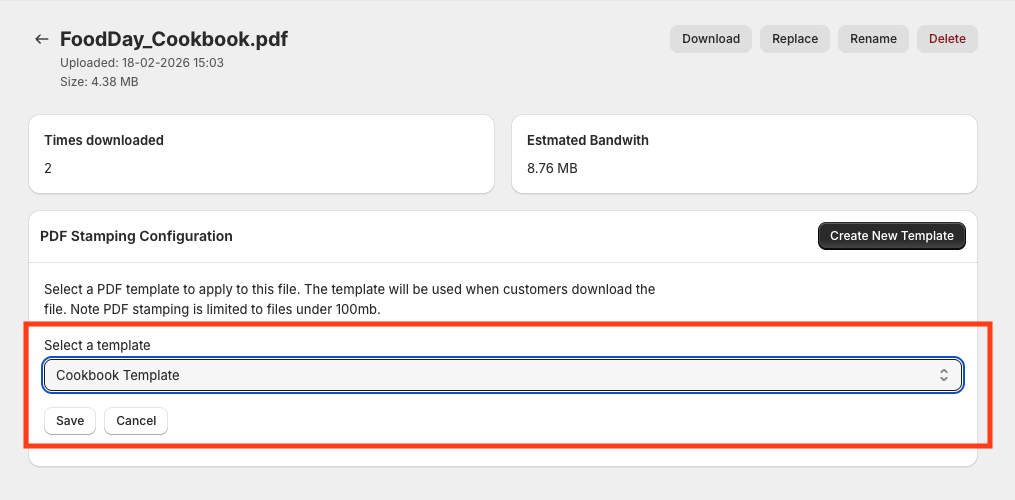
- In the PDF Stamping Configuration section, click Select Template.
- Choose the template you want applied.
- Save your selection.
That template will now be used whenever this PDF is downloaded by a customer.
Optional: Enable PDF Locking
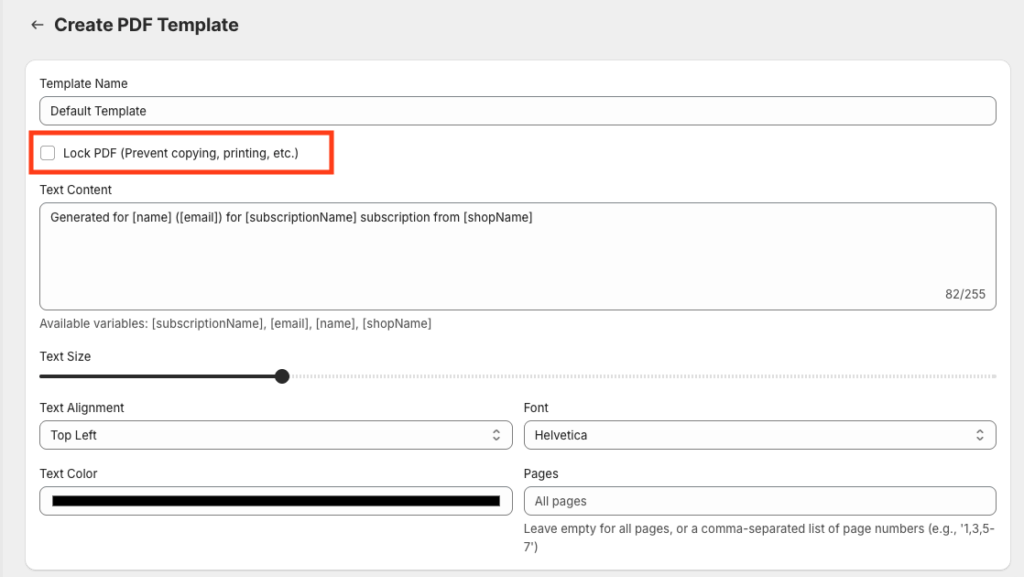
Every template has a Lock PDF (Prevent copying, printing, etc.) checkbox, off by default. Ticking it restricts what recipients can do with the file after it's stamped — an extra layer against the stamp simply being edited out.
⚠️ Locking restricts copying and printing in PDF readers that honor those flags. Treat it as a deterrent rather than true protection: it raises the effort required, it does not make a file impossible to copy. Pair it with stamping so that anything that does escape is still traceable.
How It Works With Subscriptions
When a subscriber downloads a stamped PDF:
- Content Vault applies the template at the time of download.
- The downloaded file contains the customer’s specific data.
- If the subscriber later cancels, new downloads will still be stamped if they still have access.
Best Practices
- Use small, unobtrusive stamps so that the experience feels clean for customers.
- Include key identifiers (like customer name and email) that make sharing less appealing.
- Test a few downloads after setup to confirm the stamp appears as expected.
If you’d like help designing your first PDF stamp template or have questions about which variables you can use, feel free to reach out anytime!