Offering a discount when subscribers cancel
When a subscriber goes to cancel, Content Vault can first offer them a discount to stay. If they accept, their subscription carries on at the lower price; if they decline, they cancel as usual. You choose the discount and how long it lasts, and the Analytics page shows how many subscribers it kept, why others canceled, and which subscribers have stopped downloading.
Cancel offers are available for Content Drip and Library Access subscriptions; a Content Pass doesn't have one.
Turning it on
- Go to Apps → Content Vault → Subscriptions (Content Vault is listed as Digital Subscriptions in your Shopify admin)
- Open the subscription and select a plan
- In Plan settings, choose Customer options
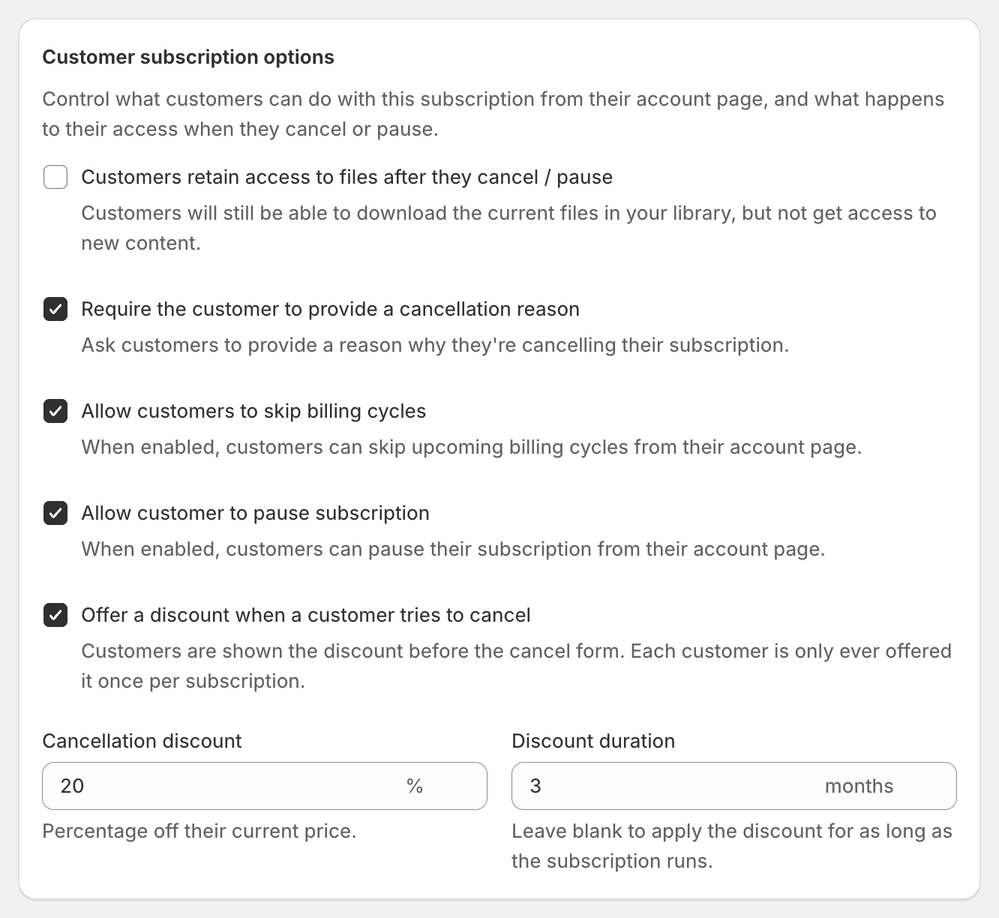
- Tick Offer a discount when a customer tries to cancel
- Enter a Cancellation discount, and a Discount duration if you want the discount to end
- Click Save subscription
The offer is set per plan, so each tier can have its own discount. It's off until you turn it on.
Choosing the discount
- Cancellation discount – the percentage taken off the subscriber's current price, from 1 to 100. It's required once the offer is on.
- Discount duration – how many billing cycles the lower price lasts. The field shows the plan's billing interval, such as months on a monthly plan. Leave it blank to keep the discount for as long as the subscription runs.
For example, on a $12.00 monthly plan with 20% off for 3 months, a subscriber who accepts pays $9.60 from their next renewal, for three renewals, then $12.00 again.
Changing the discount later doesn't touch offers subscribers have already accepted: they keep the terms they accepted.
💡 This is a different discount from the Percentage discount under Show advanced pricing options in Tier details, which new subscribers get from their first payment. See How to offer limited-time discounts.
What your subscribers see
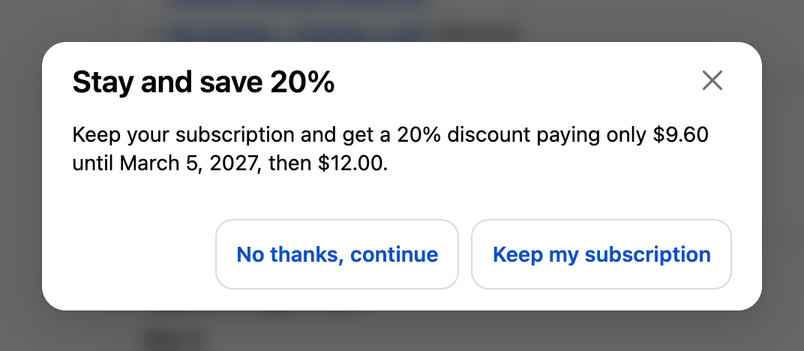
The offer appears when a subscriber cancels from their account page (Subscription management → View details → More actions → Cancel), before the cancel form. It shows the discount and what they'll pay:
- with a duration: “Keep your subscription and get a 20% discount paying only $9.60 until March 5, 2027, then $12.00.”
- with no duration: “…paying only $9.60 from now on. This discount has no end date.”
If they accept
When they click Keep my subscription:
- “Your discount has been applied” shows, and the subscription stays active
- Next renewal shows the discounted price straight away, on the subscription's page and in their list of subscriptions
If they decline
No thanks, continue takes them to the usual Cancel subscription form, which asks for a reason when the plan has Require the customer to provide a cancellation reason ticked. Once they've canceled, their subscription page shows when it ended and when their access ends.
If they close the offer without choosing, nothing is recorded, and it shows again the next time they cancel.
One offer per subscription
Each subscription gets the offer once. After a subscriber has accepted it, a later Cancel on that subscription goes straight to the cancel form. A customer with two subscriptions can be offered the discount on each.
Seeing how it's working
On the customer's page
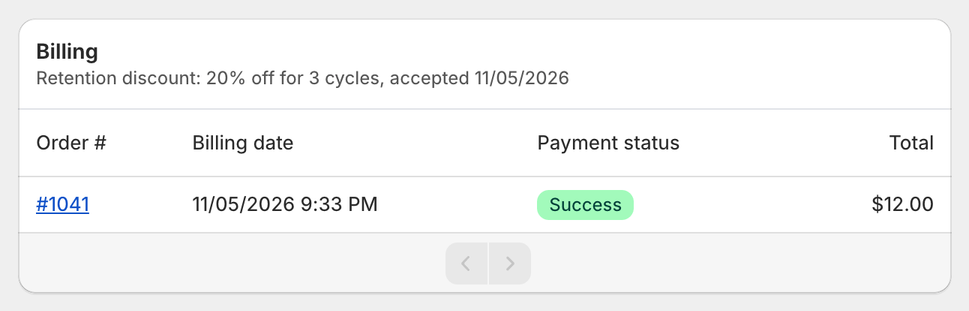
Once a subscriber accepts, the Billing card on their page in Customers shows the discount, for example “Retention discount: 20% off for 3 cycles, accepted 11/05/2026”. See How to manage customers.
On the Analytics page
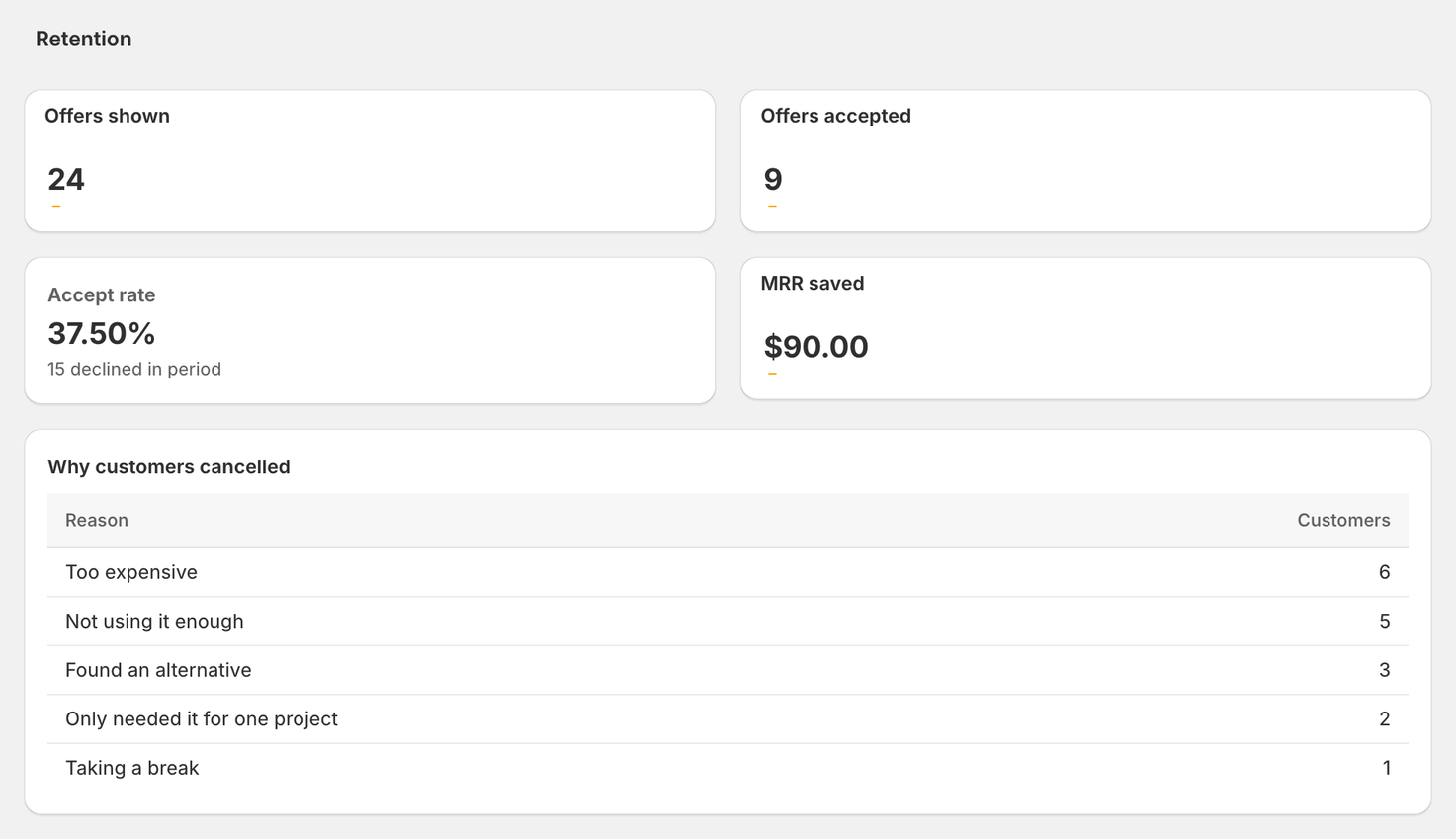
The Retention section of Analytics covers the date range selected at the top of the page:
- Offers shown – how many offers subscribers answered, accepting or declining (closing it without choosing doesn't count)
- Offers accepted – how many of them took the discount
- Accept rate – the share who accepted, with how many declined underneath
- MRR saved – the monthly revenue, at full price, of the subscriptions that accepted in the period and were still active at its end
- Why customers cancelled – the reasons subscribers gave when they canceled, and how many gave each
Finding subscribers who've stopped downloading
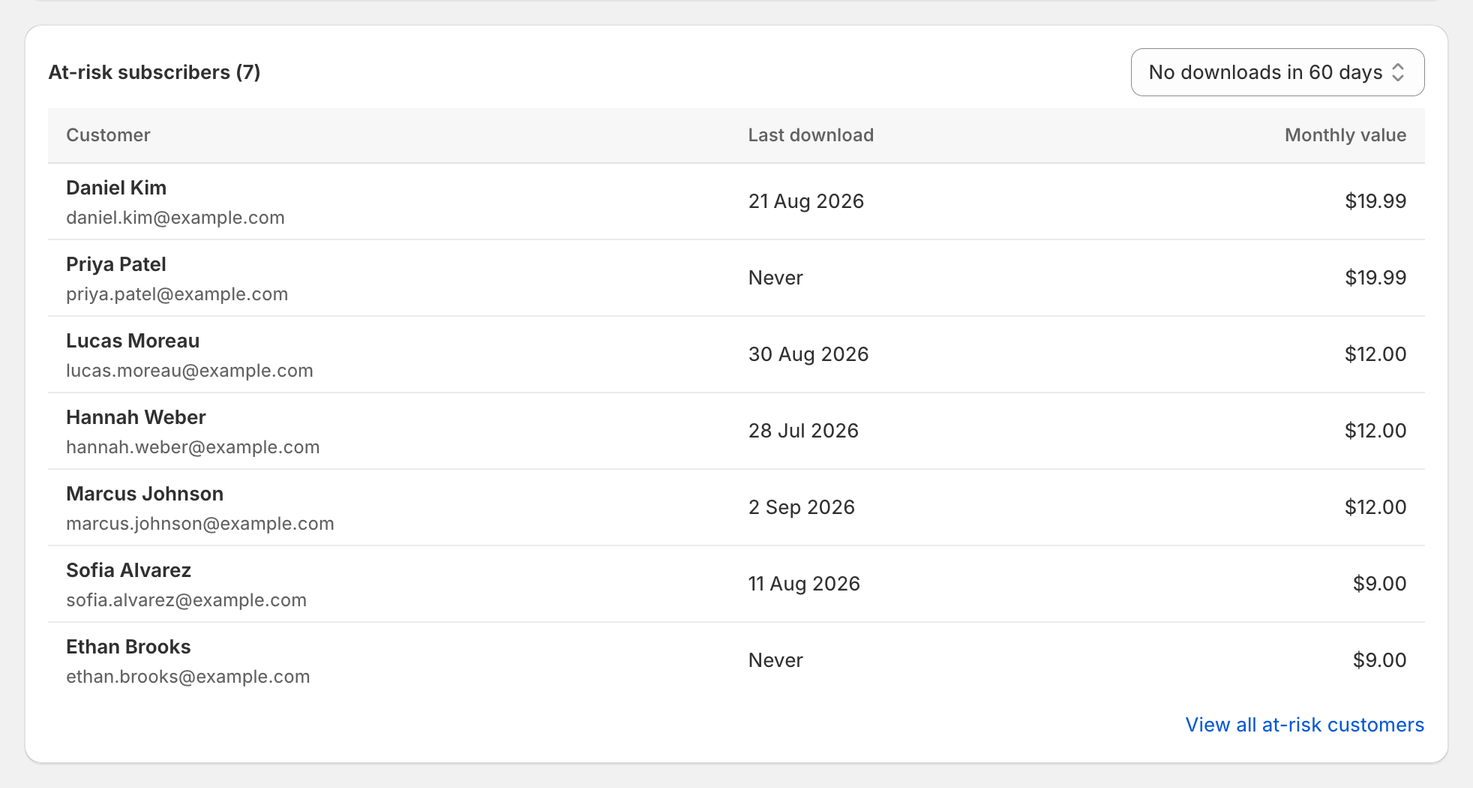
At-risk subscribers, under the reasons, lists active subscribers with no downloads in 30, 60 or 90 days (choose the window on the card; 60 is the default). A subscription newer than the window isn't counted. It shows up to ten, highest monthly value first, with each one's last download (or Never). Click a row to open that customer, or View all at-risk customers for the full list.
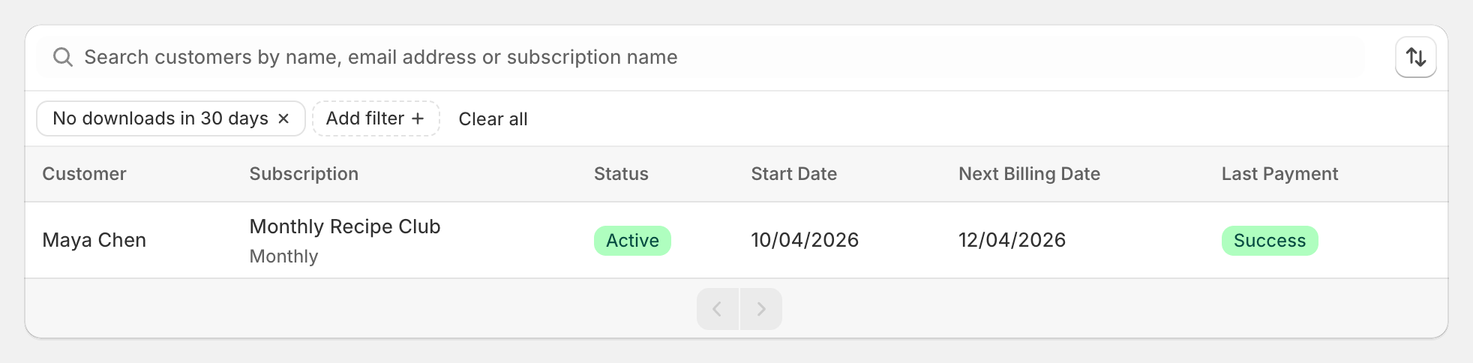
The full list is the Customers page with its Engagement filter on, which you can also set yourself: click Add filter → Engagement, choose a Window of 30, 60 or 90 days (60 by default) and select No downloads in N days. Export CSV exports the list with this filter applied.
A quiet subscriber is worth a nudge before they think about canceling, for example an email about what's new in your library.
Least downloaded files, below Top customers on the Analytics page, lists up to five connected files your subscribers downloaded least in the period (a file with no downloads isn't listed). It can point to content worth refreshing or featuring. See Understanding the Analytics page.