Customizing the subscription widget
The Subscription Widget is what customers see on your product page when purchasing a subscription.
You can fully customize its appearance directly inside your Shopify Theme Editor.
Where to Find the Subscription Widget Settings
- In Shopify Admin, go to Online Store → Themes
- Click Customize
- Navigate to a Product Page
- Click the Subscription widget block (under Product information in most themes)
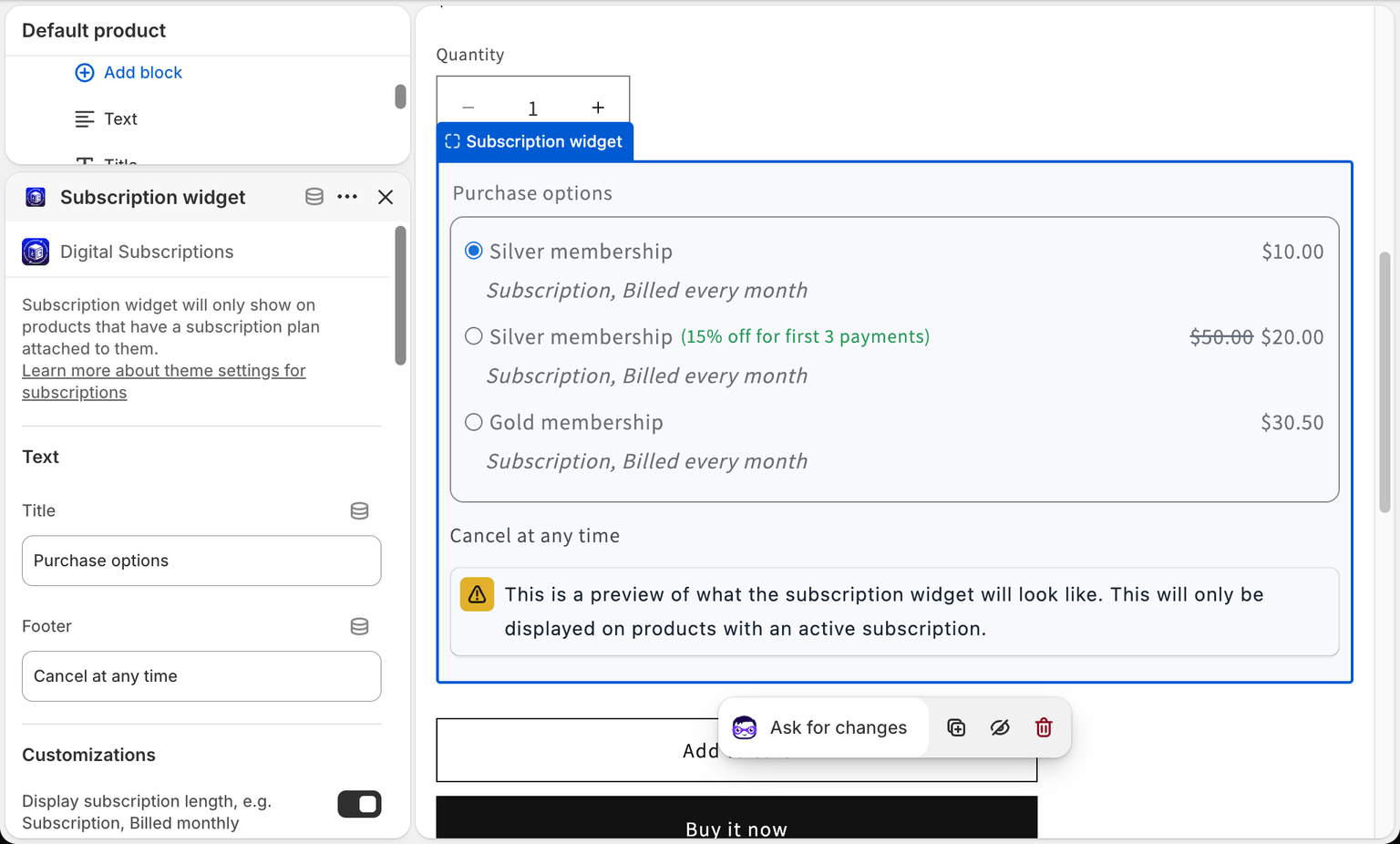
Once selected, you’ll see all customization options in the left sidebar.
Available Customization Options
1) Text
This section controls the text labels customers see inside the widget.
- Title (example: “Purchase options”)
- Footer (example: “Cancel at any time”)
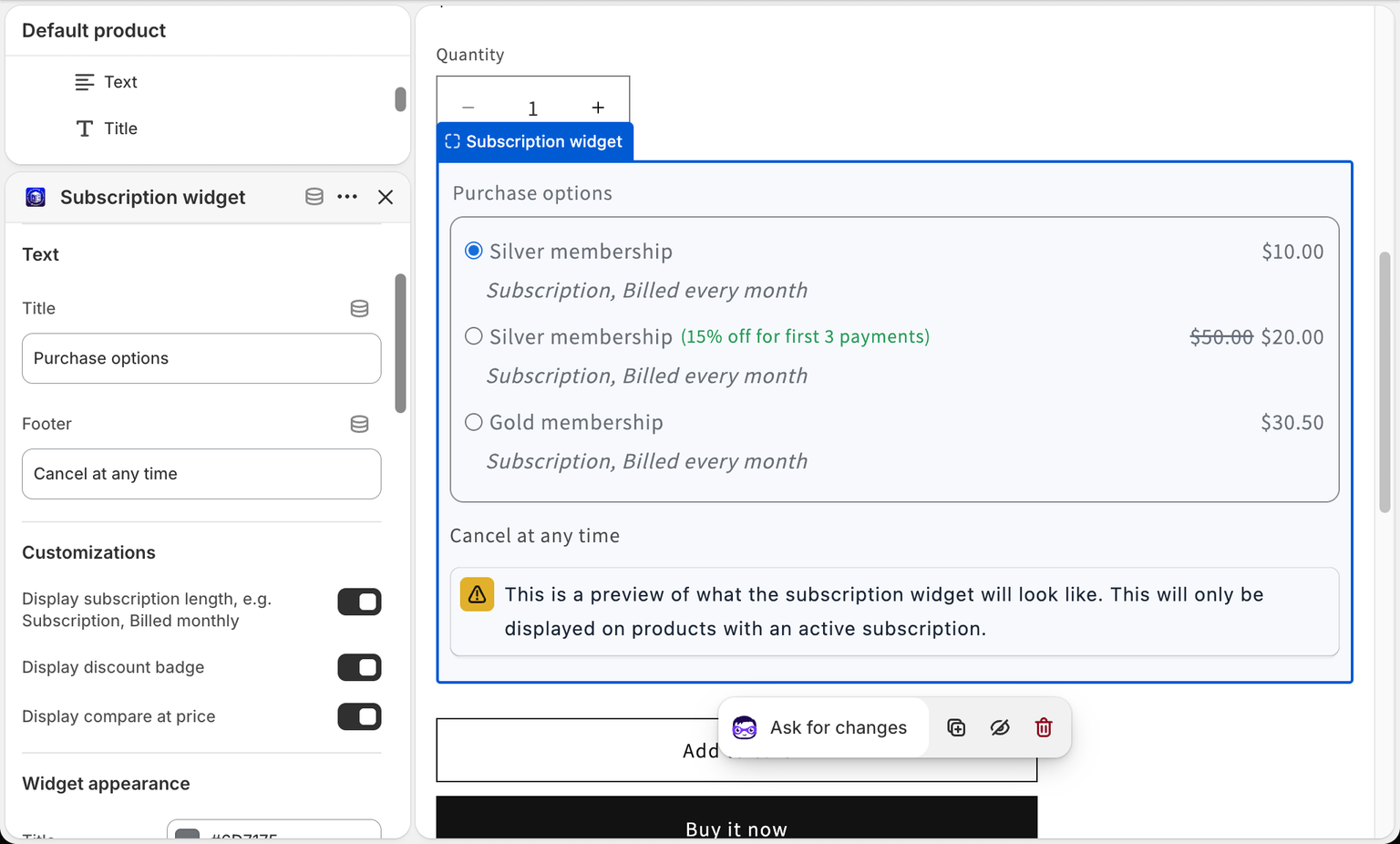
2) Customizations (Display Toggles)
These toggles control what extra details show inside the widget.
- Display subscription length — shows the billing interval under the plan (example: “Subscription, billed monthly”).
- Display discount badge — shows a discount label when a plan has a discount (example: “15% off for first 3 payments”).
- Display compare at price — shows the “compare at” / crossed-out price when applicable.
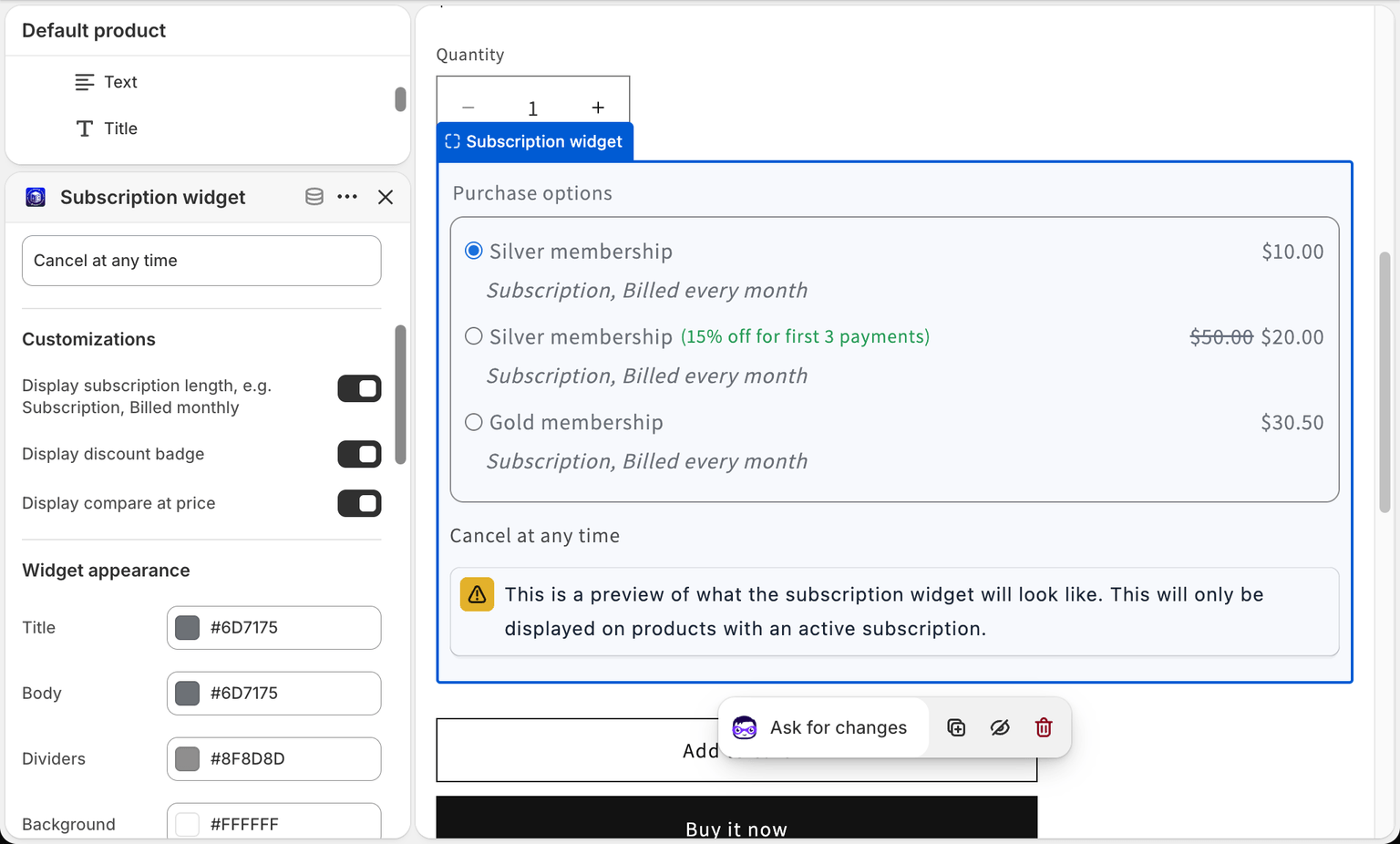
3) Widget Appearance
This section styles the whole widget, not just the discount badge, and is available whether or not the badge is switched on.
Colors
- Title — the widget heading
- Body — plan names and billing text
- Dividers — the lines between plans
- Background
- Discount badge text color
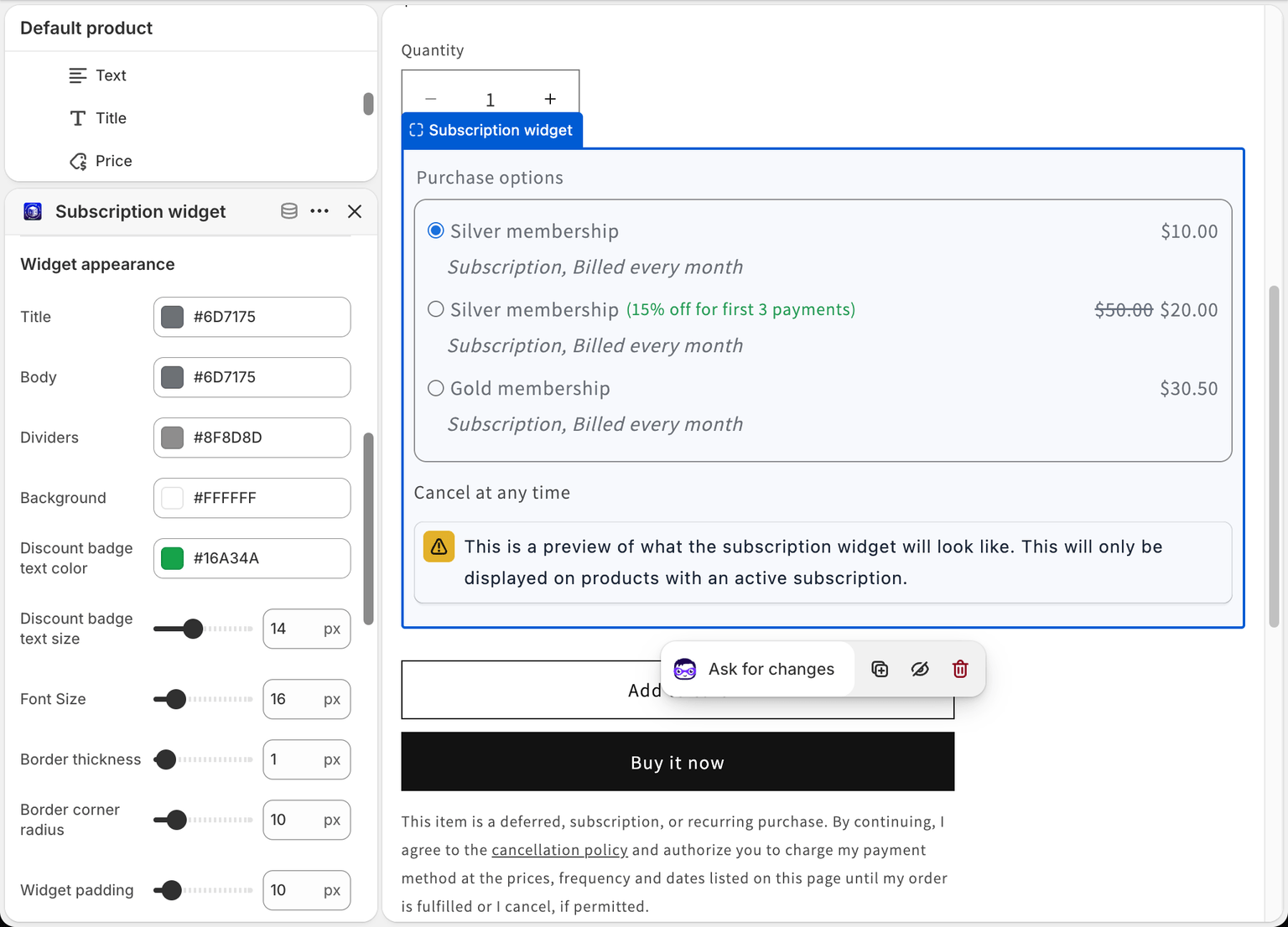
Sizing
- Discount badge text size
- Font Size
- Border thickness
- Border corner radius
- Widget padding
Each sizing control is a slider with a pixel value beside it, so you can match the widget to your theme precisely.
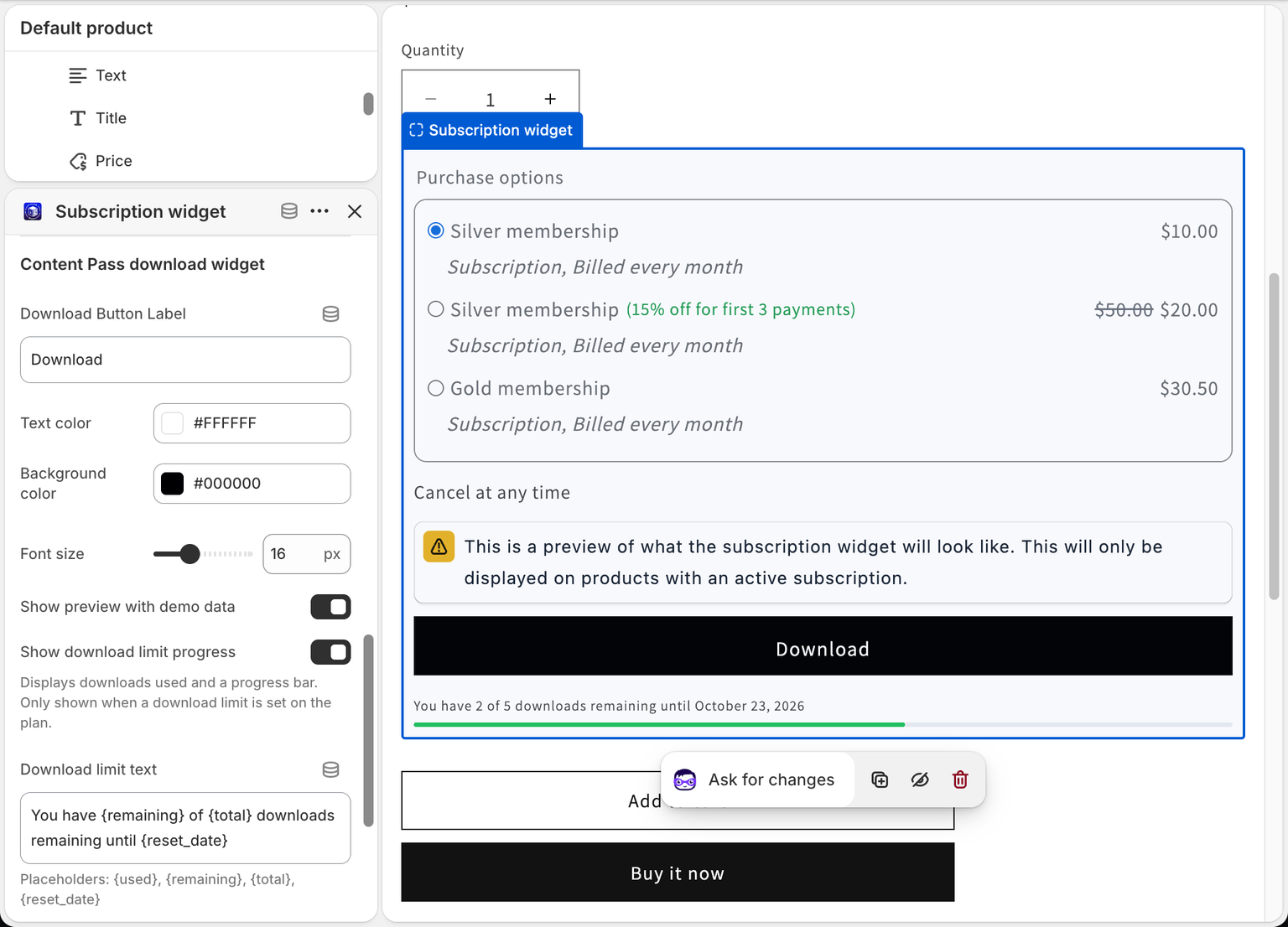
4) Content Pass Download Widget (Content Pass Subscriptions Only)
If you’re using Content Pass, you can customize the subscriber download button:
- Download Button Label
- Text color
- Background color
- Font size
- Show preview with demo data — adds a sample download button and progress message to the theme editor preview, so you can see your styling
Download limit progress
- Show download limit progress — displays how many downloads the customer has used, with a progress bar. It only appears when the plan actually has a download limit set, so it stays hidden on unlimited passes.
- Download limit text — the wording of that message. The default is:
You have {remaining} of {total} downloads remaining until {reset_date}
Four placeholders are available:
| Placeholder | Inserts |
|---|---|
{used} |
Downloads already used this period |
{remaining} |
Downloads still available |
{total} |
The plan's total allowance |
{reset_date} |
When the allowance refills |
💡 Showing customers what's left is worth doing on a metered plan — it makes the allowance feel like a feature rather than a limit they hit unexpectedly. See Setting up a Content Pass subscription.
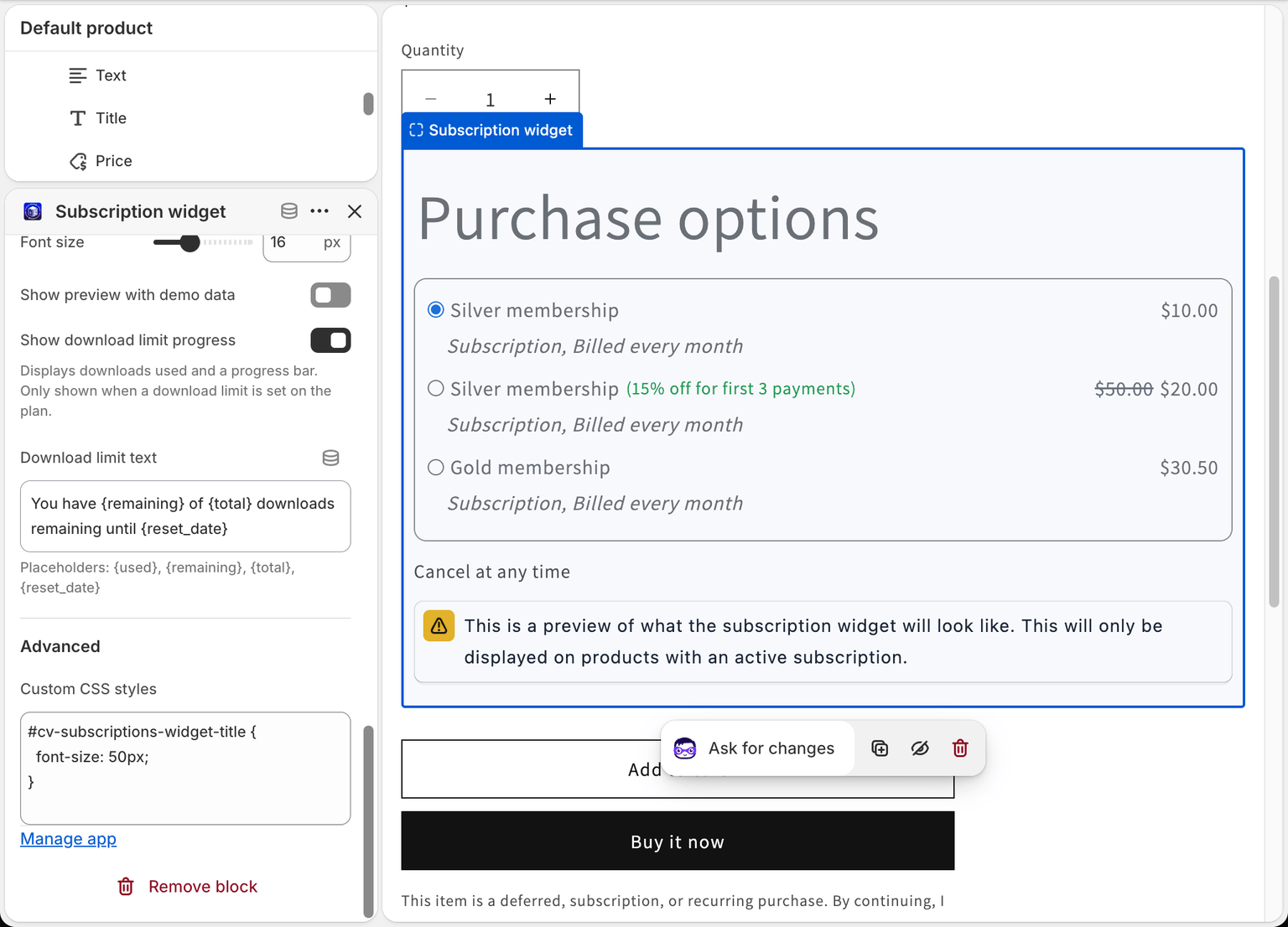
5) Advanced (Optional) – Custom CSS
For deeper styling control, you can add CSS overrides.
Example:
#cv-subscriptions-widget-title {
  font-size: 50px;
}
What Customers See
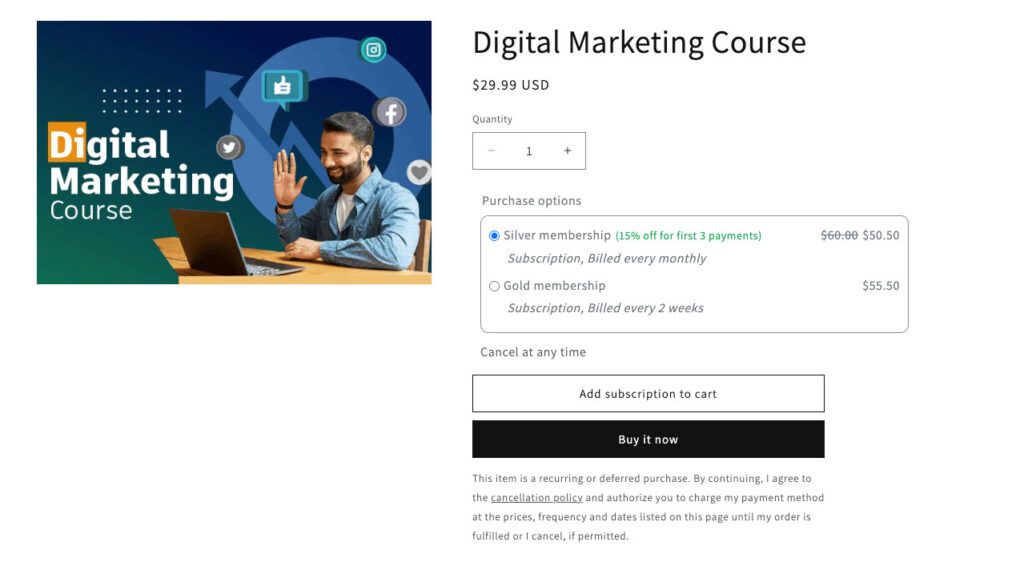
On the product page, customers can:
- Choose a tier (plan)
- See billing frequency / subscription length (if enabled)
- See discounts and compare-at pricing (if enabled)
- Add the subscription to cart
Important Notes
- The widget only appears on products with an active subscription attached
- In the theme editor, the widget always shows sample plans with a note that it’s a preview. Your real plans appear on the live product page
- Changes update immediately in your theme preview
- Styling changes do not affect subscription logic — only appearance
Best Practices
- Keep font sizes consistent with your theme
- Use padding to avoid cramped layouts
- Highlight discounts with badge styling
- Preview on both desktop and mobile before publishing
If you need help matching the widget to your brand, feel free to reach out via live chat.