Settings page overview
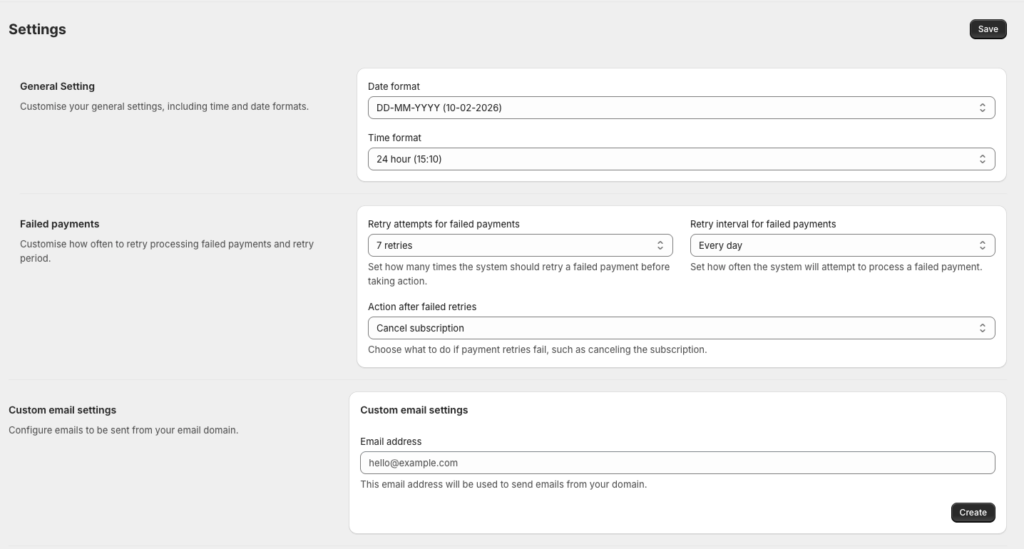
The Settings page in Content Vault lets you control how your subscriptions behave globally — from date formats and failed payment handling to email delivery and notification templates.
You can access this page from Apps → Content Vault → Settings (Content Vault is listed as Digital Subscriptions in your Shopify admin).
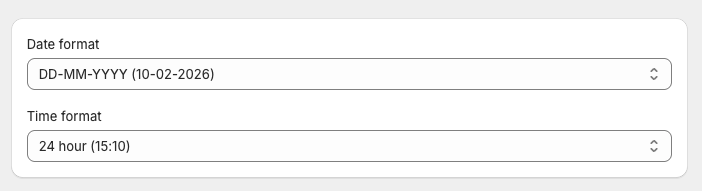
General Settings
These settings control how dates and times are displayed across the Content Vault admin.
Date Format
Choose how dates appear throughout the app (for example: DD-MM-YYYY).
Time Format
Select between:
- 12-hour format (AM/PM)
- 24-hour format
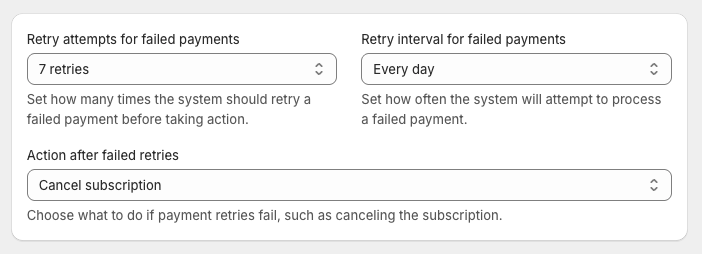
Failed Payments
Configure how Content Vault handles subscription payments that fail.
Retry Attempts
Set how many times Content Vault should retry a failed payment before taking action, from 1 to 10 times.
Retry Interval
Choose how often retries happen, from every day to every 7 days.
Action After Failed Retries
Define what happens if all retries fail:
- Cancel subscription
- Pause subscription
- Skip failed order (skips the order whose payment failed and keeps the subscription active)
Cancelling the subscription after the last failed retry needs the Starter plan or above. These settings help reduce involuntary churn while still giving you control over how long to retry payments.
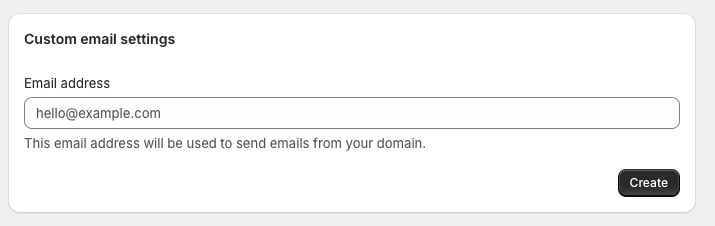
Custom Email Settings
You can send Content Vault emails from your own email address instead of a default sender. This needs the Starter plan or above.
Email Address
Enter the email address you want emails to be sent from (for example: notifications@yourstore.com).
Once your domain is verified (see Setting up custom white-label emails), Content Vault sends emails from this address.
Email Templates
Content Vault includes fully customizable email templates for every major subscription event.
Templates are grouped by subscription type and system events.
Content Drip Emails
- New subscription
- New drip released
- Drip access with download links
- Subscription resumed
Library Access Emails
- New subscription
- Vault access with download links
- Vault files have been updated
- Subscription resumed
Content Pass Emails
- New subscription
- Subscription resumed - content pass
General Emails
- Subscription paused (access retained / revoked)
- Cancelled subscription (access retained / revoked)
- Expired subscription (access retained / revoked) — for fixed-length subscriptions
- File update notification — sent when a downloaded file has been replaced
- Payment due tomorrow
- Subscription payment failed
Each template row gives you:
- Edit template — open the editor and customize it
- Disable email — stop that specific email being sent, without affecting the others
Templates you haven’t customized are marked Default. Customized ones are marked Customized and also get Restore default template.
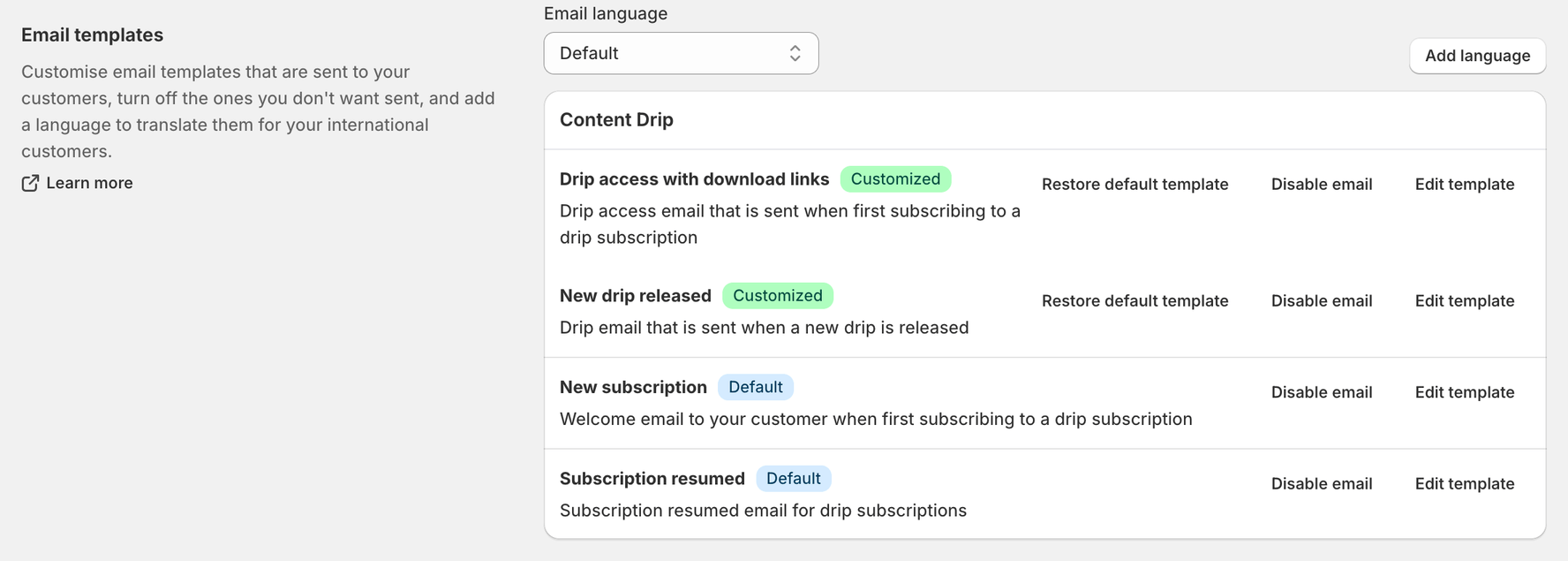
Email Language
Above the template list, Email language switches between your default templates and each translation you’ve added. Use Add language to add one. A new language starts with the English templates, so translate each one yourself.
Each customer gets the translation for their Shopify language if you’ve added one, and your default templates if you haven’t. Once you’ve added a language, you can change it for one customer: open the customer’s page and click Change next to Email language.
PDF Templates
At the bottom of the Settings page, PDF Templates lets you create and manage the templates used to stamp customer-specific details, such as their name and email, onto your PDF files when customers download them. PDF stamping needs the Starter plan or above.
Click Create Template to build your first one. For the full walkthrough see Setting up PDF stamping & watermarks.
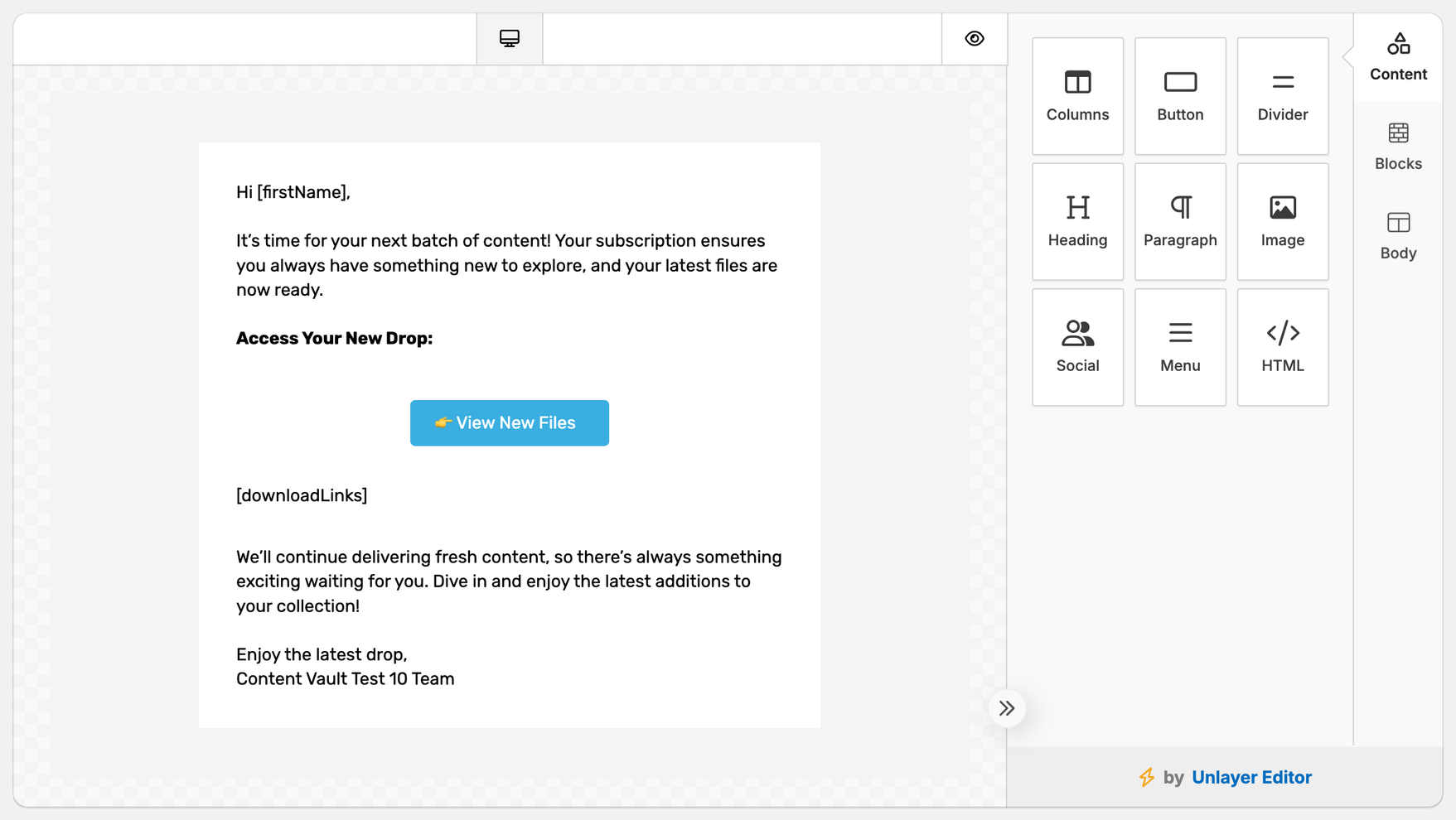
Editing an Email Template
When editing a template, you can:
- Customize the subject line
- Modify the email content
- Control how download links and access details appear
Changes apply immediately to future emails.
Saving Changes
Don’t forget to click Save at the top of the page after making changes. All settings are applied globally across your Content Vault subscriptions.
If you’re unsure how a setting impacts your specific setup, feel free to reach out via live chat — we’re happy to help you dial it in.