How to Sell Ebook and PDF Subscriptions on Shopify
Sell ebooks and PDFs on Shopify as a monthly club, a library or a download pass: which one fits, a worked $9 setup, and how to deliver and protect each file.
By the Content Vault team

Most guides to selling ebooks on Shopify stop at the one-time download. A buyer pays once, gets a file, and you start again with the next buyer. A subscription works differently. Readers pay every month or every year for a stream of new ebooks, a library they can dip into, or a set number of downloads.
This guide shows how to sell ebook and PDF subscriptions on Shopify with Content Vault. It covers which subscription model fits your books, a full setup with a price example, how readers get their files, and how to protect your PDFs. Each step says which Content Vault plan it needs.
Can You Sell Ebook Subscriptions on Shopify?
Yes. Shopify runs the checkout and takes each renewal payment. What it doesn't do on its own is decide which files a subscriber can download, send them new books on a schedule, and end their access when they cancel. That's the job of a digital subscription app.
Without one, a common workaround is to join apps together: a subscription app for the billing and a download app for the file, and often a third app to lock content when someone cancels. Each month they swap the file by hand so that renewals pick up the new issue. New subscribers don't get earlier issues unless someone sends them. And there are now several apps to keep in sync.
Content Vault does the billing, the file delivery and the access rules in one app. Readers subscribe through your normal Shopify checkout and manage their subscription from their customer account page. On Content Drip and Library Access, you can also let them pause or skip.
Three Ways to Sell Ebooks as a Subscription
Content Vault has three subscription types. Each one suits a different kind of ebook business.
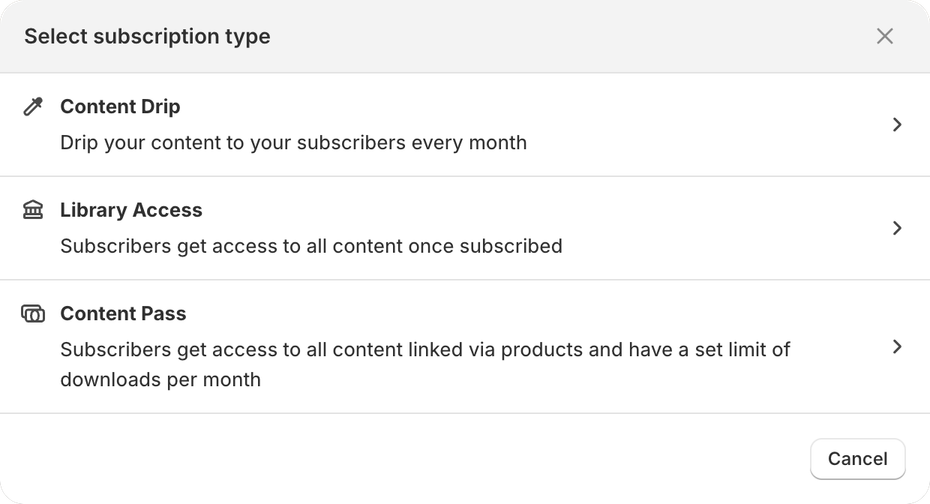
| Your idea | Content Vault type | What subscribers get |
|---|---|---|
| A monthly ebook club | Content Drip | New books on a schedule you set |
| A growing ebook library | Library Access | Every book in their plan, right away |
| A download pass for a big catalogue | Content Pass | A set number of downloads that refills on a schedule |
A Monthly Ebook Club: Content Drip
Content Drip sends subscribers new content on a schedule: every month on a day you choose, or every set number of days. Each release can hold one ebook or several files. It fits:
- A monthly recipe, pattern or puzzle book
- A novel released one part at a time
- A PDF magazine or newsletter
- A workbook series that builds month by month
There are two ways to run the schedule. By default, each reader starts at the first release and moves through the series from their own signup date. That suits books that should be read in order. With Send content by month of subscription turned on, everyone gets the same month's book, like a magazine, and new subscribers don't get earlier months.
A Growing Ebook Library: Library Access
Library Access gives subscribers every file in their plan as soon as they subscribe. It fits:
- A back catalogue of guides, cookbooks or study notes
- A membership where readers dip in and out
- A library you add to over time
It's also the answer to a common question: "Can new subscribers get the back issues?" With Library Access, yes. A reader who joins today gets every book in their plan on day one, and books you add to the plan later become available to existing subscribers too.
A Download Pass: Content Pass
Content Pass gives subscribers a download allowance, such as 3 ebooks every 30 days, across the books you link to it. The allowance refills on its own schedule. It fits a big catalogue where readers pick what they want, like a store with hundreds of short guides or printables.
Content Pass has fewer settings than the other two. It has no per-file or IP download limits, and subscribers can't pause or skip. If you want those, choose Content Drip or Library Access.
Not Sure? Run Two
You can run more than one subscription. For example, a monthly club for new books plus a library for the back catalogue. Pay As You Go, which has no monthly fee, allows two subscriptions, so you can test both. The help center's Which subscription type should I choose? compares the three in more detail.
How to Set Up a Monthly Ebook Club: A Worked Example
Say you publish a recipe ebook every month. You want to charge $9 a month, or $90 a year for readers who pay up front (two months free). Each new book goes out on the 1st of the month at 9:00 AM your time.
Step 1: Create the Product
In Shopify, create one product for the club, such as "Monthly Recipe Club", and give it a price of $9. You only need one product, even with a monthly and a yearly plan. Readers pick their plan on the product page.
Step 2: Create a Content Drip Subscription
Go to Apps → Content Vault → Subscriptions and click Create new Subscription. (In your Shopify admin, Content Vault is listed as Digital Subscriptions.) Choose Content Drip. Give the subscription a name, which only you see, then click Select product and add your club product.
Step 3: Add a Monthly and a Yearly Plan
Each plan is a tier with its own name, price and billing frequency. Plan names are what readers see, so keep them clear, like "Monthly" and "Yearly".
- Monthly: bill every 1 month. It uses the product's $9 price.
- Yearly: bill every 1 year. Tick Show advanced pricing options and set a fixed price of $90.
Billing and delivery are set separately, so yearly subscribers still get one new book a month.
Step 4: Set the Release Schedule
In each plan's drip settings, choose Every month with the 1st as the release day. Set the delivery time to 9:00 AM and pick your timezone. Turn on Release first drip immediately if you want new readers to get a book on the day they join.
Then choose how the series runs. Leave the default if each reader should start at book one. Turn on Send content by month of subscription if everyone should get the same month's book. Turning that on moves the release day to the day the plan was created, so set it back to the 1st afterwards.
Step 5: Choose Delivery and Protection Settings
Each plan has three more panels:
- Customer options: whether readers keep their books after they cancel or pause. Pause and skip are on by default.
- File delivery: a download email, links on the Thank You page and links in the customer account. All three are on by default.
- Download protection: optional limits, covered below.
Step 6: Save, Then Add Your Books
Click Save subscription, then Configure drip content. Click Add Drip for each release. Give it a name readers will recognize, like "October: Autumn Soups", add a cover image if you like, and attach the PDF with Select files or Upload files. The page saves as you go.
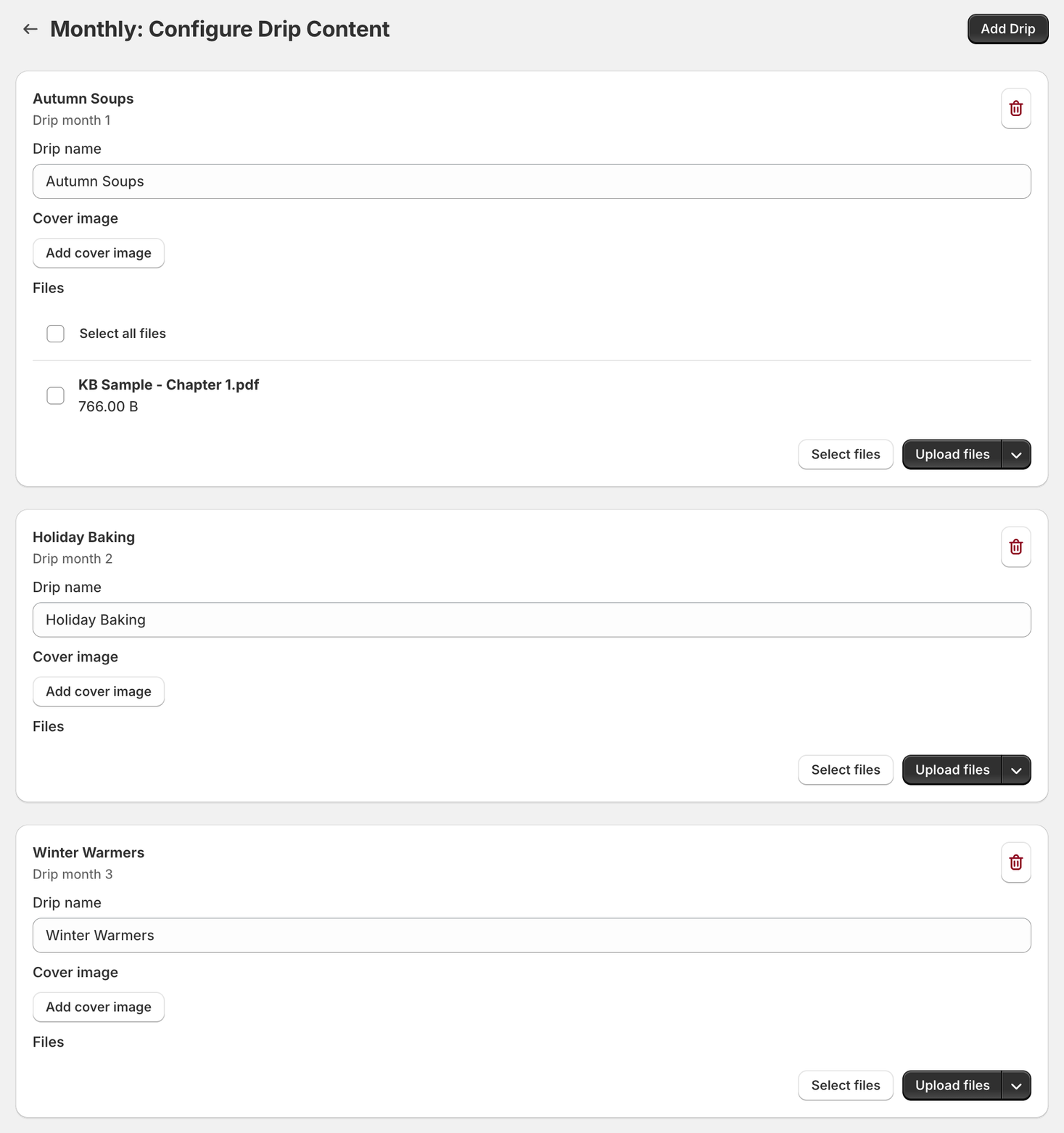
One thing to watch: each plan has its own drip content. Add the same books to the Monthly and the Yearly plan, or yearly readers won't get them.
Step 7: Turn On the Widget and Go Live
Check that the Subscription widget app embed is on, under Online Store → Themes → Customize → App embeds. That's what lets readers choose a plan on the product page. Also make sure Shopify's customer accounts are on and Content Vault's checkout and customer account blocks are added, so readers can find their download links and manage their subscription from their account. See Steps 4 and 5 in the install guide: turn on customer accounts and add the checkout and customer account blocks. Then click Set active on each plan and confirm.
The full walkthrough, with a screenshot of every panel, is in Setting up a Content Drip subscription. For a library instead, see Setting up a Library Access subscription, or Setting up a Content Pass subscription for a download pass.
What the $9 Club Costs to Run
Content Vault charges a fee on every successful subscription payment, including the first order. It's never charged on a failed payment. Here's what the fee comes to on one $9 payment:
| Plan | Plan price | Fee per payment | Fee on a $9 payment |
|---|---|---|---|
| Pay As You Go | Free to install | 4.95% + $0.25 | About $0.70 |
| Starter | $29/month | 1.95% + $0.15 | About $0.33 |
| Scale | $49/month | 0.95% + $0.10 | About $0.19 |
| Plus | $99/month | 0.50% | About $0.05 |
Shopify's own payment processing fee applies on top, as it does on any order. On Pay As You Go you pay nothing until you sell. Starter works out cheaper overall once you take about 79 payments of $9 a month. Starter, Scale and Plus each come with a 10-day free trial. For many ebook sellers, though, the features below matter more than the fee. See How does Content Vault pricing work? for the full plan details.
How Readers Get Their Ebooks
With Content Drip and Library Access, a new subscriber gets their download links in three places, all on by default:
- A download email when they subscribe
- The Thank You / Order Status page
- Their customer account
Each new Content Drip release also sends a New drip released email. With Content Pass, readers download from the product pages of the books in their pass, and each new book they download counts against their allowance.
Any file type works. Upload PDFs, EPUB or MOBI files, audiobooks or bonus ZIP files. Note that PDF stamping works on PDFs only, so an EPUB copy goes out without a stamp.
Fixing a typo is easy. On the Files page, open the book and click Replace. The new version replaces the old one everywhere it's used. You can also tick a box to email a new download link to customers who downloaded the old file and still have access. See How to manage files.
Emails can match your brand. You can edit every email template and add translations. On Starter and up, emails can also come from your own email address.
How to Protect Your PDFs
Once a file is on a reader's device, nothing can stop them from copying it. What you can do is make sharing riskier and harder. Content Vault gives you four layers.
1. PDF stamping (Starter and up). Content Vault writes the reader's details onto the PDF at the moment they download it. A stamp can use four variables: their name, their email, their plan's name and your store name. The stamp is visible text on the page. You choose its size, position, font, color and which pages it goes on. Your original file is never changed, and each reader gets their own copy. Stamping works on PDFs under 100 MB.
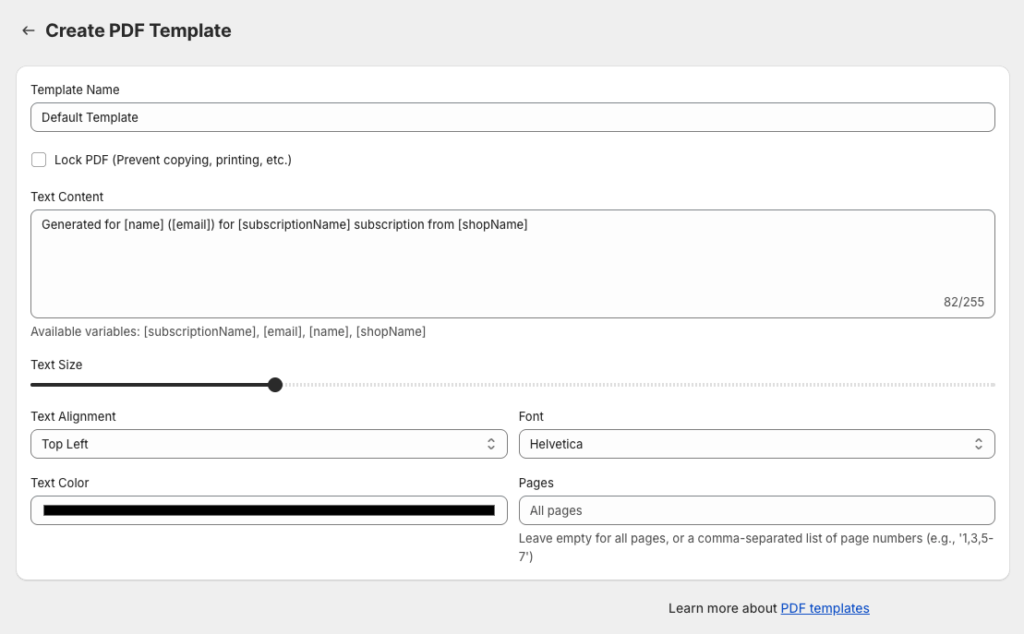
Each template also has a Lock PDF option that tells PDF readers to block copying and printing. Treat it as a deterrent, since not every PDF reader honors it. The steps are in Setting up PDF stamping & watermarks.
2. Download limits. On Content Drip and Library Access subscriptions, you can cap how many times each file can be downloaded (on every Content Vault plan). You can also cap how many IP addresses can download one reader's files (Starter and up). The IP limit is the main defense against a reader passing their links around. Start generous, though: an honest reader might use a phone, a laptop and a work computer. More in How to limit file sharing.
3. Fraud detection (Starter and up). The paid plans add the IP limit, the option to cancel a subscription when its payment retries fail, and holding orders that Shopify flags as fraud.
4. Access that ends with the subscription. Each plan has one setting for what happens when a reader cancels or pauses. Either they keep the books they already have, or they lose access when their paid period ends. Either way, they get no new books.
None of this is DRM, and a determined reader can still share a file. For most ebook sellers, a stamp with the reader's name and email does the most to stop casual sharing. Our PDF watermarking guide goes deeper.
What Each Plan Includes for an Ebook Business
| Feature | Plan needed |
|---|---|
| Content Drip, Library Access and Content Pass | Every plan (Pay As You Go: up to 2 subscriptions) |
| Download email, Thank You page and account links | Every plan |
| Download limit per file | Every plan |
| Analytics | Every plan |
| PDF stamping | Starter and up |
| IP address limits and fraud detection | Starter and up |
| Emails from your own address | Starter and up |
| Video streaming, for bonus video | Plus |
Tips for Keeping Ebook Subscribers
- Make the first book one of your best. Readers decide early whether a subscription is worth keeping.
- Name every release. Your release emails can show each drip's name and cover image, and "October: Autumn Soups" says more than "Drip 4".
- Offer a yearly plan. It gives readers a reason to commit, and you get the year's payment up front.
- Launch with a discount. A plan that uses the product's price can take a percentage off for a set number of billing cycles, like 20% off the first 3 months. Fixed-price plans can't.
- Raising prices later. When you edit the price set on a plan itself, like the Yearly plan's $90, or the Shopify product's price behind a plan, like the Monthly plan's $9, existing subscribers keep the price they signed up at. New subscribers pay the new one.
- Try a free trial. You can also give new subscribers a free trial.
- Ask why people leave. On Content Drip and Library Access, readers are asked for a cancellation reason by default. You'll find the reasons on the Customers page.
- Watch your numbers. The Analytics page shows MRR, churn rate and your most-downloaded files on every plan, so you can see which books land.
Related Guides
- Content drip marketing: how to plan a release schedule that keeps subscribers
- PDF watermarking: what PDF stamps can and can't do
Frequently Asked Questions
Can new subscribers get the earlier books?
With Library Access, yes: they get every book in their plan right away. With Content Drip, each reader starts at the first release by default. With Send content by month of subscription turned on, they don't get earlier months.
Can I sell EPUB files as well as PDFs?
Yes. Content Vault supports all file types. PDF stamping only works on PDFs.
What happens to a subscriber's books when they cancel?
You choose for each plan. Either they keep the books they already have, or they lose access when their paid period ends. They get no new releases either way.
Can I offer monthly and yearly plans?
Yes. Add both as tiers of one subscription, each with its own price and billing frequency. Readers choose their plan on the product page.
How much storage do ebooks need?
Pay As You Go includes 1 GB of storage, Starter 10 GB, Scale 150 GB and Plus 500 GB. Every plan has unlimited bandwidth. Text-heavy PDFs are usually small, while image-heavy books like cookbooks take more room. If you reach your limit, new uploads are blocked, but existing files keep working.
Can I also sell single ebooks?
Content Vault sells subscriptions only. For one-time ebook sales, our sister app ABC Digital Downloads handles single downloads.
Related reading


Want to try Content Vault?
Turn your digital files into a recurring subscription on Shopify in minutes.